4 - 13
IPN 074-397-P1G
HAPSITE Smart Operating Manual
4.8 Saving Files to the USB
If the HAPSITE is being used in a portable mode, with no laptop, the datafile can
be saved to the USB drive and then loaded on the laptop for analysis. Table 4-6
gives instructions for saving files to the USB drive.
HINT: Data is always saved to the hard drive on the HAPSITE Smart and, if
connected to the laptop, data will be saved there as well. Saving files to the
USB drive is designed for times when the laptop and HAPSITE Smart are
not going to be paired for communication (via ethernet or wireless
connections). In this instance, data can be placed on the USB drive and
later transferred to the laptop for analysis.
Table 4-6 Saving Files to the USB Drive
Step Description
1 Open the front panel of the HAPSITE
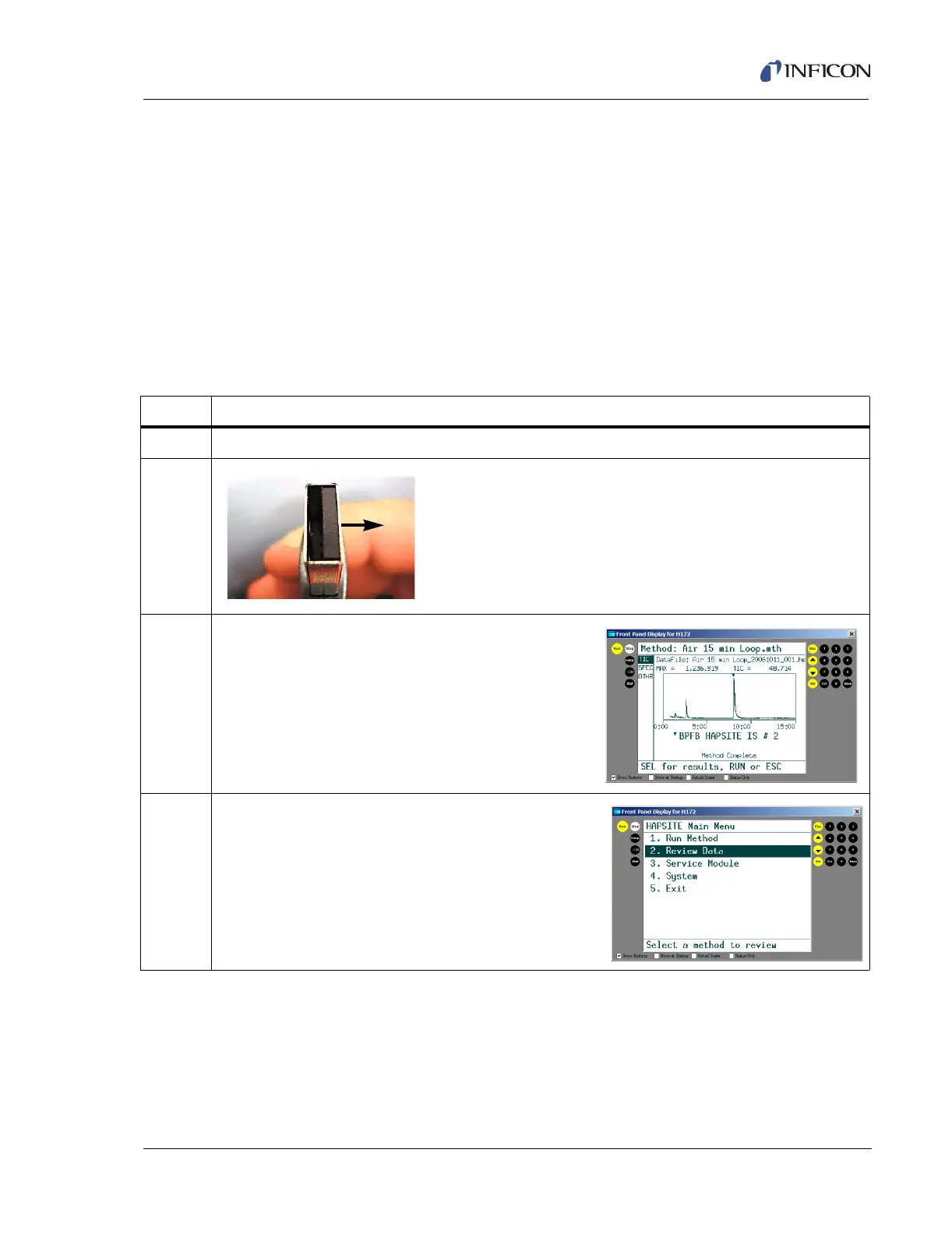
2 Insert the USB drive into the USB port (located on the top left
hand side). Close the front door of the HAPSITE.
NOTE:When inserting the USB drive, the solid portion should be
on the right.
3 To save a file for a method that has just completed,
press the SAVE button on the front panel of the
HAPSITE.
NOTE: If the file was run previously, proceed to step
4 for further instruction.
4 To save a previously run file from the Main Menu,
highlight choice 2. Review Data and press SEL.



 To Next Page