137
Ex) To Save Settings to EVENT 23
Successively press EVENT > PAGE > 2 > STORE > (Select data in the menu.) > 3.
If Events are Already Saved:
When EVENT is pressed, the number buttons light up if events are saved. If you press a
button where an event is already saved, it flashes. Pressing the button again overwrites the
event. If you press another button that has no event already saved before overwriting, the
event will be saved to that button.
If you cannot overwrite data, change OVERWRITE to ENABLE in the menu. (See Sec. 19-3.
"Overwrite Protection.")
<Detailed Data Selection when Saving Events>
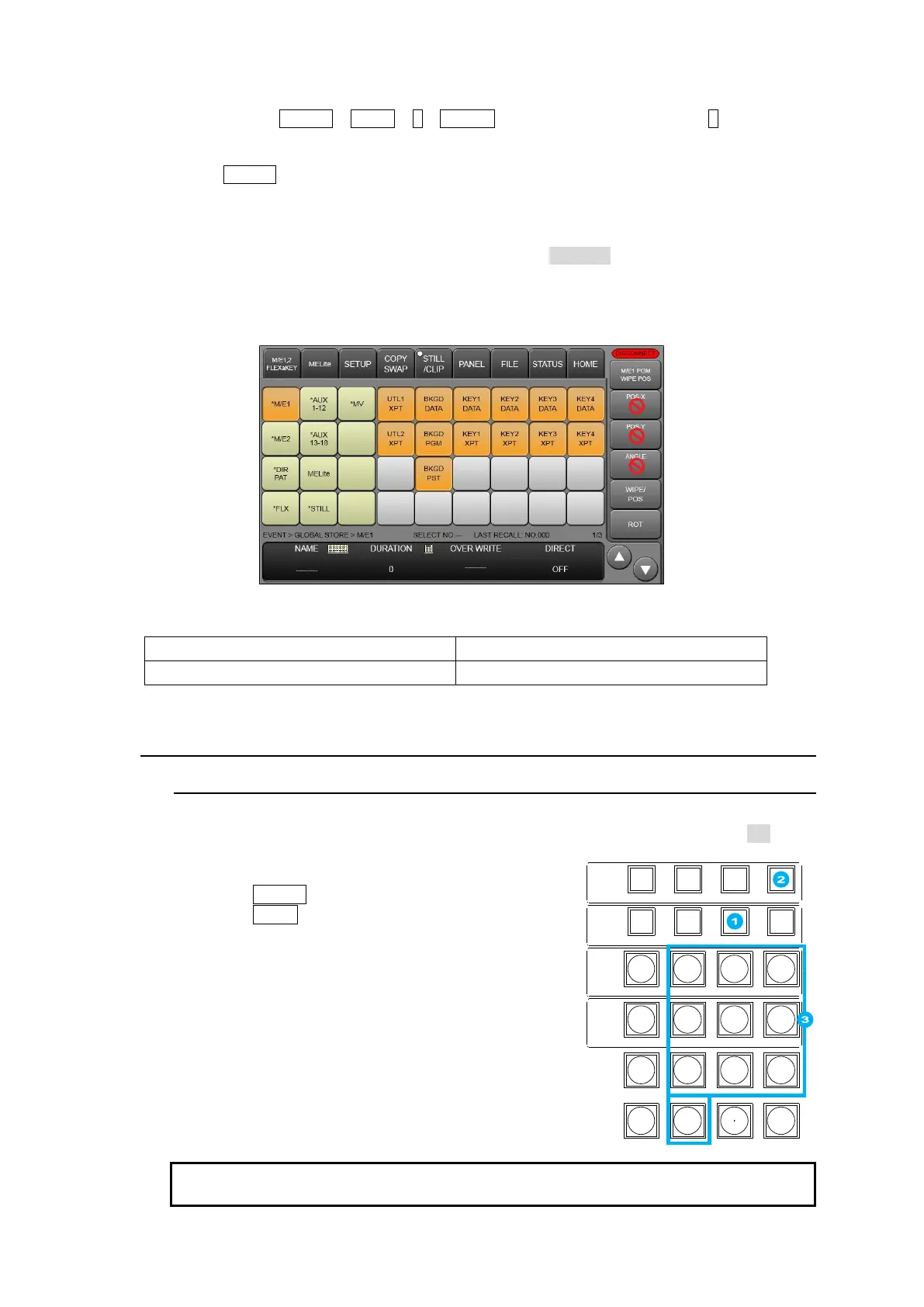
Tap to turn On/Off data button lights to select the saved data.
Items NOT stored in events
19-2. Recalling Events
19-2-1. DIRECT Mode
Events can most quickly be recalled in Direct Operation mode. However, loaded data cannot
be selected while recalling events. To use Direct Operation mode, set DIRECT to ON in the
EVENT menu before recalling events.
(1) Press EVENT in the MEMORY block.
(2) Press PAGE above the keypad.
Select a page by pressing a number button.
(3) Press the number button where the needed
data is stored.
The selected event will be applied to the panel.
Once an event is loaded, the event number is displayed under LAST RECALL in the [EVENT
MEMORY] menu, which will help you to identify the last recall event number.
CONTROL
MEMORY
M/E1
M/E2
MENU LOCK KEY PRI PAGE
DIRECT PATT MACRO EVENT SEQUENCE
INC
DEC
7 8 9
4 5 6
1 2 3
0
RECALL STORE
ENTER
CLEAR
+ / -
CK WIPE SUB EFF
FLX4FLX3FLX2FLX1
KEY1 KEY2 KEY3 KEY4
KEY1 KEY2 KEY3 KEY4



 To Next Page