82
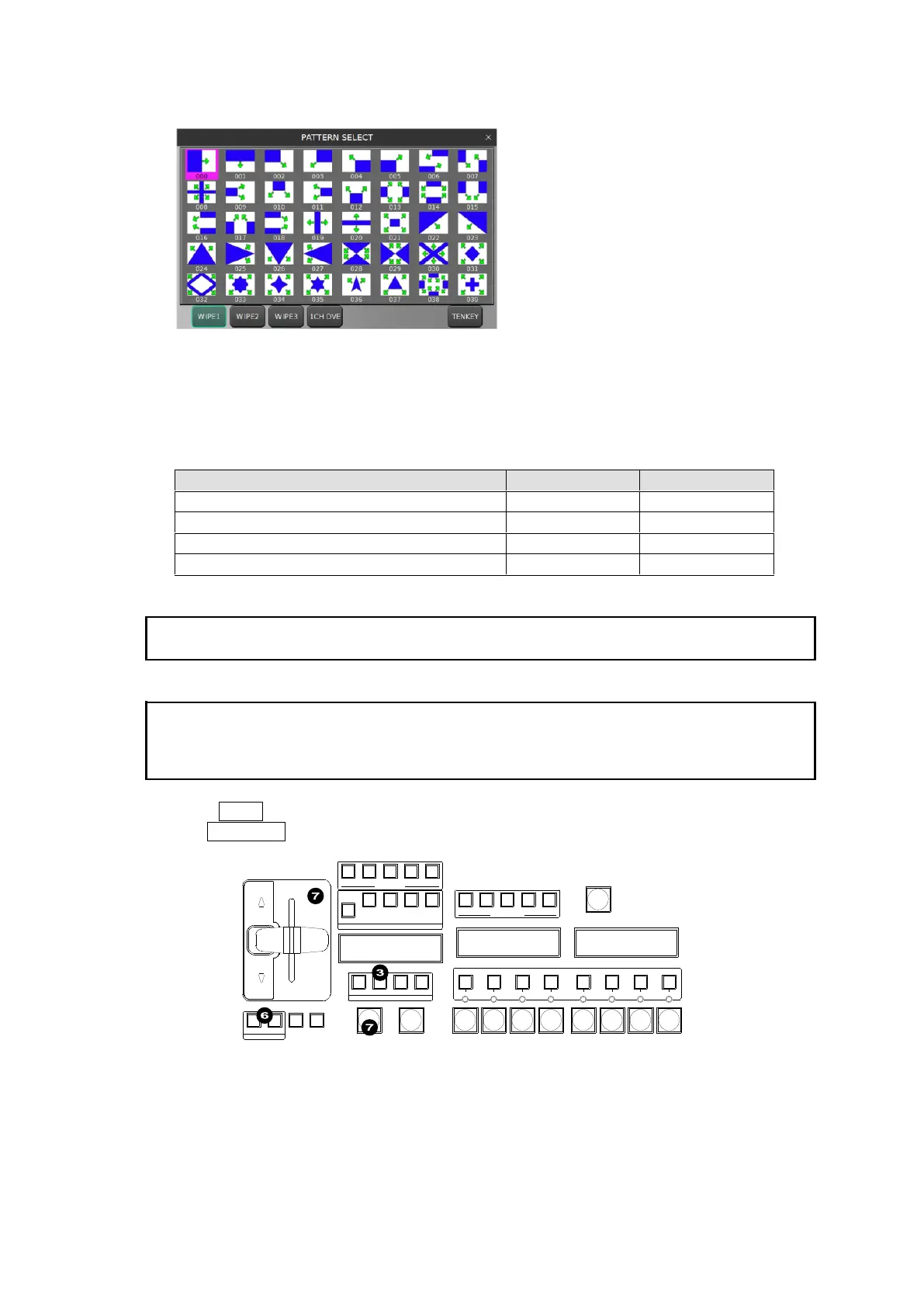
Tapping PATTERN NO. opens the following pop-up window and allows you to easily select a
pattern.
(5) Users can modify the pattern here to add a border, change the aspect ratio, the start position,
and so on.
See Sec. 11-9. “Modifying Patterns” for more details. Note that Direct Patterns can save/load
modified pattern data.
(6) Set the direction of transition using the direction buttons.
Normal at Normal/Reverse operation
Reverse at Normal/Reverse operation
The AUTO transition duration (Transition Rate) can be set in the menu.
See Sec. 11-12-1. “Transition Rate.”
When performing transitions there may be times when you want the transition to the next signal
to only complete to a certain degree instead of fully switching from one picture to another. In such
case, change the Fader Level value in the menu and turn on FADER LIMIT. See Sec. 11-12-2.
"Using Fader Limit."
(7) Press AUTO or move the fader lever to perform the background pattern transition.
The KEY AUTO buttons are available for KEY1-4 pattern transitions.
BLACK
TRANS
16 17 18 19 20
USER BUTTON
ON AIR
DVE DVE DVE DVE DVE DVE DVE DVE
KEY1 KEY2 KEY3 KEY4
FLX1 FLX2 FLX3 FLX4
USER BUTTON
11 12 13 14 15
KEY1 KEY2 KEY3 KEY4
NEXT TRANSITION
BKGD
TRANSITION TYPE
MIX WIPE EFF1 EFF2
AUTO CUT
FADER LIMIT
TRANS
RATE
PATTERNNOR/REVREV
DIRECTION



 To Next Page