343
Chapter 7
7.21 Web/Remote Desktop Linkup
7.21.1 Web Linkup
1
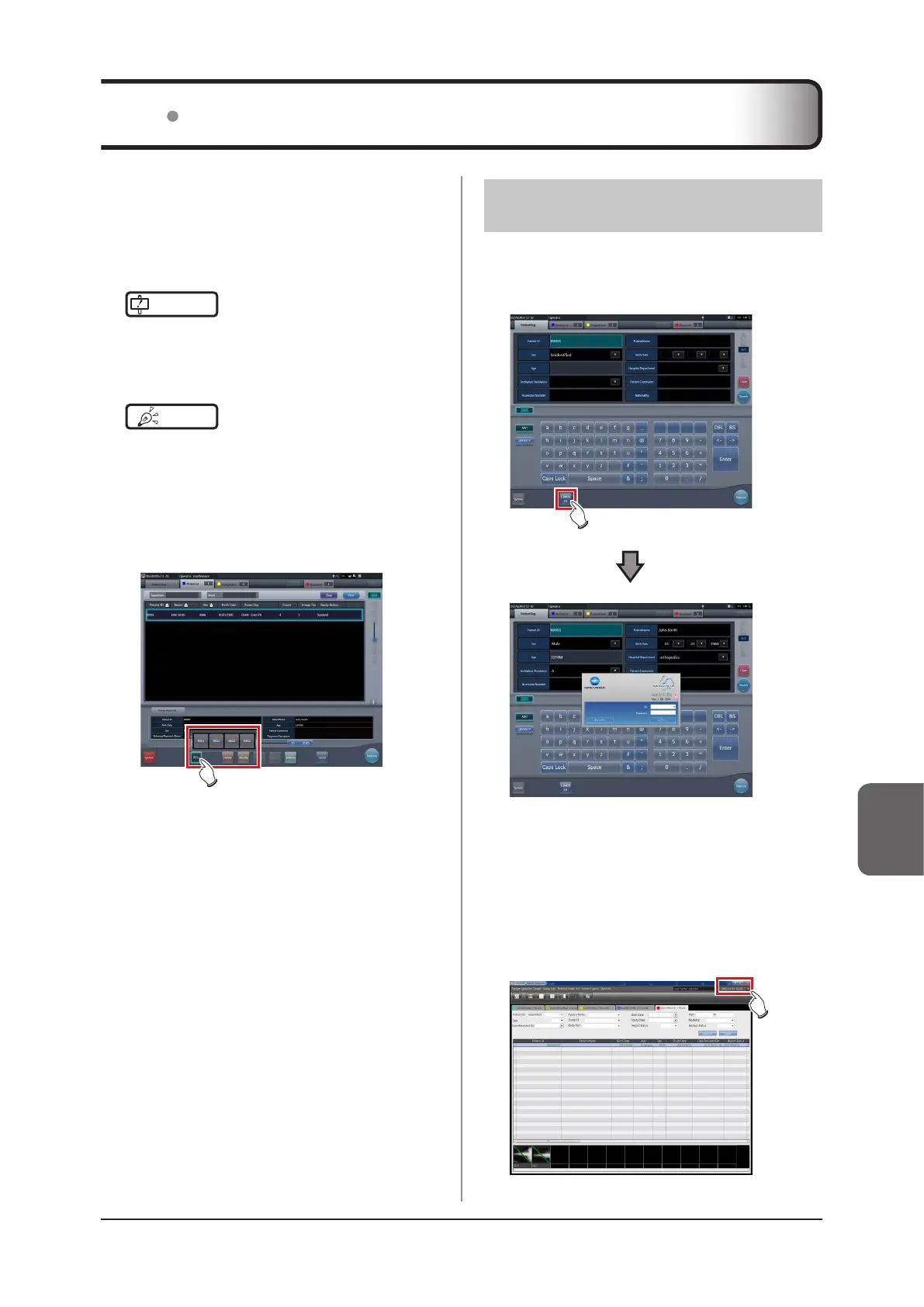
Press the [Web Linkup] button on the pa-
tient registration screen or the list screen.
• The login dialog of the registered Acies client or
the specified web page on Internet Explorer is
displayed.
2
Once operation of the connected device is
finished, minimize or close the Acies cli-
ent or Internet Explorer, and return to this
device's screen.
If the Web/Remote Desktop Linkup is enabled, you
can start Acies client using the [Web Linkup] on the pa-
tient registration screen or list screen, start the Remote
Desktop function using the [Remote Desktop Linkup],
and operate the RIS client, etc. on the same terminal.
IMPORTANT
•••••••••••••••••••••••••••••••••••••
• The Web/Remote Desktop Linkup allows to connect
up to two personal computers simultaneously.
•••••••••••••••••••••••••••••••••••••••••••••••••••••
HINT
•••••••••••••••••••••••••••••••••••••
• The name you have registered during installation is
displayed as the name of the [Web Linkup] or [Remote
Desktop Linkup] button.
• If multiple connection destinations are registered, long
pressing [Web Linkup] or [Remote Desktop Linkup]
displays sub menus for you to select a connection
destination displayed on the Remote Desktop.
• The name of the connection destination selected from
the sub menu is displayed as the name of the [Web
Linkup] or [Remote Desktop Linkup] button.
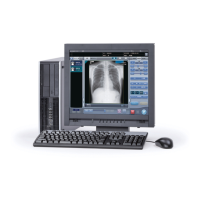
• The screen for the linked devices below are examples
only.
•••••••••••••••••••••••••••••••••••••••••••••••••••••




 To Next Page