Point User Guide 87
Print and e-mail options
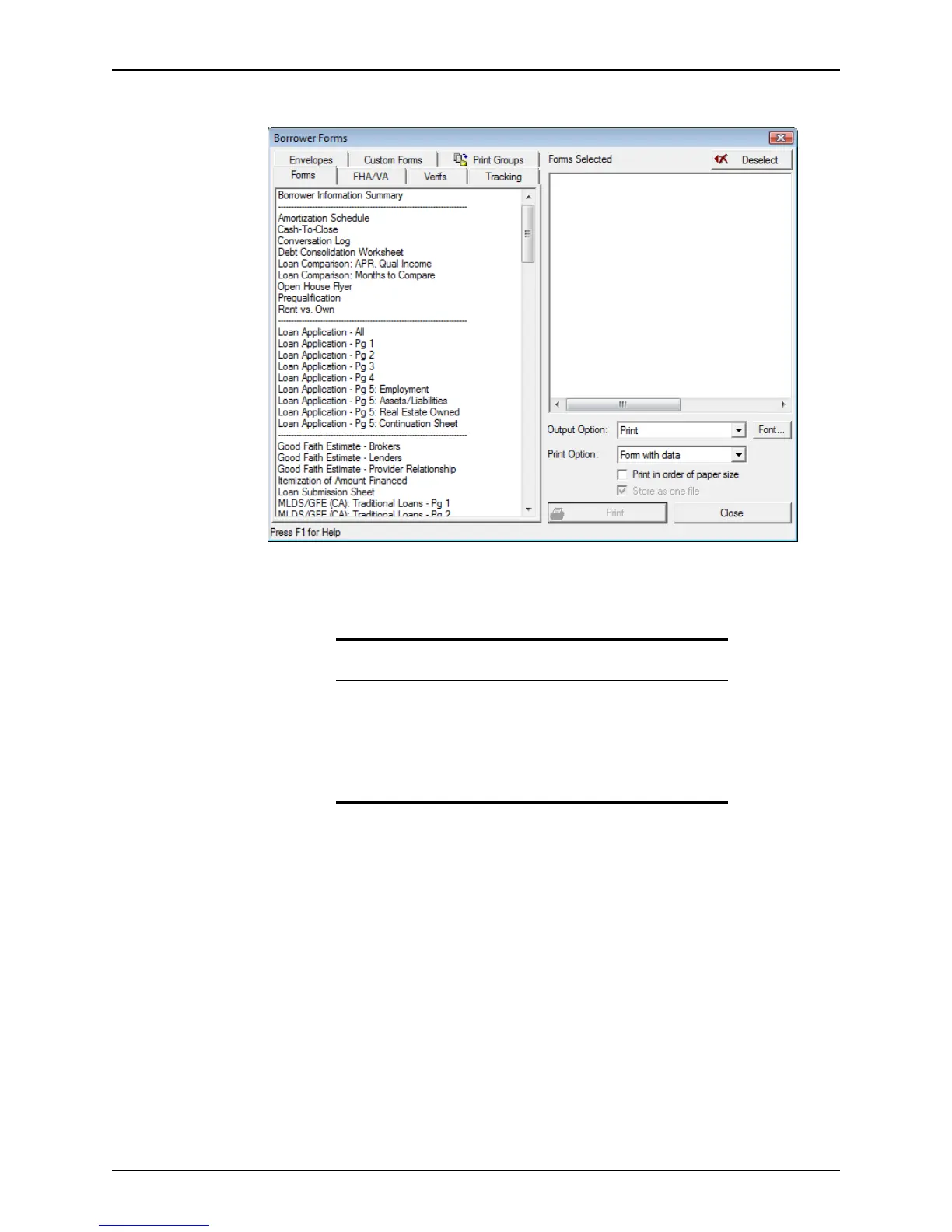
The Borrower Forms dialog box is displayed.
3 Select the forms to print.
The selected forms are listed in the right side of the dialog box. Use the tabs in the
Borrower Forms dialog box to locate different form types for selection.
4 Select Print from the Output Option dropdown list.
Select Print Preview to review the forms before printing. You can also e-mail the
collection of forms as a PDF document or save the collection of forms as a PDF
document.
5 To customize the form font, click the Font button and make your selections.
6 Select Form with data from the Print Option dropdown list.
You can also print blank forms and forms that contain only company-specific data,
such as name and address.
7 If your forms use multiple page sizes, select the
Print in order of paper size check box
to group the page sizes together.
8 Click the Print button.
Tip
To print the entire Loan Application and avoid selecting each page
individually, select Loan Application - All from the forms list.
If the
Loan Application contains more than four employers, six
liabilities, or 20 Real Estate Owned (REO) items, continuation sheets are
printed after the last page of the
Loan Application. One continuation
sheet contains 22 REOs.



 To Next Page