452 Calyx Software
Contact management (Cardex)
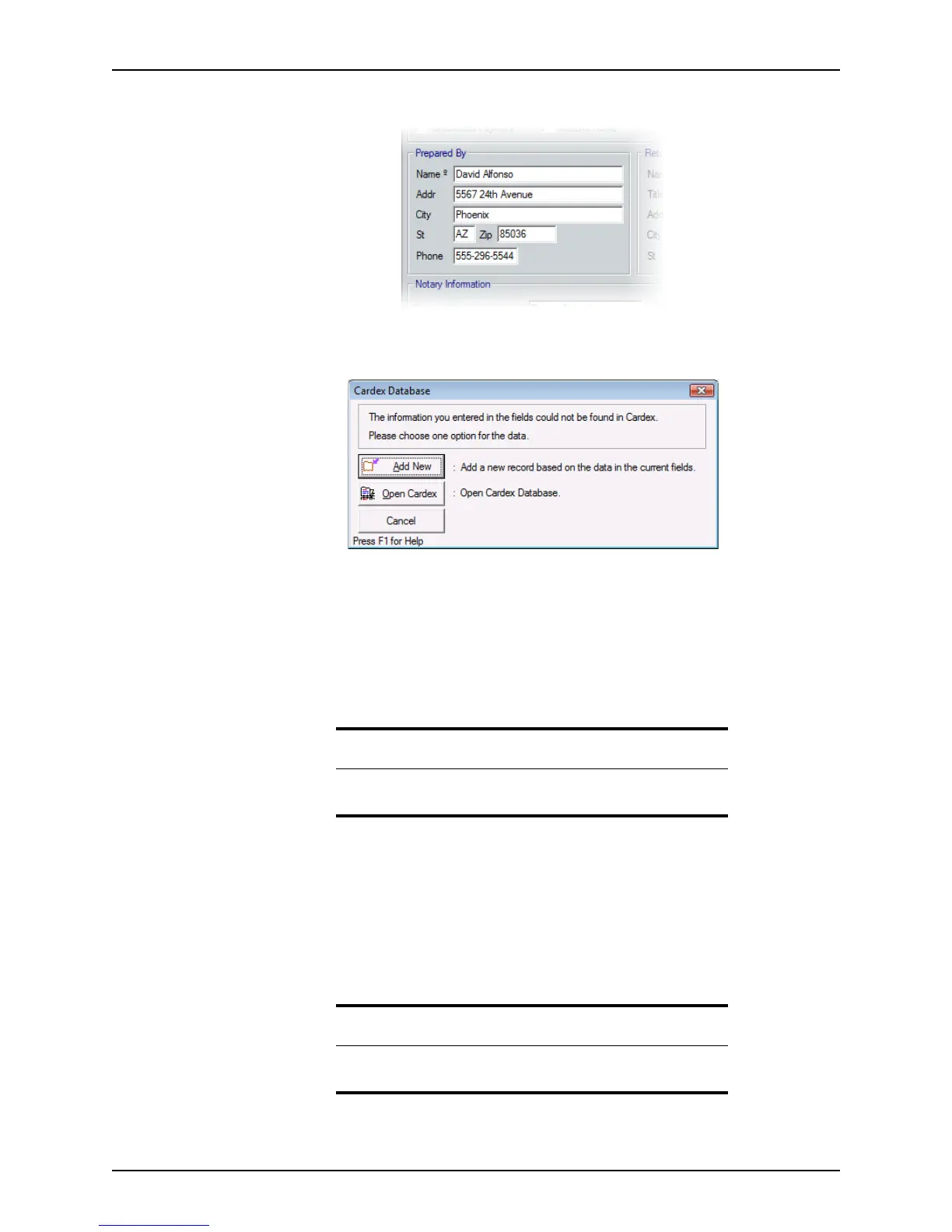
The Prepared By section in the Recording screen is used in the following example:
3 Select one of the fields and click the Cardex icon on the toolbar.
The
Cardex Database dialog box is displayed.
You can add a new record or open the Cardex database.
4 Click Add New.
The
Cardex Record dialog box is displayed with the information from the form
populated in the fields.
5 Select a category for the record and add any additional information.
6 Click Save & Close to save the record.
Data import and export
Use the import and export functions to import and export the following types of data to and
from your Cardex database:
• Microsoft Outlook® contacts
• Another Cardex database
• A comma delimited file
Related information
For information about Cardex categories, refer to Creating categories, on
page444.
Attention
If the file type that you want to import is not one of the three supported
formats, convert your source file to a comma delimited file.



 To Next Page