Point User Guide 387
Creating custom reports
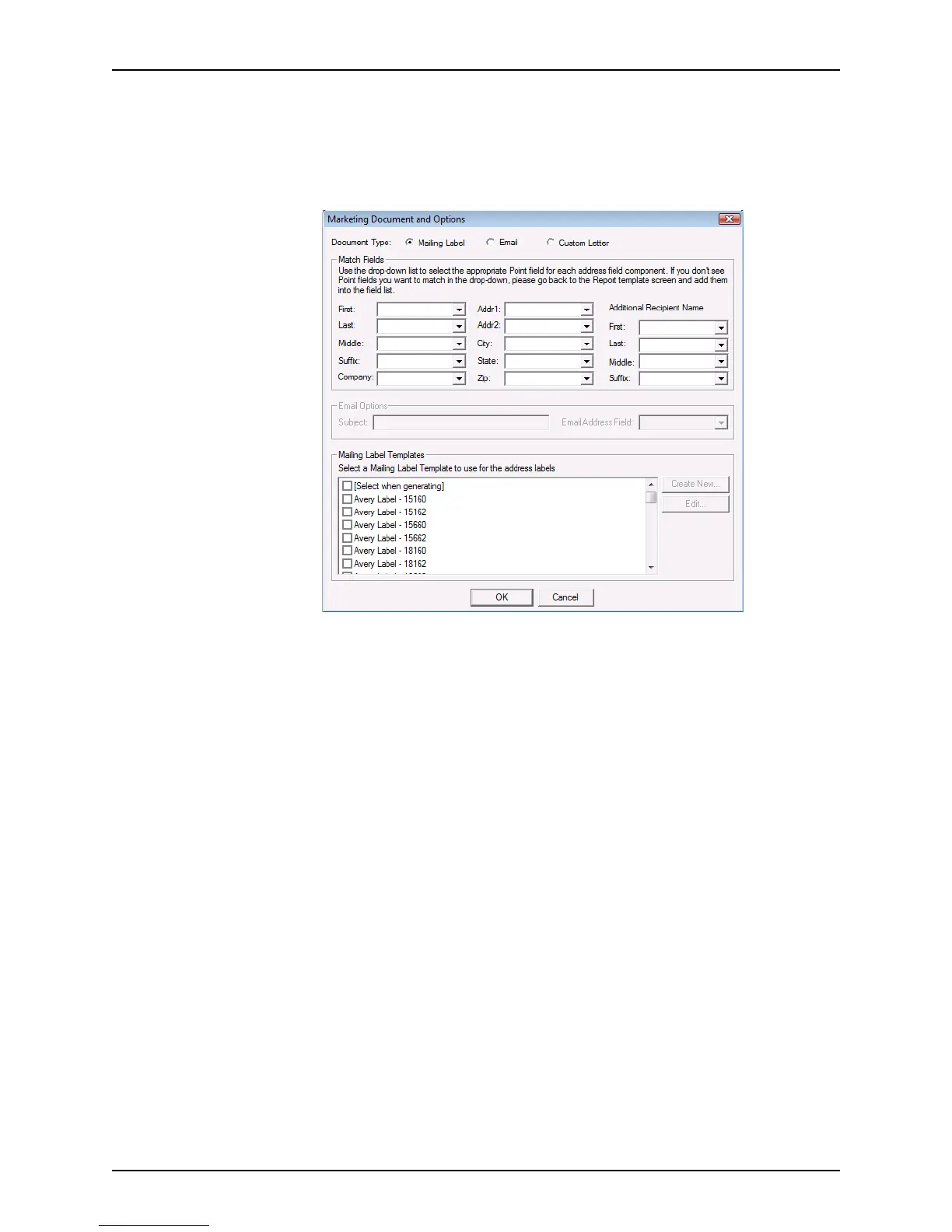
Adding a link to a mail merge document
To add a link to a document:
1 Click the Add Link... button.
The
Marketing Document & Options dialog box is displayed.
2 Select one of the following document types:
• Mailing Label (go to Step 3)
•
Email (go to Step 4)
•
Custom Letter (go to Step 5)
3 If you selected
Mailing Label:
a In the
Match Fields section select a Point field for each address field component.
The list of fields is retrieved from the report template. If a field that you need is not
listed in the dropdown list, update the report template to include the field.
b In the
Mailing Label Templates section, select an option to use for address label.
If you select
[Select when generating], you are prompted to select from a list of
Avery labels when you generate the report.
c Click OK.
4 If you selected
Email, complete the Email Option section.
a Enter a subject for the e-mail in the
EmailSubject field.
b In the
EmailAddressField field, select the report field that contains the e-mail
address of the recipient.
The list of fields is retrieved from the report template. If a field that you need is not
listed in the dropdown list, update the report template to include the field.
c Click OK.
5 If you selected
Email or Custom Letter, select a custom document from the Email/
Custom Letter Content Document
list and click OK.
This list contains the documents that were created with the Custom Forms feature.



 To Next Page