Point User Guide 65
Enabling autofill options
3 Enter your 7-digit organizational identification number In the Organizational
Identification Number field and click OK.
Enabling autofill options
Save time when you enter addresses by setting the Zip Code Options to auto-populate
the associated
City, County, and State fields when you enter a ZIP code.
To enable the auto fill options:
1 Select Utilities > Zip Code Options.
The
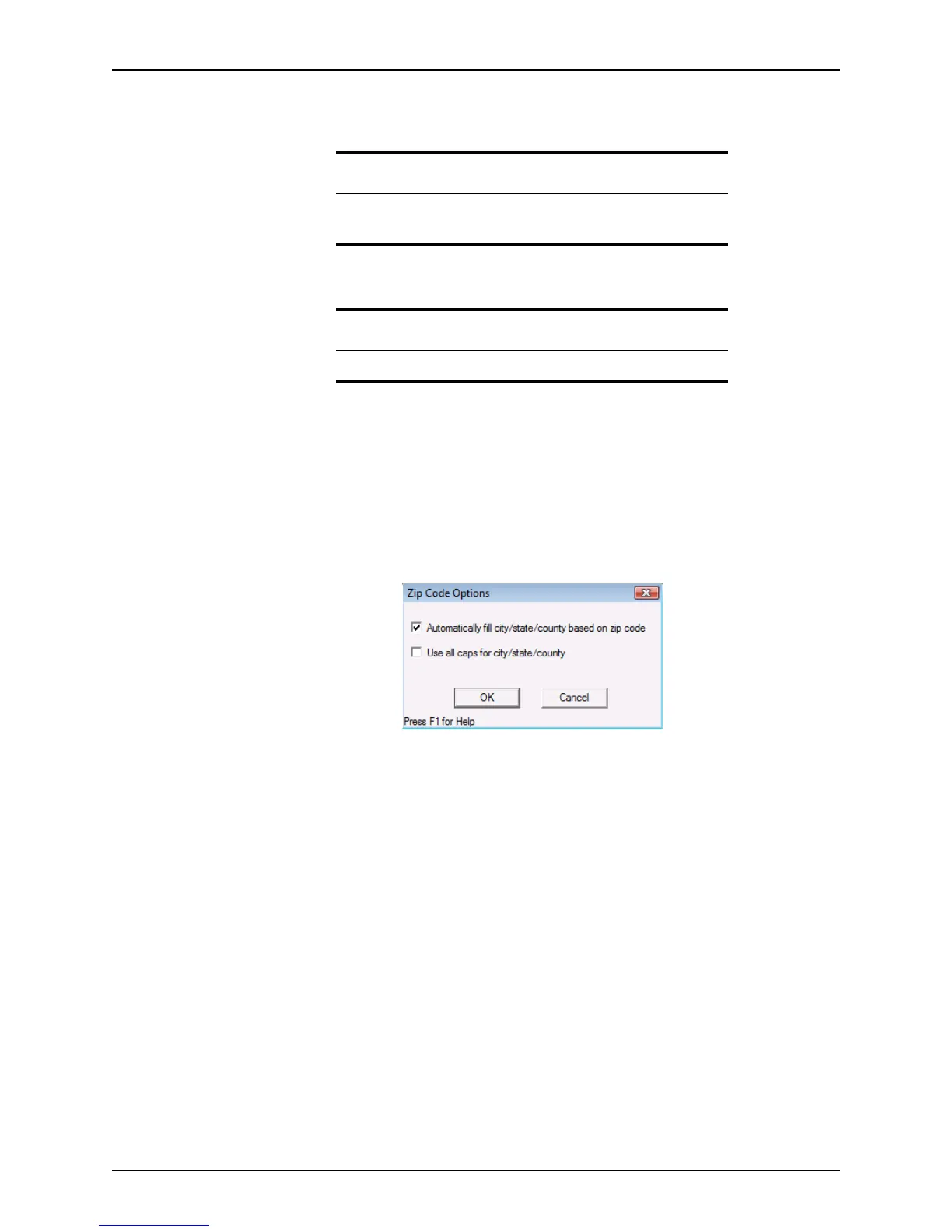
Zip Code Options dialog box is displayed.
2 To autopopulate the
City, County, and State fields, select the Automatically fill city/
state/county based on zip code
check box.
3 Select the
Use all caps for city/state/county check box to display city, county, and
state in all capital letters.
4 Click OK.
Identifying fields and field IDs
Field IDs are used when importing and exporting data, creating custom forms, and
creating report templates.
The following methods are available from the Utilities menu to identify fields:
Enable Field pop-up help
Use the Enable Field Pop-up Help option to cause the field name and ID to pop
up when you hover the cursor over the field.
Displaying field IDs
Use the Display Field ID option to enable Point to display the selected field ID in
the task bar at the bottom of the workspace.
Tip
To override automatic MERS MIN generation for a specific field, select
the lock box
next to the field.
Related information
For more information about MERS, refer to www.mersinc.org.



 To Next Page