454 Calyx Software
Contact management (Cardex)
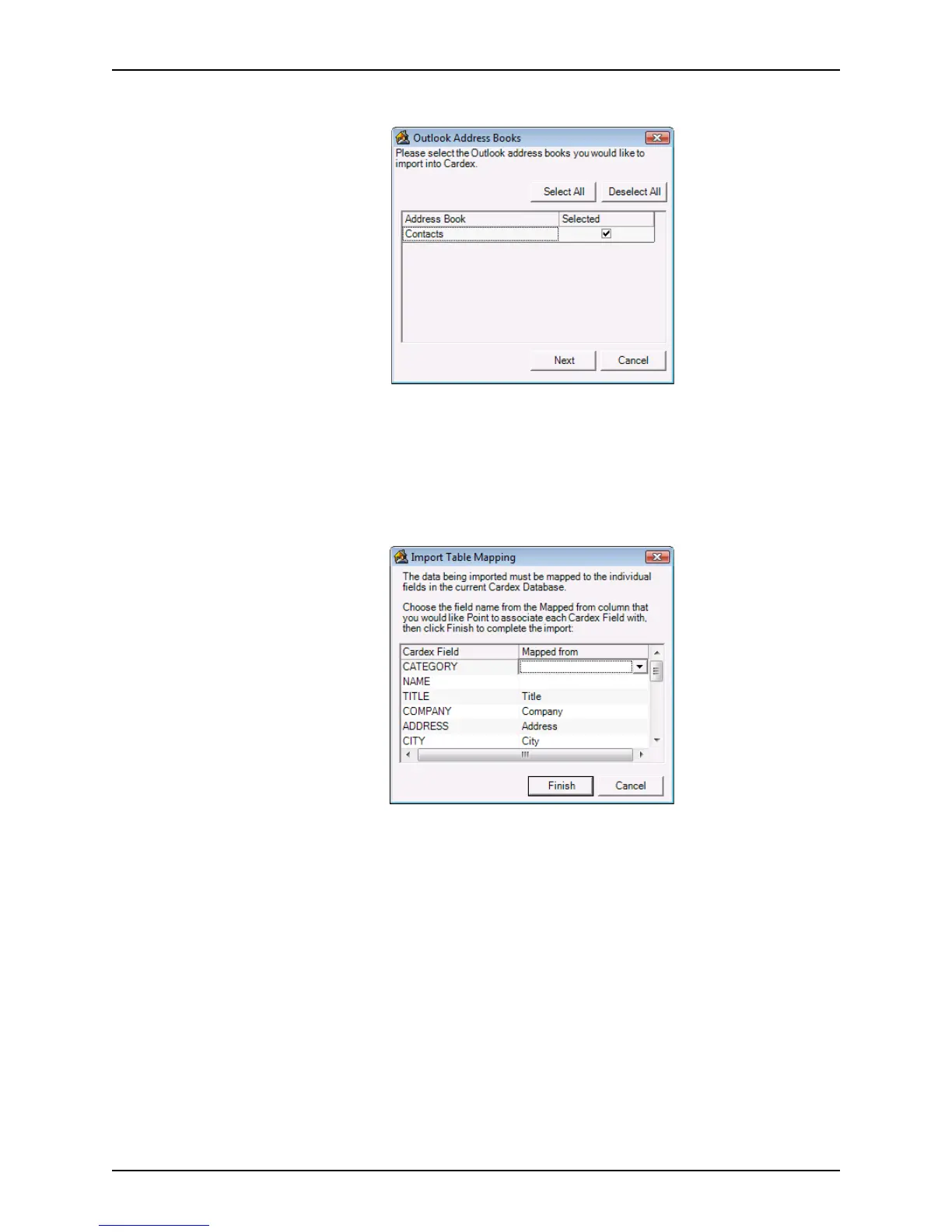
The Outlook Address Books dialog box is displayed.
This dialog box contains a list of your Outlook Address Books and Contact Lists that
are recognized by Point. By default, all items are checked in the Selected column.
4 Select or deselect individual items, or use Select All or Deselect All to change the
options.
5 Click Next.
The
Import Table Mapping dialog box is displayed.
6 For each Cardex field, select the Outlook field to map it to from the corresponding
Mapped from dropdown list.
Map as many fields as needed. Unmapped fields will remain empty.
7 Click Finish to launch the import.
The records from your Outlook files are added to your Cardex database.
Importing comma delimited files
To import comma delimited files into Cardex:
To import an external Cardex database file into your Cardex database:
1 Select Utilities > Cardex Database.
2 In the
Cardex Database [Browsing for all records] dialog box, select File >
Import.



 To Next Page