428 Calyx Software
Tasks
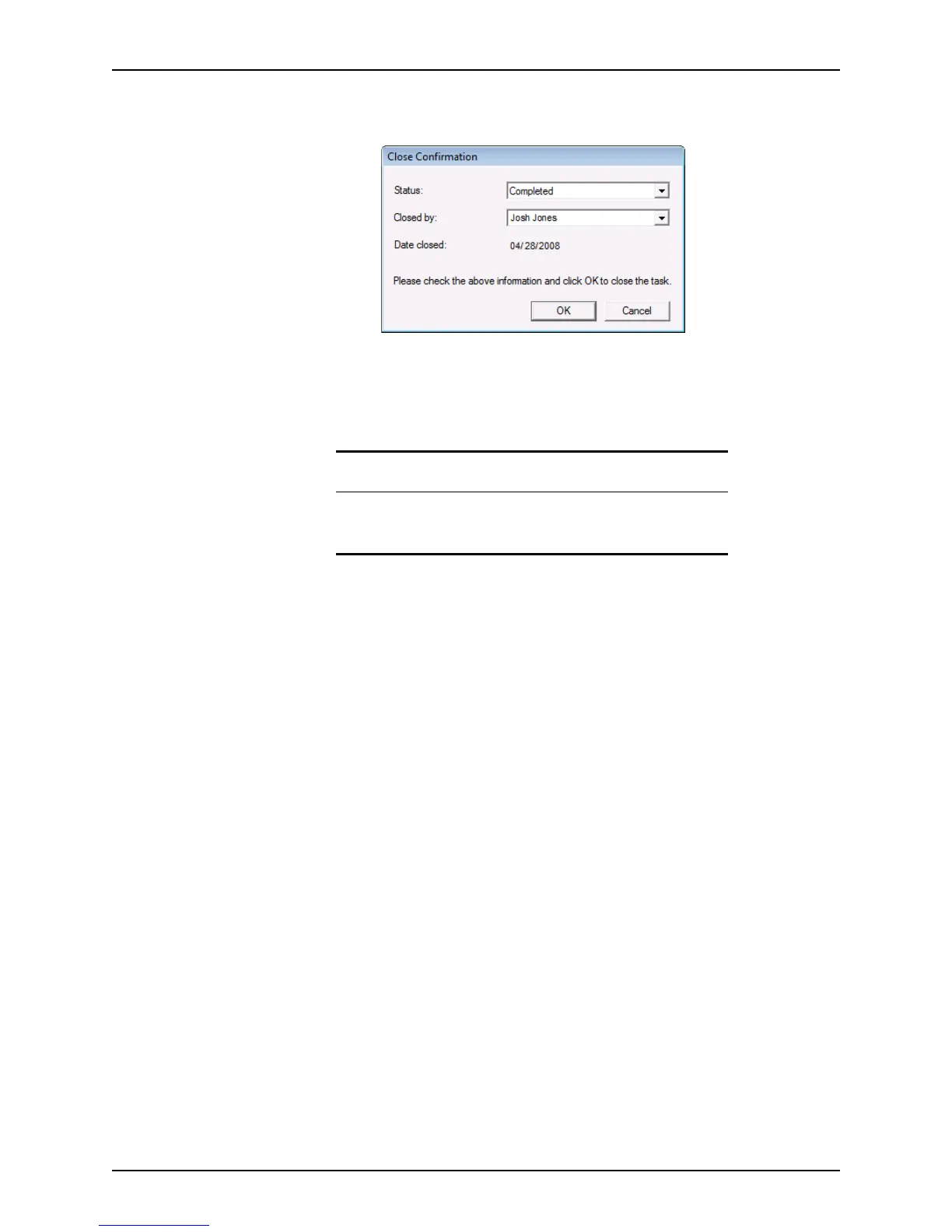
10 To update the status, click the check box to open the Close Confirmation dialog box
for that task.
a The
Status field is automatically populated with Completed. To change the status,
select an option from the dropdown list.
b The
Closedby field is automatically populated with the current user. To change the
closer, select an option from the dropdown list and click OK.
Searching for tasks (advanced search)
Use the Advanced Search function to define more specific search criteria to further refine
your search.
To perform an advanced search for a task:
1 Select the Tasks tab on the navigation panel.
2 Select (Advance Search) from the Search For dropdown list or click the Advanced
Search button.
Related information
For more information about creating, editing, and printing tasks, refer to
Creating tasks, on page423, Editing tasks, on page430, and Printing
tasks and task lists, on page432.



 To Next Page