Point User Guide 427
Searching for tasks
2 Select All Open Tasks or All Overdue Tasks from the Search For dropdown list.
3 Select All Folders or Current Folder from the In dropdown list.
4 Click Search.
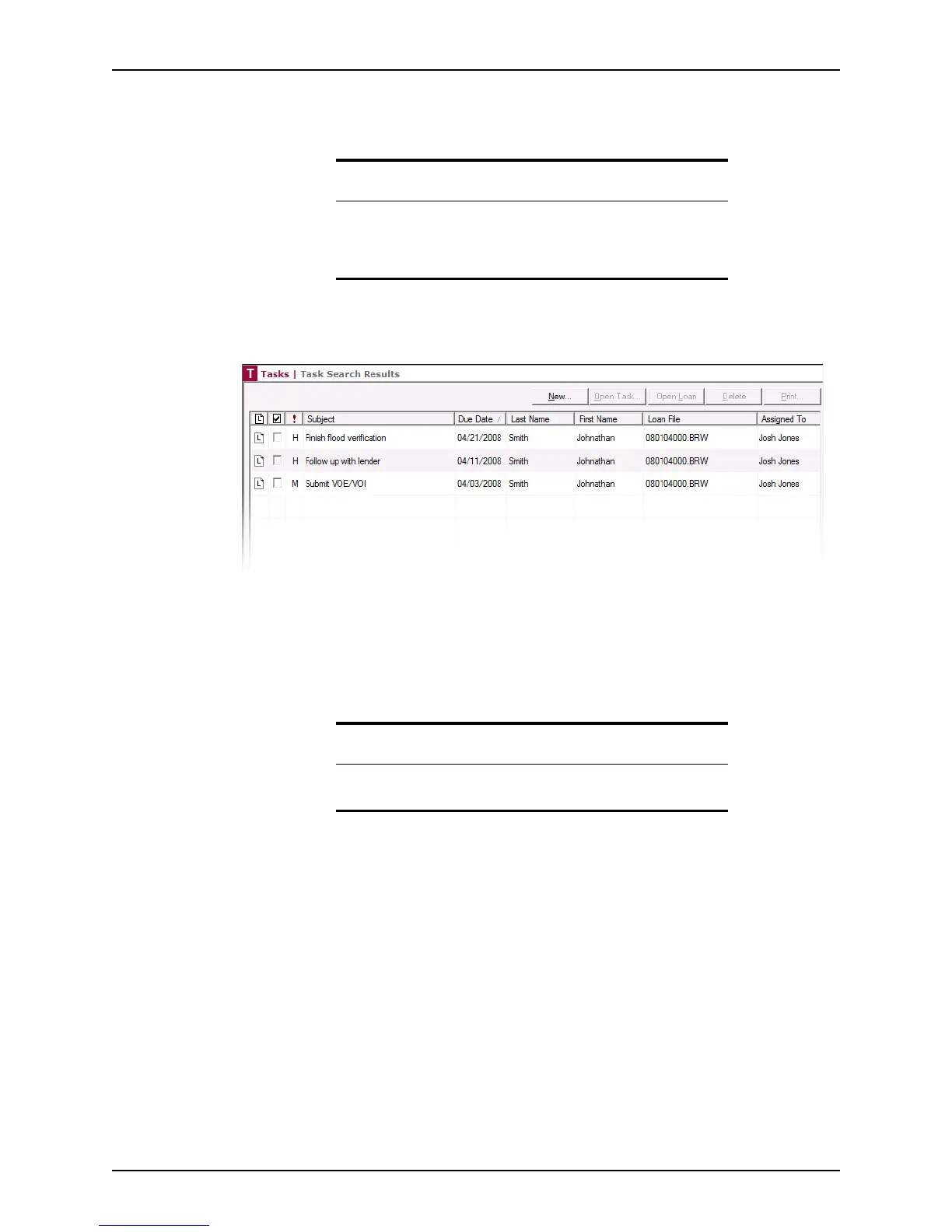
The tasks that match the search criteria are displayed in the work space.
The Task Search Results contains the task priority, subject, due date, name on the
loan file, loan number, and who is assigned to the task.
5 To create a task, click New.
6 To view or edit a task, select the task and click Open.
7 To delete a task, select the task and click Delete.
8 To print a task or a task list, select the task and click Print.
9 To open the associated loan file, click the “L” icon at the beginning of the task record.
Attention
The current folder is determined by the folder that is selected in the Data
Folder dropdown list on the Loans tab. To change the current folder, go
to the Loans tab and change the selection in the Data Folder dropdown
list.
Caution
Verify that you have selected the correct task before clicking Delete.
Point does not have a recycle bin.



 To Next Page