432 Calyx Software
Tasks
Printing tasks and task lists
You can print your entire task list, a group of selected tasks, or a single task. You can also
print the task details or only a summary of the task.
To print tasks and task lists:
1 Select the Tasks tab from the navigation panel.
2 Perform a search to retrieve the tasks you want to print.
3 To print one task, select the task. To print multiple tasks, press <Ctrl> and click each
task.
4 Click the Print button.
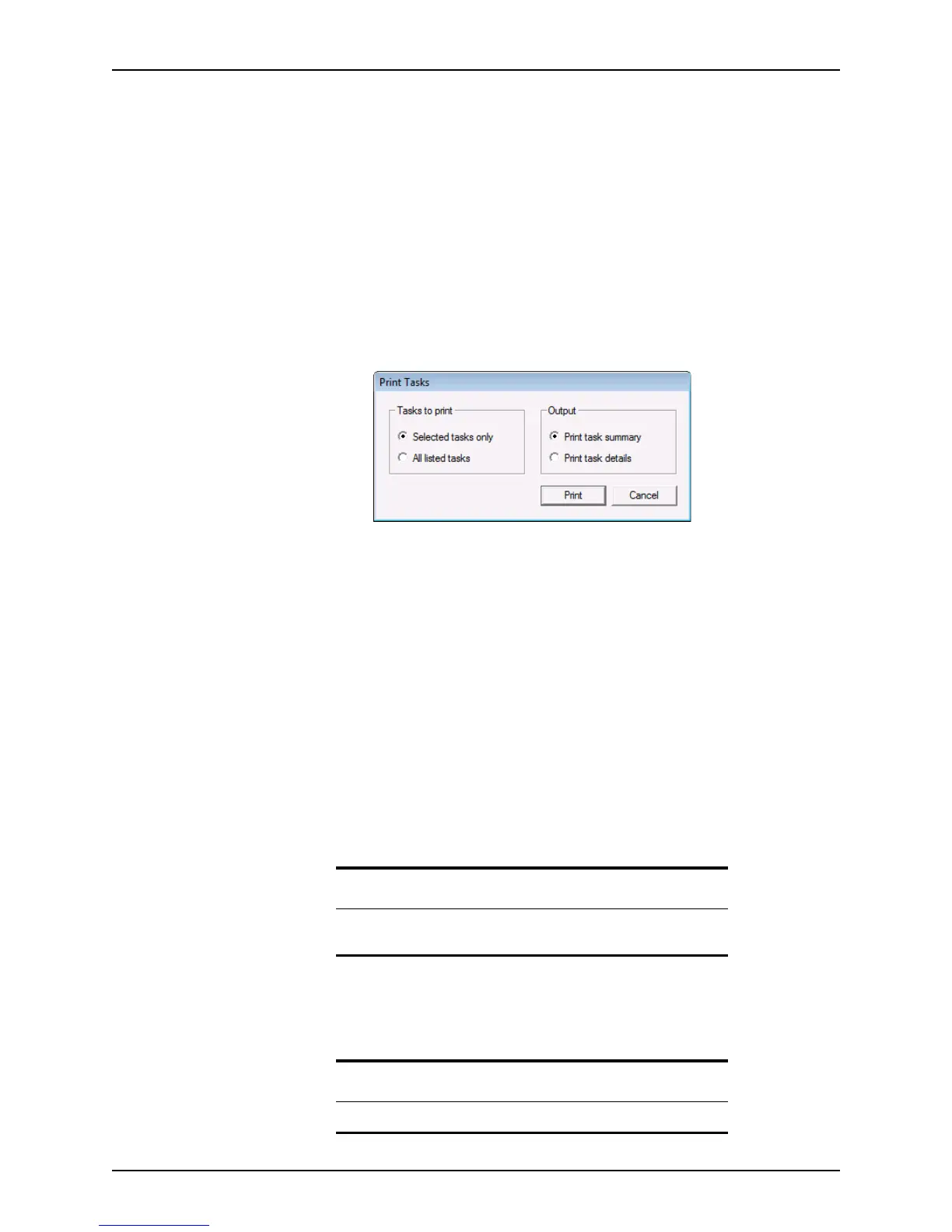
The
Print Tasks dialog box is displayed.
5 Select one of the following option to specify which tasks to print:
• Selected tasks prints only the selected tasks.
• All listed tasks prints the entire task list.
6 Select one of the following output options and click Print:
Print task summary
The summary format is a list of the selected tasks that contains only the priority,
subject, due date, name, loan file, assigned to, and status.
Print task details
The detail format is a list of the selected tasks that contains all of the information
associated with each task.
The
Print dialog box is displayed.
7 Change the print options, if needed, and click OK to initiate printing.
The list of records is printed on your default printer.
Accessing current tasks
Use the Show Tasks option to open the Current Tasks dialog box for the open loan file.
Related information
For more information about searching for tasks, refer to Searching for
tasks, on page426,
Restriction
The Show Tasks option is available only from an open loan file.



 To Next Page