Point User Guide 385
Creating custom reports
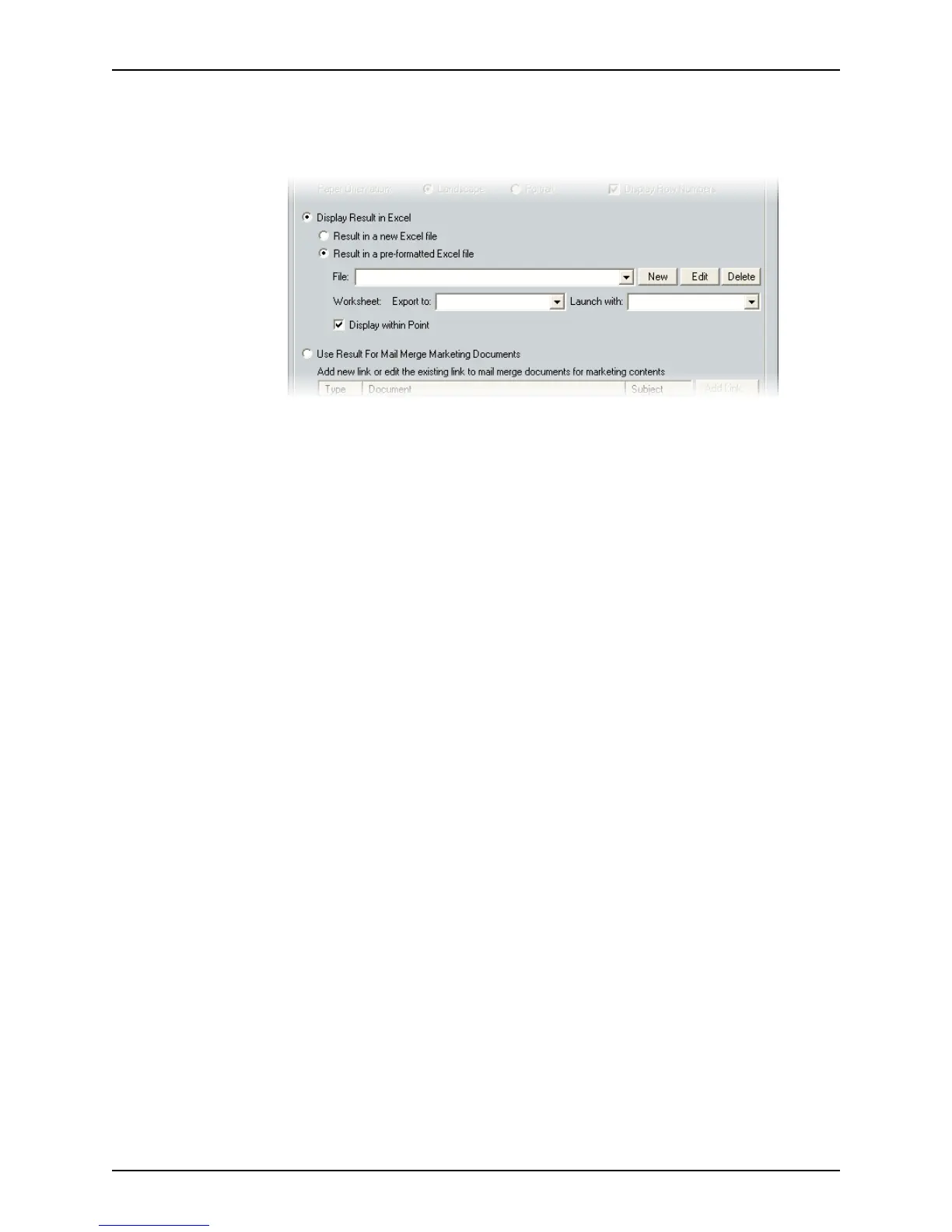
Specifying Microsoft Excel file output
You can create a template that outputs the report into a Microsoft Excel file with default
Excel formatting or you can output the report to a preformatted Excel file.
Specifying generic Microsoft Excel output
To create a report template to generate report output into a generic Microsoft Excel file:
1 Select
Display Result in Excel in the Output Options section.
2 Select
Result in a new Excel file as the Excel output format.
3 Select File > Save to save the template.
4 Enter a name for the template in the
Save As dialog box.
5 Click Save.
The template is stored and is available for future retrieval from the Reports &
Marketing tab when the
Reports option is selected.
Specifying preformatted Microsoft Excel output
To create a report template to generate report output into a preformatted Microsoft Excel
file:
1 Select
Display Result in Excel in the Output Options section.
2 Select
Result in a pre-formatted Excel file as the Excel output format.
3 Select a preformatted Excel report from the File dropdown list or click New and select
Browse Existing Excel file... to locate an existing Excel file stored elsewhere on your
computer.
To custom format a new Excel spreadsheet:
a Click the New button and select
Create New Excel File....
b In the
Create New Excel File dialog box, name your file and click OK.
A sample Excel file opens with columns for the selected fields.
c Use the Excel formatting options to format the report.
d Save and close the Excel file.
4 Select values for Worksheet Export to and Launch with. The values that are available
depend on the report that was selected.
5 Select the
Display within Point check box for the result to show in the Generated
Reports
screen.
6 Select File > Save to save the template.



 To Next Page