448 Calyx Software
Contact management (Cardex)
Searching for records
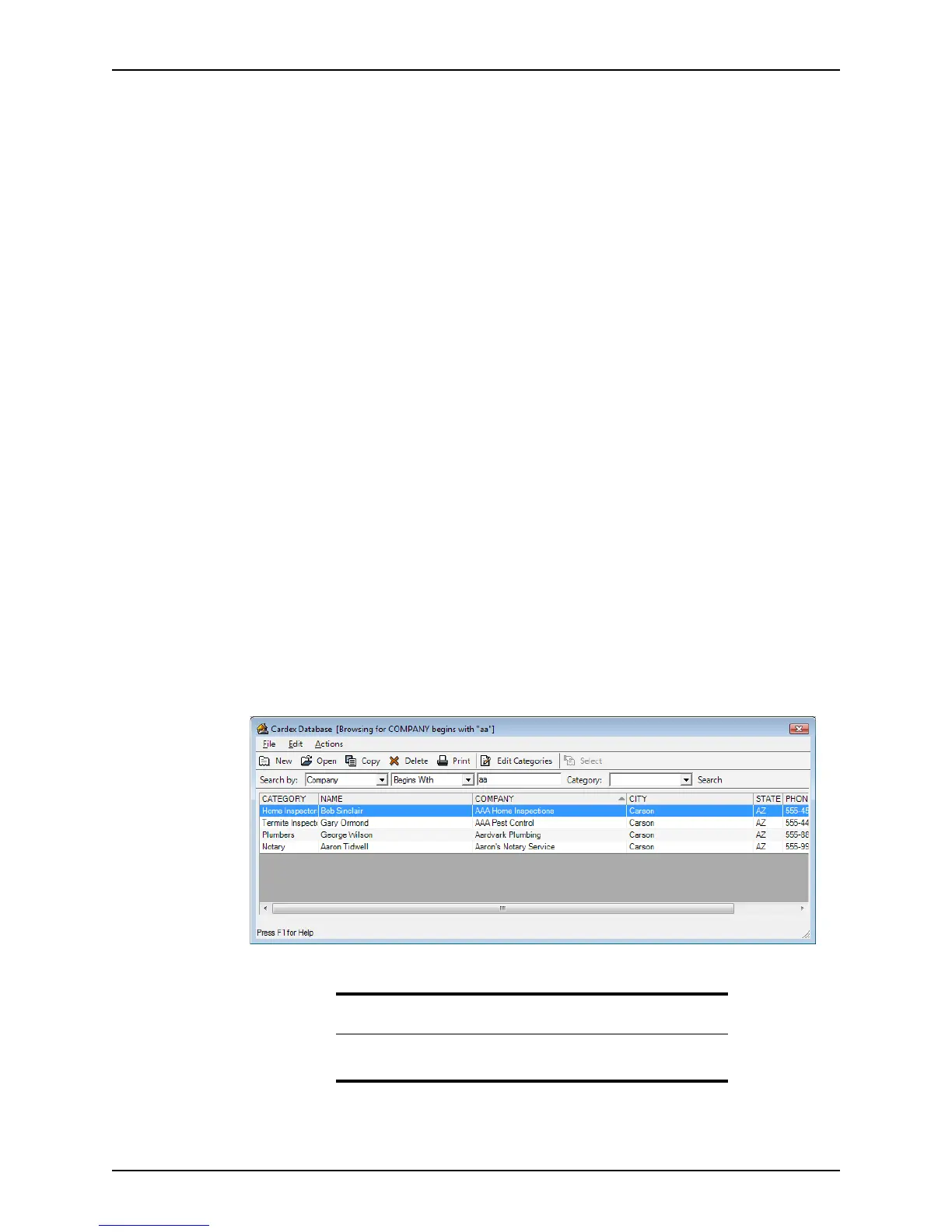
Use the search bar on the toolbar in the Cardex Database (Browsing for all records)
dialog box to search the Cardex database for a specific record or group of records.
To perform a search:
1 Select Utilities > Cardex Database to open the
Cardex Database (Browsing for
all records
) dialog box.
2 Specify the Search By criteria from the dropdown lists.
The first dropdown list specifies what field to search in, such as the contact person’s
name or company name.
The second dropdown list specifies how to search:
Begins with
Searches for any records that begin with the specified text in the selected field.
For example, a company search for “aa” will produce all records with companies
that begin with “aa”; Aardvark Plumbing, AAA Pest Control, Aaron’s Notary
Service, and so on.
Matches with
Searches only for records that are an exact match with the specified text in the
selected field.
For example, a company search for “aa” will produce only records with “aa” as the
company name. To locate the record for Aardvark Plumbing, you must enter
“Aardvark Plumbing” as the company name.
3 Select a category from the Category dropdown list to further refine your search.
If you do not specify a category, all categories are searched.
4 Click Search.
The records that match your search criteria are displayed in the workspace.
Related information
For more information about Cardex categories, refer to Creating
categories, on page444.



 To Next Page