Point User Guide 477
Data folder security
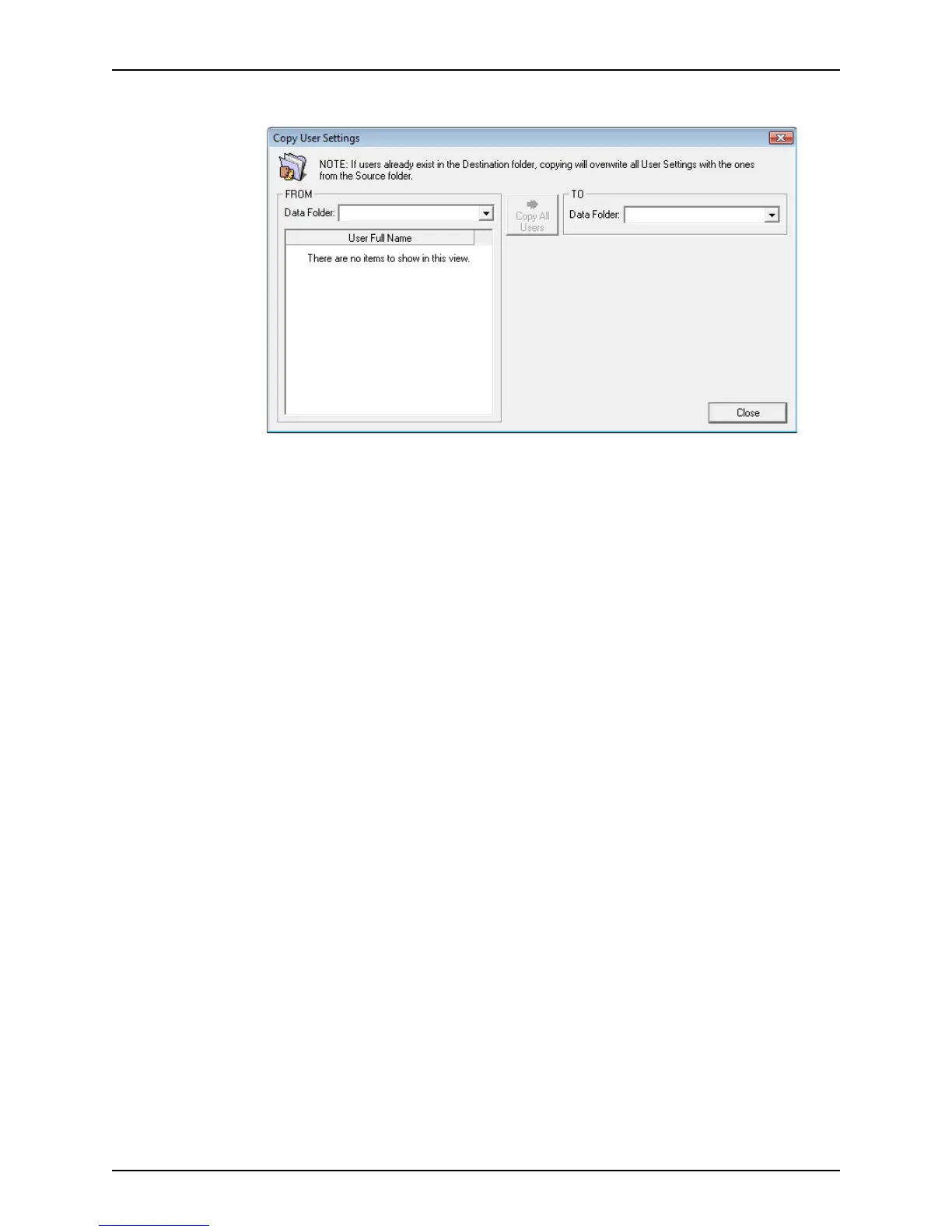
The Copy User Settings dialog box is displayed.
3 In the Data Folder dropdown list in the
FROM section, select the data folder to copy the
settings from.
4 In the Data Folder dropdown list in the
TO section, select the folder to copy the settings
to.
5 To copy all users, click Copy All Users.
6 In the
Copy User Settings Confirmation dialog box, click Yes to confirm the copy.
The
Copy User Settings dialog box is displayed with a message that the users were
copied successfully.
7 Click OK.
Modifying users
You can modify a user’s ID password, and access rights at any time.
To modify a user:
1 Open Point Administrator.



 To Next Page