Point User Guide 69
Loan file creation
Creating new borrower loan files
New borrower loan files are created from a blank file, by copying an existing prospect file,
or by using a master template.
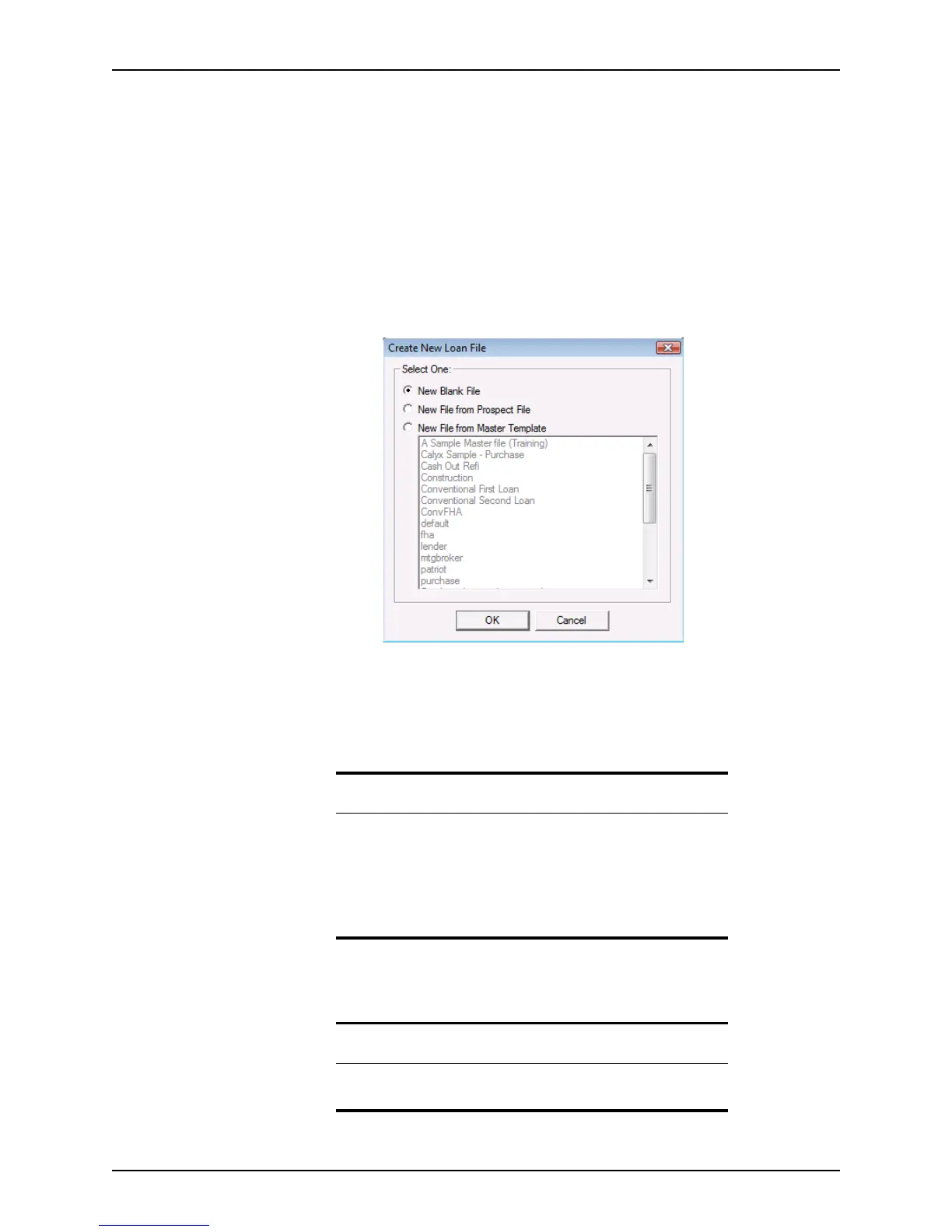
To create a new borrower file from a template, blank file, or existing prospect file:
1 Select the Loans tab from the navigation panel.
2 Select the data folder where you want to store the file from the dropdown list.
3 Select
Borrower.
4 Click the New button or select File > New > Loan > Borrower... to open the
Create
New Loan File
dialog box.
5 Select the source of the new borrower file:
• To create a loan file with no data, select New Blank File.
• To create a loan file from an existing prospect file, select New File from Prospect
File
.
• To create a loan file from a template, select New File from Master Template and
select the template to use from the list.
Important
Changes to DRE regulations required the removal of one set of user-
defined fields in the Payment of Other Obligations list on both MLDS
screens. Therefore, if you create a new loan file from an existing prospect
file that was created in an earlier Point version, any data that was in the
fields that were removed is lost. To include those obligations in the new
loan file, you must combine the additional obligations and enter the total
in the remaining user-defined field manually.
Tip
If you select the New File from Master Template option, the template that
was used last is preselected.



 To Next Page