14 Calyx Software
Installation
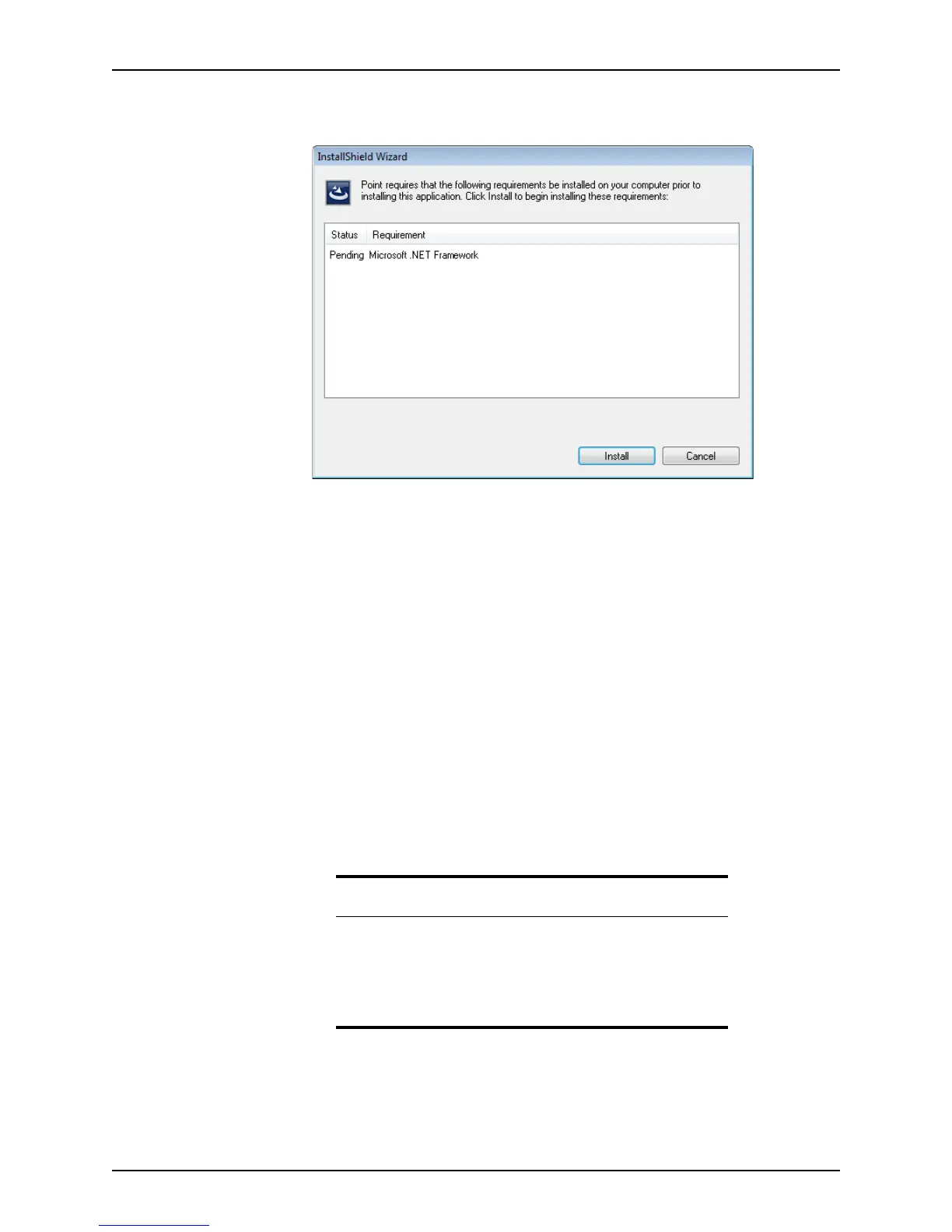
If any of the required prerequisites are missing, the Setup Prerequisites dialog box
is displayed.
The
Setup Prerequisites dialog box contains a list of missing prerequisites.
4 Click Install to install or remove the items on the list.
5 When the
Welcome screen is displayed, click Next to continue the installation.
6 Click Finish when the installation is complete.
Updating the client workstation
After updates are made to the configuration server, Point checks the server for updates
when the application is launched from the client. If any updates are detected, the client
machine is automatically updated.
To update the network configuration server settings:
1 From the Windows Start menu on the server, select Start > All Programs > Calyx
Software > Point Network Configuration Server.
The
Point Network Configuration Server dialog box is displayed.
2 Add and remove data folders or change the templates directory path.
3 Click Save Settings and click Exit.
Related information
For more information about the updating the client workstation, see
Knowledge Base articles:
• #0064 Networking Point
• #0124 Point default folder structure
• #0207 Networking Point with an Admin installation



 To Next Page