Point User Guide 405
Custom forms
Creating open house flyers
Point contains an open house flyer template that you can use to market a specific
property. The flyer includes the following information:
• Contact information for the loan agent
• Contact information for other agents
• Name of the prospect
• Property address
• A photo of the property
• Three loan comparisons
Most of the information that is included on the flyer is entered in other screens, but there is
some additional set up.
To create an open house flyer:
1 Open a prospect or borrower file.
2 Select Marketing > Loan Comparison.
3 To include property-specific loan information in the flyer, modify or complete the
values in the
Loan Comparison screen.
4 Click the Prepared For button.
5 In the
Prepared For dialog box, enter the name and contact information of the realtor
or person for whom you are preparing the flyer.
6 To include your contact information in the
Provided By section, ensure that the
Company Info dialog box is completed with your company information.
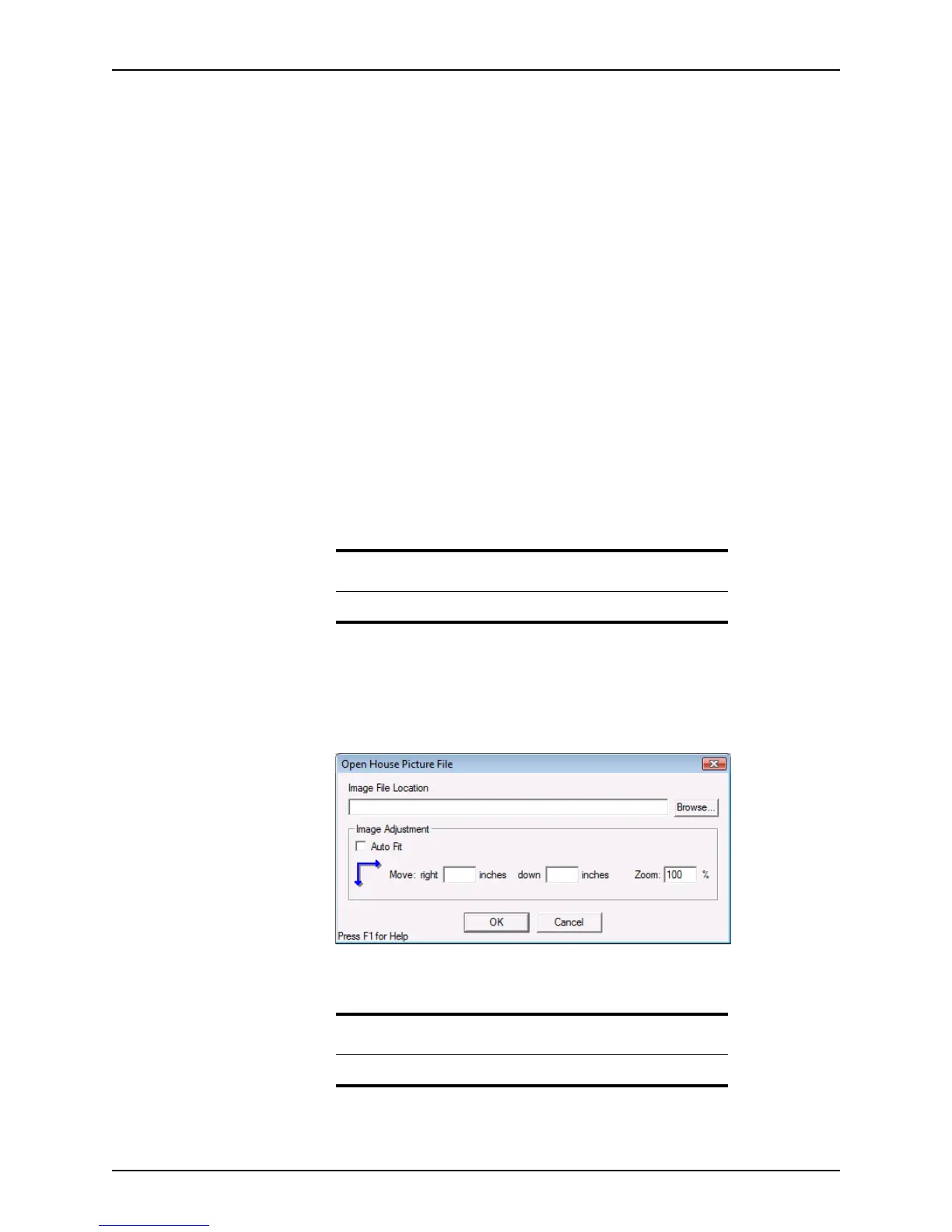
7 To include a photo of the property, click the Open House button.
The
Open House Picture File dialog box is displayed.
8 Click Browse to locate the path of the photo, or type the path information. The default
directory is C:\PNTTEMPL\Images.
9 To position the photo automatically, select the
Auto Fit check box.
Tip
Use the Cardex database to populate the Prepared For dialog box.
Important
Point supports
.jpg
,
.bmp
, and
.gif
graphic file formats.



 To Next Page