Point User Guide 389
Manipulating report output
To format a report:
1 With the report open in Point Report Viewer, select Format and select the item that
you want to change.
2 Modify the settings in the resulting dialog box and click OK.
Creating data filters
A data filter is used to “filter” out key items in a long report.
To filter data:
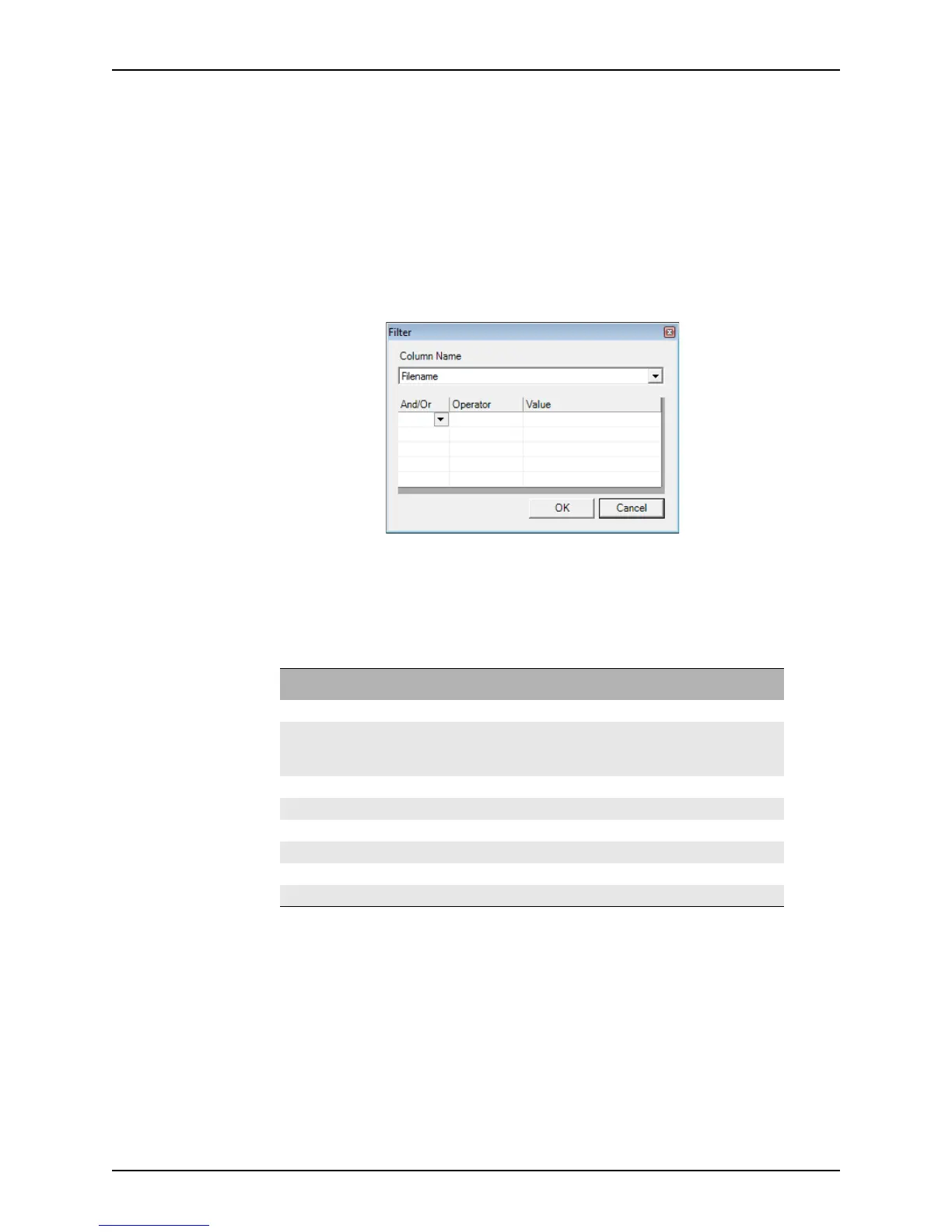
1 With the generated report open in Point Report Viewer format, select Data > Filter.
2 Select the column that contains the data to filter from the Column Name dropdown list.
The options are the columns in your report.
3 Skip the
And/Or column for the first entry.
4 Define the operator (or “condition”) to use in the second column. Depending upon the
characteristic of the field (text, numeric, or date), the following operators are available:
5 Specify the value that the operator condition must meet in the
Value field.
Enter
blank to filter records with missing information.
6 To add additional filters, move the cursor to the first column of the second row and
select
And or Or from the And/Or dropdown list to specify how the filter must meet the
criteria that was specified in the previous row; in addition to (And) or instead of (Or).
Operator Definition
= Equal to
Not =
or
<>
Not Equal to
> Greater than
>= Greater than or Equal to
< Less than
<= Less than or Equal to
Like Begins with a letter or letter combination
Not like Does not begin with a letter or letter combination



 To Next Page