20 Calyx Software
User interface
The first two check boxes indicate if the item was ordered and received. If the item is
checked, hover the mouse over the check box to display the date the item was completed.
Double-click an item or click the Open Detail button to open an information dialog box for
the selected item. Use this dialog box to update the item status. Information that is added
or updated in this dialog box automatically updates the corresponding tracking screen.
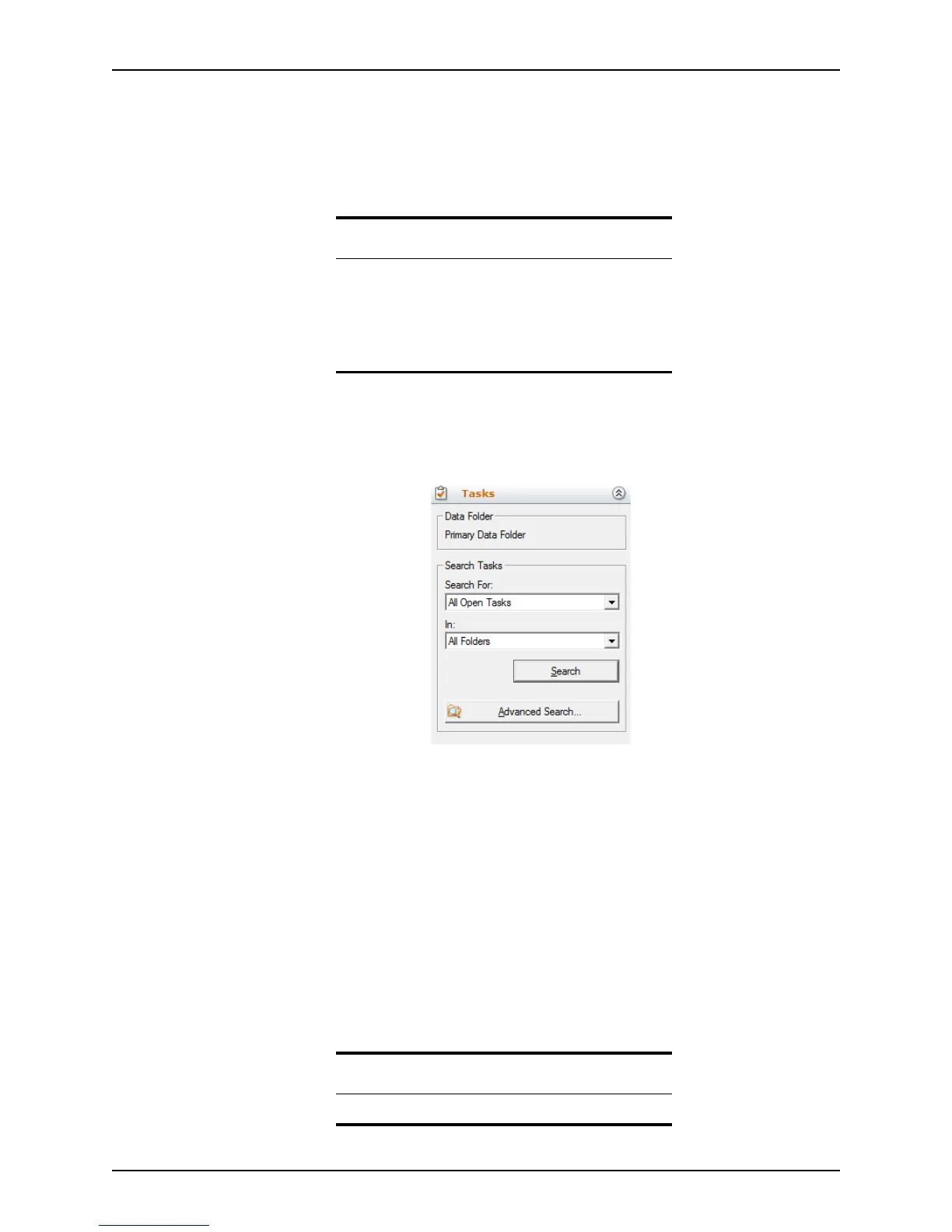
Tasks tab
Use the Tasks tab to search for specific tasks without having to scroll through multiple loan
files.
Use the following search options to specify your search criteria:
Data Folder
Indicates the data folder that is currently in use.
Search Tasks
Specify the type of task that you want to find.
In
Specify the data folder to be searched (Current or All Folders).
Search
Finds and lists tasks by the criteria selected.
Advanced Search
Launches the
Advanced Task Search dialog box.
Related information
• Refer to Loan status tracking, on page214, for
information about adding and updating items that are
listed on the loan checklist and for information about the
Status and Checklist screen.
• See Chapter 10, Loan tracking, for more information
about tracking.
Related information
See Chapter 17, Tasks, for more information about tasks.



 To Next Page