468 Calyx Software
Data folder and user management
8 Click Create.
The
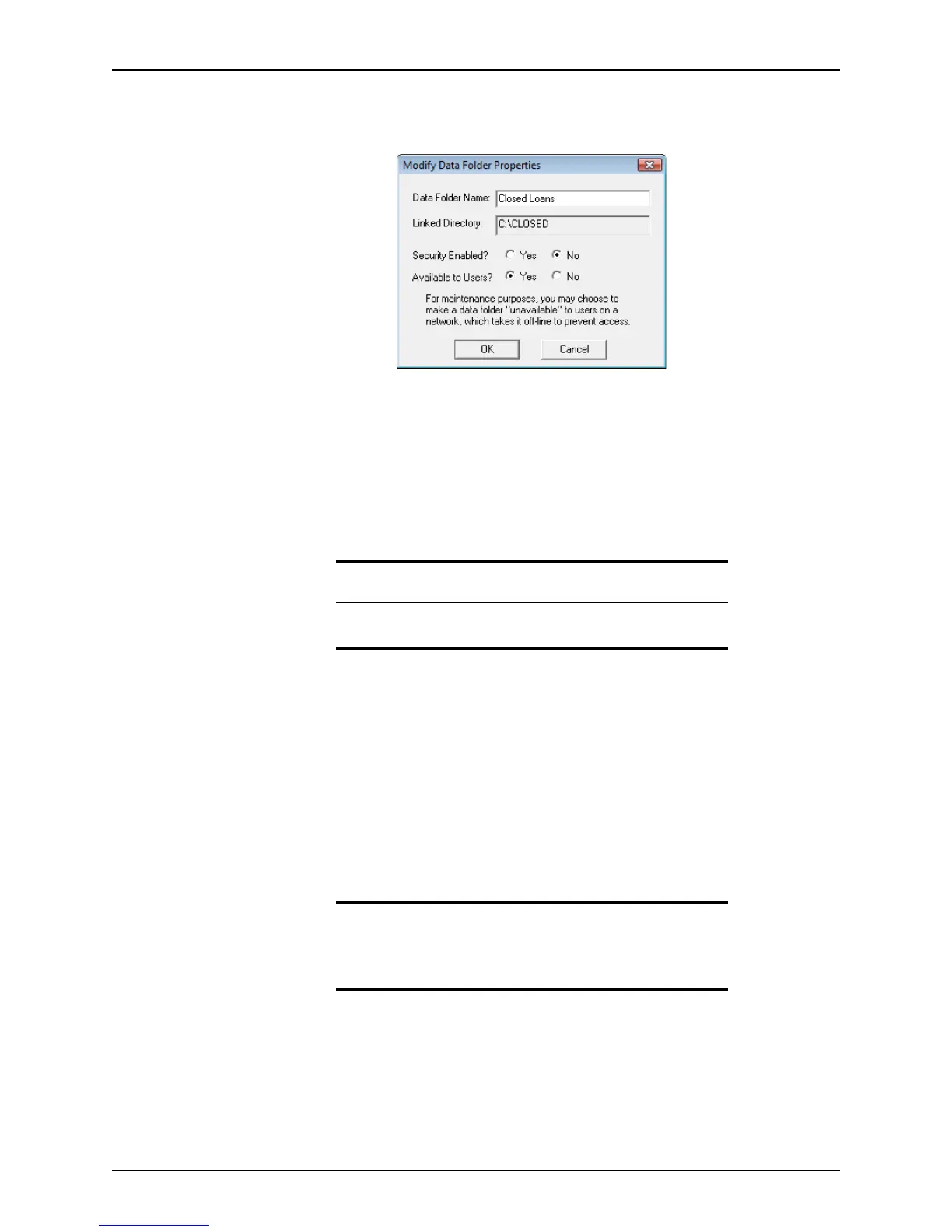
Modify Data Folder Properties dialog box is displayed.
Use this dialog box to set the level of security and access. You can also change the
data folder name.
9 Specify Security Enabled
Yes to restrict access to the folder to only the users who
have the password. Select
No to allow access by all users.
10 Specify Available to Users
Yes to make the folder available to network users. Specify
No to make the folder unavailable to network users.
11 Click OK to return to the
Data Folder Manager.
Copying folder settings
Use the copy folder settings function to copy the folder settings, such as company defaults
and dropdown lists from one data folder to another.
To copy settings from one data folder to another:
1 Open Point Administrator.
2 Click the Copy Folder Settings button.
The copy
Data Folder Settings dialog box is displayed.
3 In the
Data Folders section, click Copy Folder Settings.
Related information
For more information about new data folders, see Knowledge Base
article #0123 Creating a new data folder using Point Administrator.
Requirement
To copy settings from one folder to another, you must have the same
supervisor password set up on both.



 To Next Page