406 Calyx Software
Marketing tools
10 To position the photo manually, enter the number of inches to move the logo to the
right or down in the corresponding field.
To move the photo up or to the left, enter a negative value.
11 To adjust the size of the logo, enter the percentage in the
Zoom field.
12 Click OK.
13 Print or preview the flyer as you would any other form.
Adding a company logo to marketing letters
Use this option to specify the location of your company logo file and where to place the
logo on the form when creating marketing letters or an open house flyer.
Point supports
.bmp
,
.jpg
, or
.gif
file formats.
To add a logo to a form:
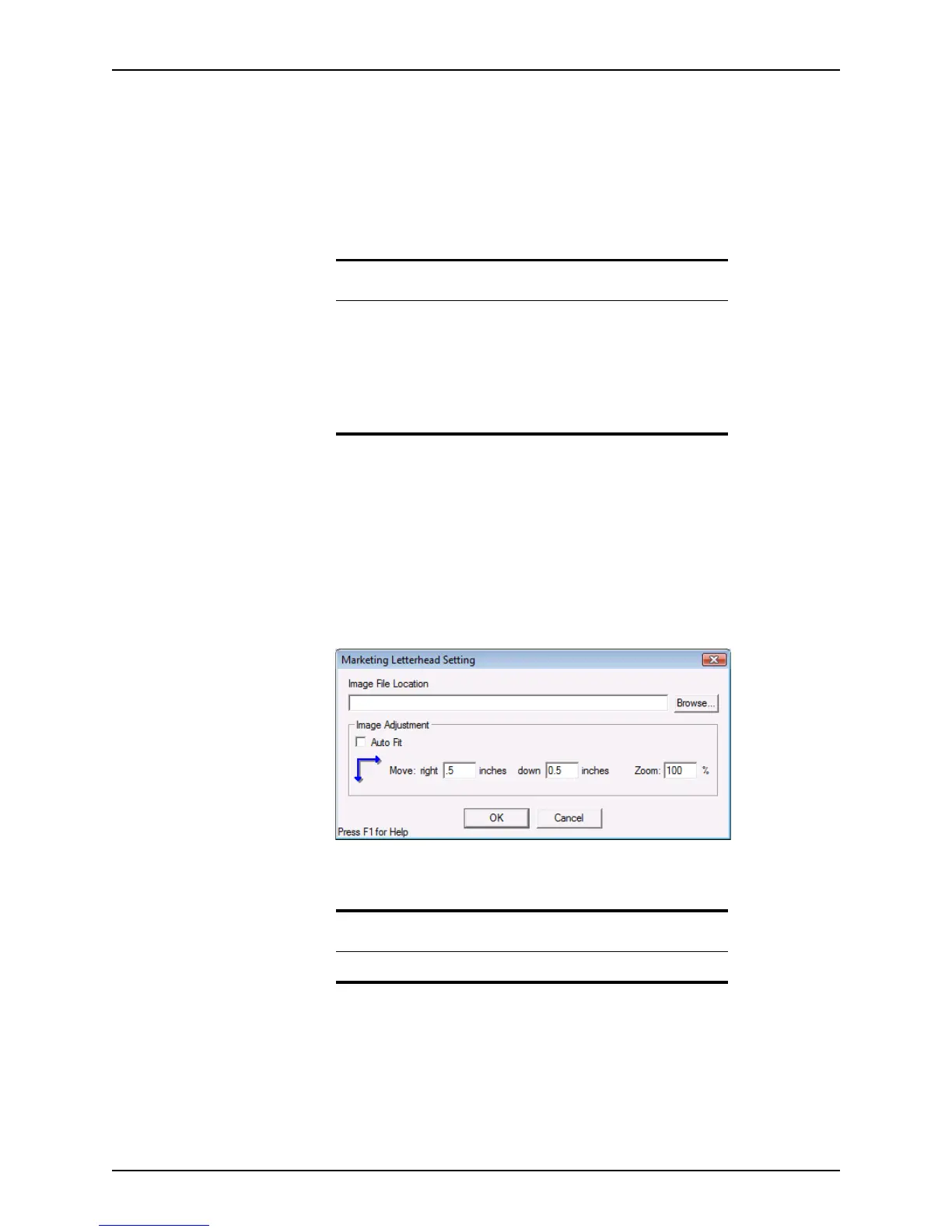
1 Select Utilities > Company Defaults > Marketing Letterhead.
The
Marketing Letterhead Setting dialog box is displayed.
2 Click Browse to locate the path of the graphic, or type the path information. The
default directory is C:\PNTTEMPL\Images.
3 To position the logo automatically, select the
Auto Fit check box.
4 To position the logo manually, enter the number of inches to move the logo to the right
or down in the corresponding field.
To move the logo up or to the left, enter a negative value.
5 To adjust the size of the logo, enter the percentage in the Zoom field.
Related information
• For information about completing the Company Info dialog box,
refer to Entering default company and processing center
information, on page35.
• For information about printing forms, refer to Print and e-mail
options, on page84.
• For information about importing from Cardex, see Data import and
export, on page452.
Important
Point supports
.jpg
,
.bmp
, and
.gif
graphic file formats.



 To Next Page