50 Calyx Software
Utilities configuration
7 Click OK to save the changes and return to the Communications dialog box.
8 Click Close in the
Communications dialog box.
Setting up Host mode
Other Point users can send files from other locations to your computer if your computer is
in Host mode. Additionally, other users can obtain files from your computer, or check on
the status of files.
If you have enabled security for your data, any users who try to access your system are
prompted for a user ID and password. When used properly, Host mode can help prevent
costly data entry errors that can occur when data is typed repeatedly.
To set up host mode:
1 Select the Loans tab from the navigation panel.
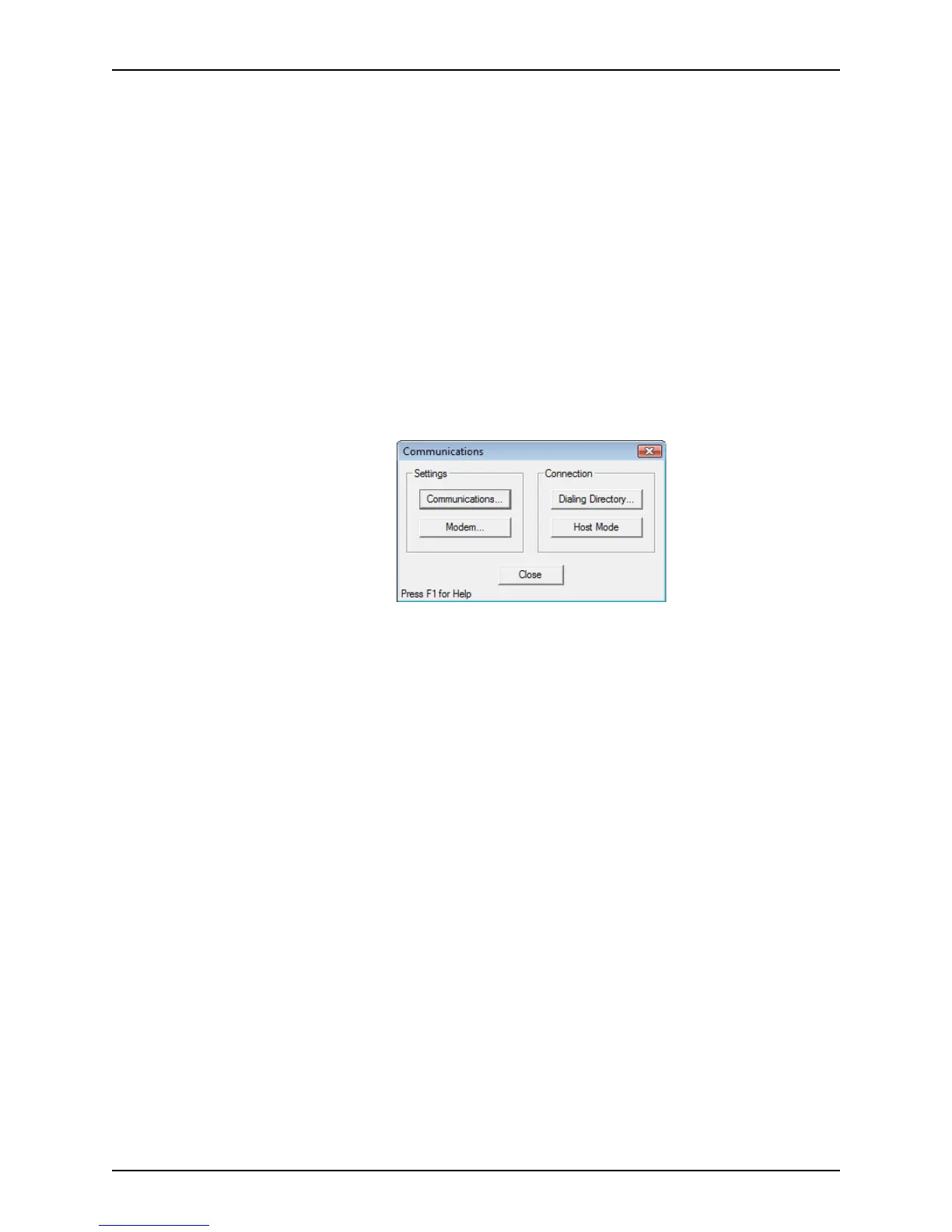
2 Select Utilities > Communications.
The
Communications dialog box is displyed.
3 Click Host Mode.
Several messages display in the dialog box. When the status reads Waiting for call,
your computer is ready to receive files or allow files to be downloaded.
4 Computers in host mode can print a notification when a file is received. To activate this
option, click the
Auto-print incoming file notification check box in the Data Server
Host Mode
dialog box.
5 To print a copy of the status log, click Print Status Log.
6 To exit host mode, click End Host Mode.
Sending files to a remote host
You can send files from your computer (Local) to a computer at another location (Remote)
if the remote computer is in Host mode.
You can send single files or batches of any size.
To send files to a remote host:
1 Select Utilities > Communications.



 To Next Page