450 Calyx Software
Contact management (Cardex)
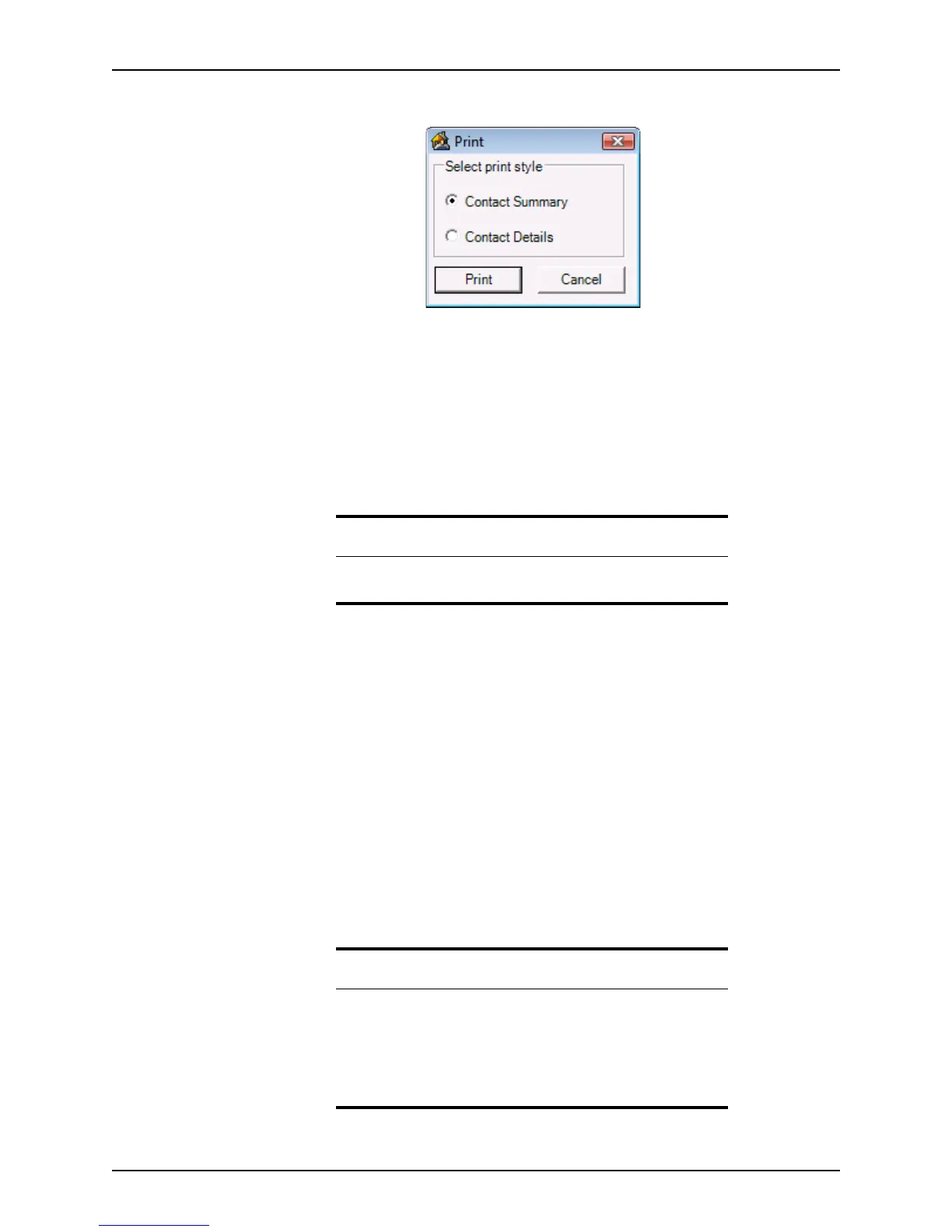
The Print dialog box is displayed.
4 Select one of the following print style options and click Print:
Cardex summary
The summary format is a list of the retrieved records, grouped by category, that
contains only the name, company, telephone number, and e-mail address of each
contact.
Cardex detail
The detail format is a list of the retrieved records that contains all of the
information in each record. Individual records also print in detail format.
The
Print dialog box is displayed.
5 Change the print options, if needed, and click OK to initiate printing.
The list of records is printed on your default printer.
Printing individual records
To print a single Cardex record:
1 Select Utilities > Cardex Database to open the
Cardex Database (Browsing for
all records
) dialog box.
2 Open the record you want to print and click Print.
The
Print dialog box is displayed.
3 Change the print options, if needed, and click OK to initiate printing.
The selected record is printed on your default printer.
Tip
Use the sort function before you print a detailed list to specify the order
that the records are printed.
Related information
• For information about printing and how to set the default printer,
refer to Print and e-mail options, on page84.
• Refer to Copying, deleting, and sorting records, on page447, for
information about how to sort the Cardex database.
• Refer to Searching for records, on page448, for information about
searching for Cardex records.



 To Next Page