Point User Guide 49
Communications
Communications
Use the Communications option to set the parameters that enable you to send and
receive Point files to and from remote locations. Transferring files is beneficial to
companies with multiple branches that want to share files between offices. A Loan Agent
can start a file in the field by taking the
Loan Application and transferring the file to the
processor, who can take the file and send out the verifications.
Setting up communications
Use the following steps to set up communications so you can send and receive files to and
from other Point users:
1 Select the Loans tab from the navigation panel.
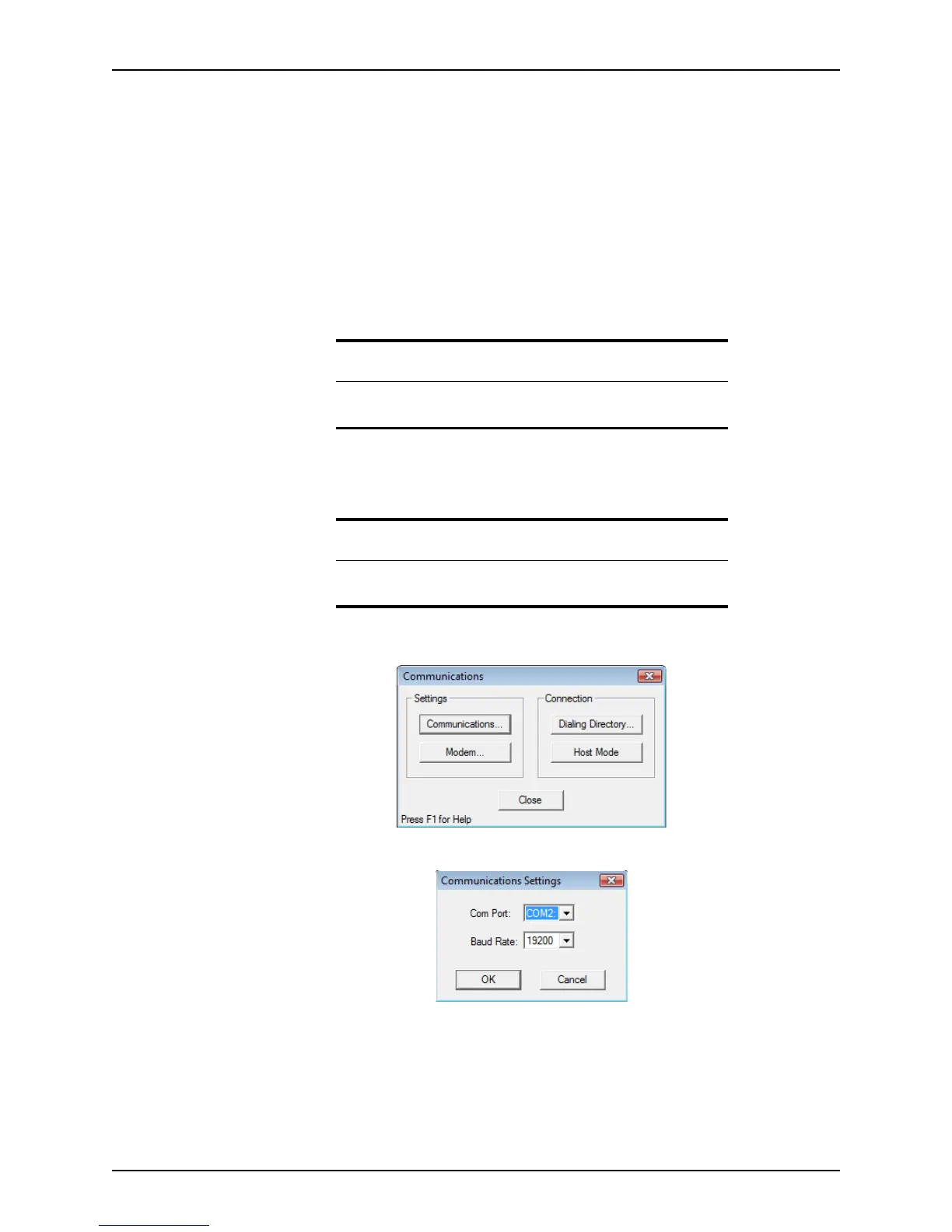
2 Select Utilities > Communications.
The
Communications dialog box is displyed.
3 Click Communications... to open the
Communications Settings dialog box.
4 Select the communications port where your modem is connected from the Com Port
dropdown list, select the modem speed from the Baud Rate
dropdown list and click OK
to save the changes and return to the
Communications dialog box.
5 The default modem is a Hayes Compatible. To change the default, click Modem.
6 In the
Modem Settings dialog box, select your modem from the dropdown list. The
initialization, auto-answer, and hang-up options change automatically.
Requirement
Both computers should be running the same version of Point. They must
have connectivity, either through a modem or a network.
Restriction
The Communications menu option is not accessible from an open loan
file.



 To Next Page