Point User Guide 27
Buttons and options
Borrower and prospect information
The following buttons are located on the Borrower Information and Prospect
Information
screens.
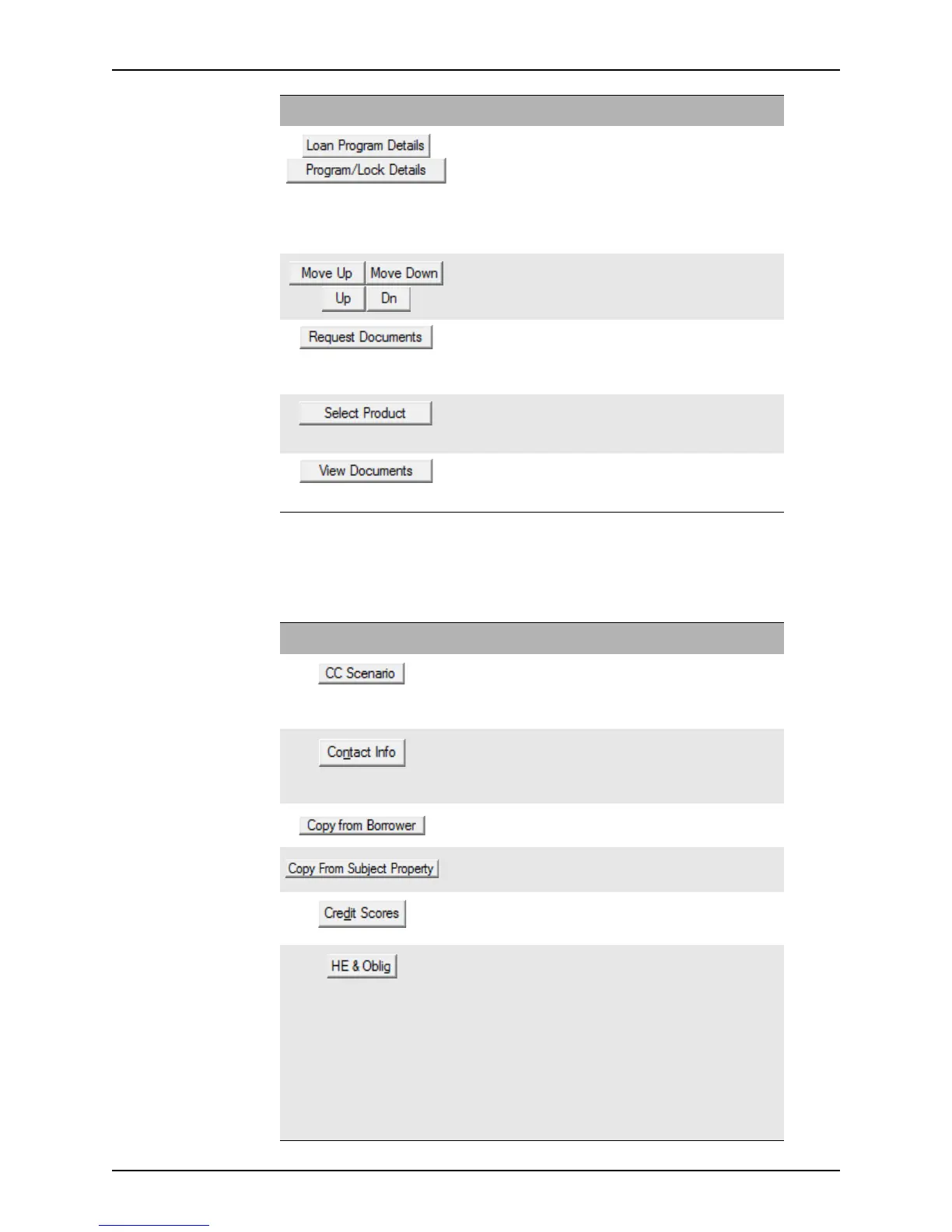
Opens the Program & Rate Lock Details dialog box which
provides the user with easy access to rate, ARM, buydown,
and prepayment information.
The Loan Program Details button is located on the
Secondary Marketing screen.
The Program/Lock Details button is located on the
Conditions and Closing screens.
Use these buttons to rearrange the sequence of items in a list.
These buttons are located on the
Trail Documents and
Conditions screens.
Opens the
Closing Documents Request dialog box where
you can request initial disclosures or closing documents from
documents providers.
This button is located on the
Closing screen.
Opens the Select Product dialog box which is used to select
the product and investor to use for the loan.
This button is located on the
Closing screen.
Opens the
View/Print dialog box which is used to view and
print the received closing documents.
This button is located on the
Closing screen.
Button Description
Button Description
Opens the CC Scenario List dialog box which is used to
select the closing cost scenario for the loan.
This button is also located on the
Debt Consolidation
Worksheet
and Prequalification screens.
Opens the Contact Information dialog box which is used to
document communications with borrowers and prospects.
This button is also located on the
Debt Consolidation
Worksheet
.
Copies borrower information into the identical fields for the
co-borrower.
Copies the loan property address to the fields for the
borrower’s present address.
Opens the
Credit Scores dialog box where you can view the
credit scores for the borrower and co-borrower from all three
credit reporting agencies.
Opens the Housing Exp & Other Obligations dialog box
which is used to enter proposed housing expenses and other
monthly obligations.
This button is also located on the
Debt Consolidation
Worksheet
and Prequalification screens.
The information entered in this dialog box also populates the
corresponding fields in the
Monthly Housing Expenses section
on page 2 of the
Loan Application.
You can also access this dialog box from the Housing
Expenses & Obligations button on the
Rent vs. Own
screen.



 To Next Page