Point User Guide 359
Import and export templates
Data import templates
You can import data into Point from outside sources, and provide interface capabilities
from virtually any other business application.
Creating data import templates
To create a template to import data from other applications:
1 Select the Templates tab from the navigation panel.
2 Select
Data Import and click the New button.
The
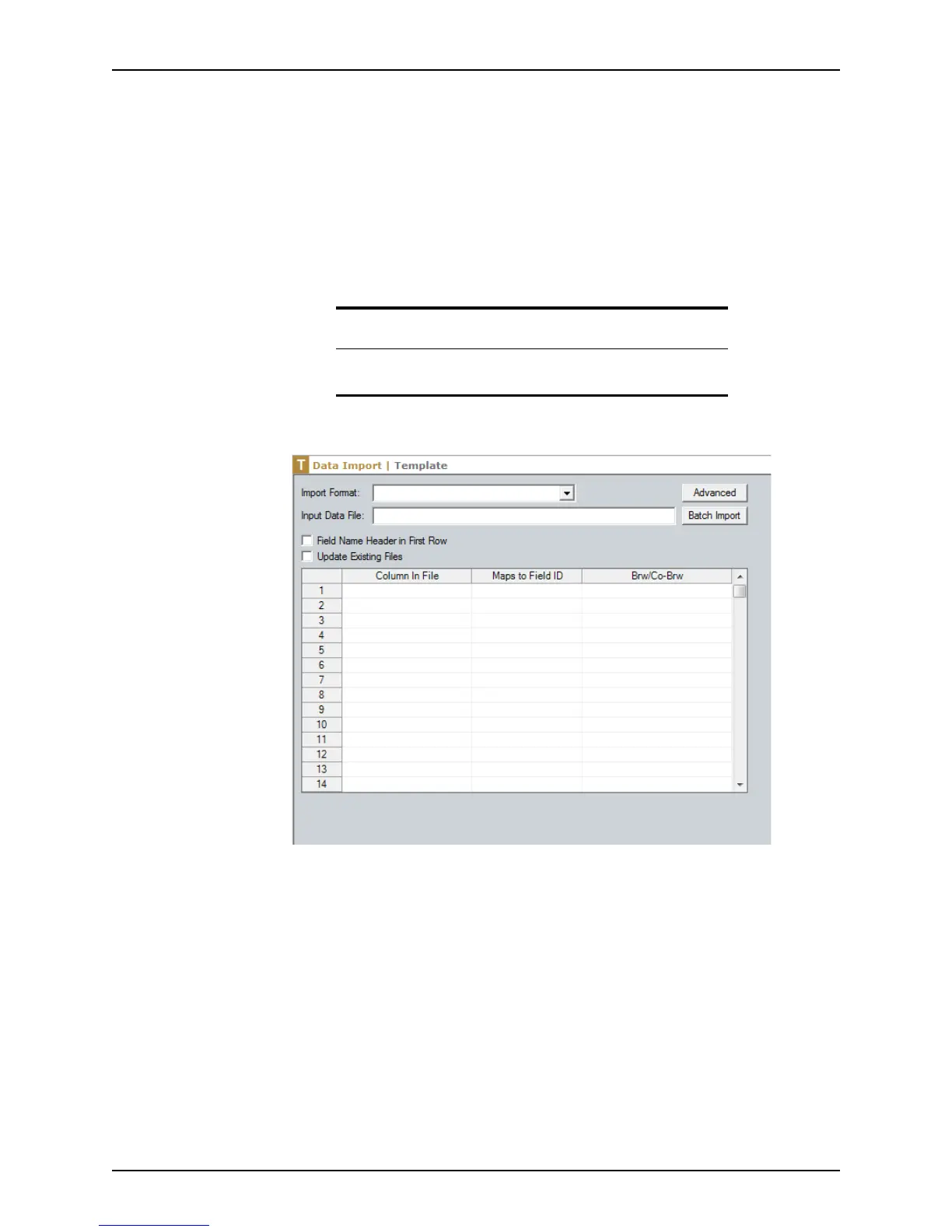
Data Import Template screen is displayed.
3 Select format of the file you are importing from the Import Format dropdown list.
4 If you are importing a file in ASCII format, click Advanced to open the
Advanced
Import Format Settings
dialog box where you can define the text delimiters.
5 In the
InputDataFile field, enter the complete path name of the file to be imported (for
example, c:\pointexp.txt).
To specify a different file to import each time you use this template, leave the field
blank.
6 Check the
Field Name Header in First Row check box if the file to be imported has
column headers in the first row.
7 Select the
Update Existing Files to overwrite an existing file with the same name.
8 If you are importing a delimited text file, complete the table in the
Data Import
Template
screen.
Tip
It is not necessary to create a template to convert files from Fannie Mae
format 3.0 or 3.2 (
.fnm
).



 To Next Page