62 Calyx Software
Utilities configuration
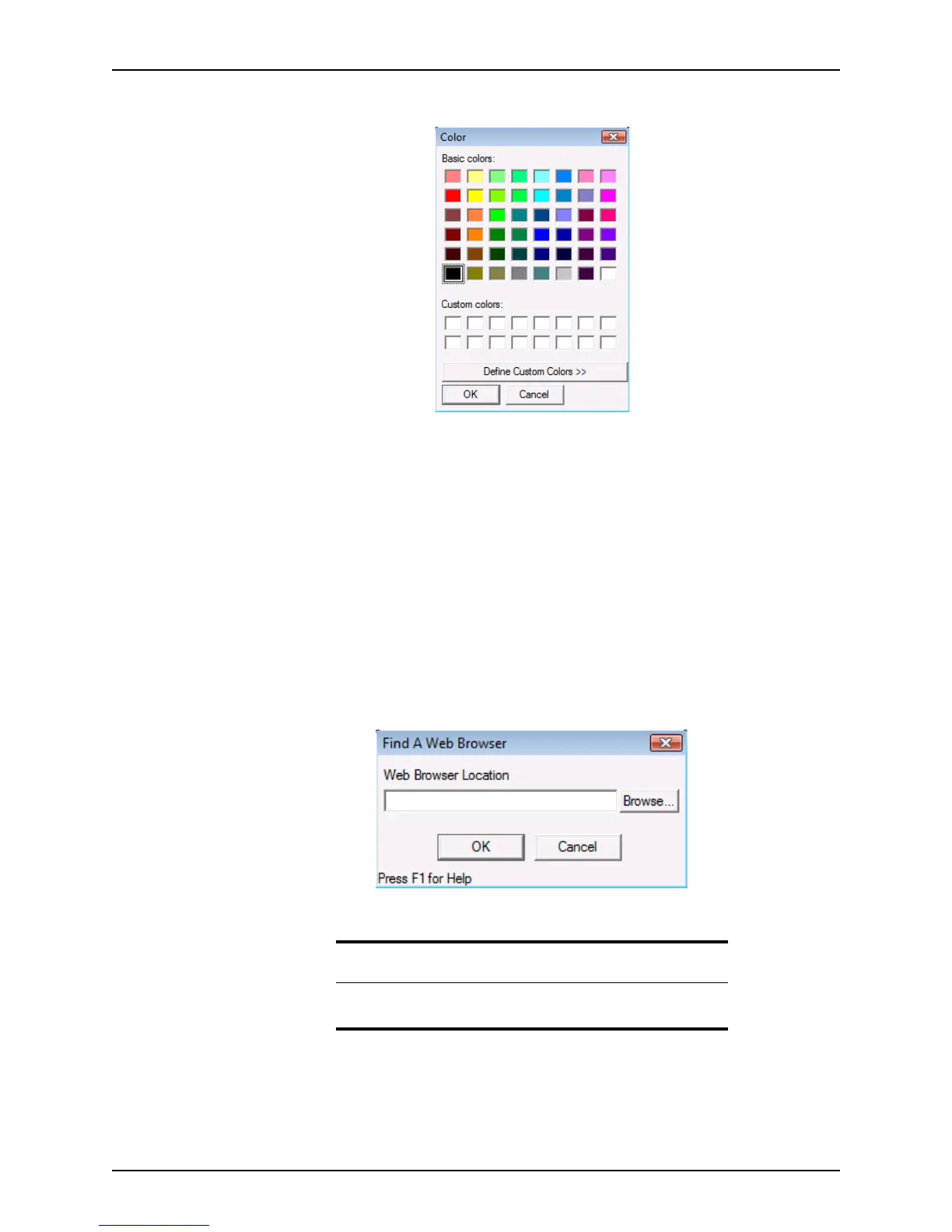
The Color dialog box is displayed.
3 Select a color from the chart or create your own by selecting Define Custom Colors
and click OK.
4 To restore to the original default colors, click Use Default Colors in the
Screen
Colors
dialog box.
5 Click OK.
Specifying the default web browser
Use the Web Browser option to specify the default web browser for Point to use when
accessing the internet.
To set the default web browser:
1 Select Utilities > Web Browser.
The
Find A Web Browser dialog box is displayed.
2 Click Browse to navigate to the web browser executable file.
3 Select the file and click OK.
Recommendation
Calyx recommends that you use Microsoft Internet Explorer as your
default browser.



 To Next Page