Point User Guide 209
Electronic document storage
10 Click Add.
The file is stored in the repository.
Saving documents in the document repository to another location
To save files in the document repository to another location:
1 Open the borrower or prospect file that contains the documents that you want to save
to a different location.
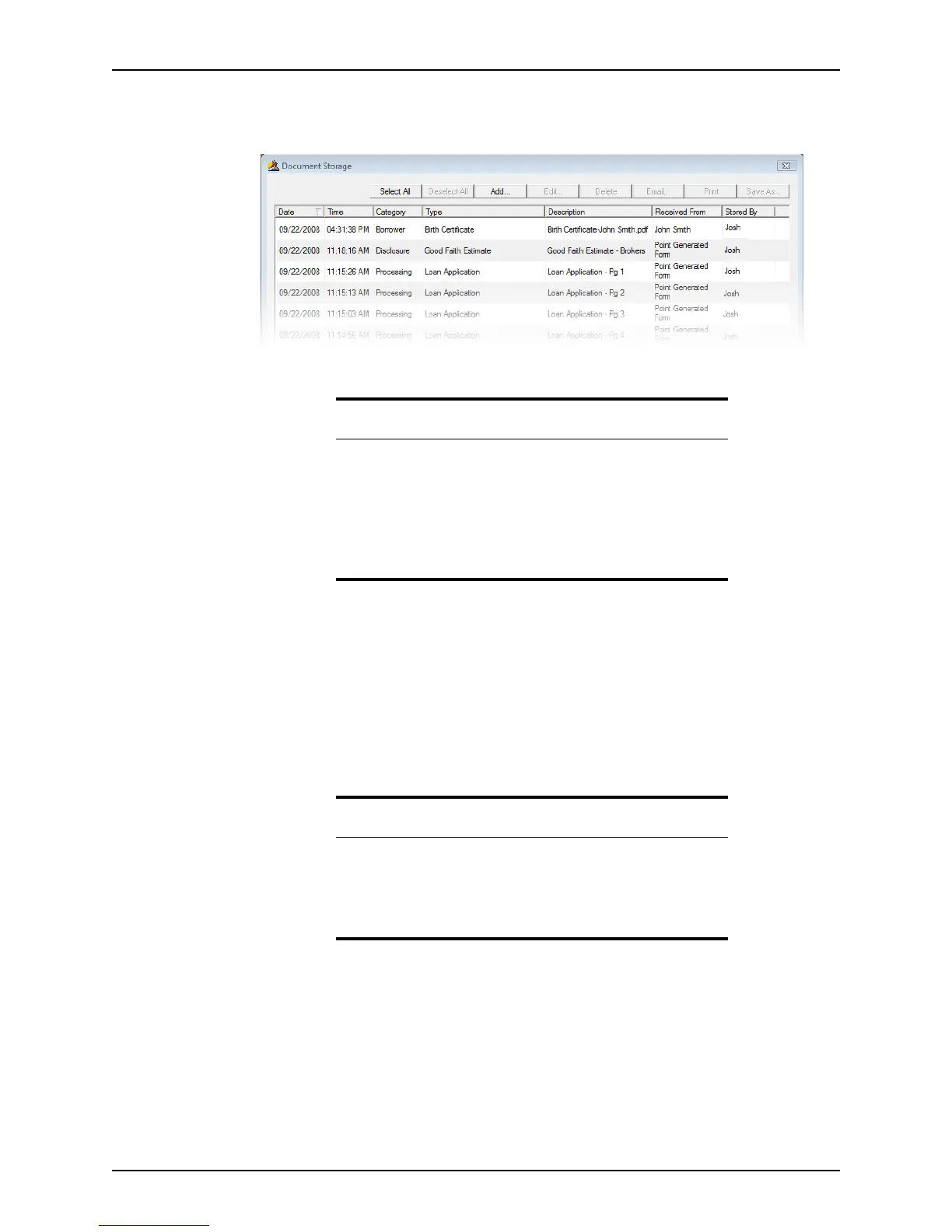
2 Select eLoanFile > Document Storage to access the
Document Storage dialog
box.
3 Select the documents that you want to save to another location.
4 Click Save As....
Tip
You can also drag and drop an existing document or an Outlook e-mail
attachment to the document repository.
Open a loan file, locate the document on your computer or in an e-mail,
and drag the file to the open loan file or the Point button on the
Windows taskbar.
Respond Yes to the prompt to confirm the addition and proceed to
complete the
Document Information Preview dialog box.
Tip
To select multiple files, hold the <Ctrl> key as you select each file. To
select multiple consecutive files, hold the <Shift> key as you select the
first and last files.
To select all of the files, click Select All. To un-select all the selected files,
click Deselect All.



 To Next Page