Point User Guide 431
Closing and deleting tasks
3 To change the subject, edit the text in the Subject field.
4 To change the person who is assigned to the task, select a name from the
Assignedto
dropdown list.
5 To change the status, select a new status from the Status dropdown list.
• When a task status is changed to On Hold, it is still accessible for future action.
• When a task status is changed to Completed, the Closedby and Dateclosed fields
are automatically populated with the agent who closed the task and the date it
was closed. A comment is also added to the comment log that indicates who
closed the task and the date and time it was closed.
• When the status of a closed task is changed back to Open, the line is added to the
comment log that indicates the date and time the task was reopened.
6 To change the priority, select a new priority from the Priority dropdown list.
7 To change the reminder date and time, enter a new date and time.
8 Click Save to close the dialog box and save the updates.
Closing and deleting tasks
In addition to closing tasks from the Task Details dialog box, you can also close tasks
from the Task list in the navigation panel.
To close or delete a task from the Task list in the navigation panel:
1 Select the Tasks tab from the navigation panel.
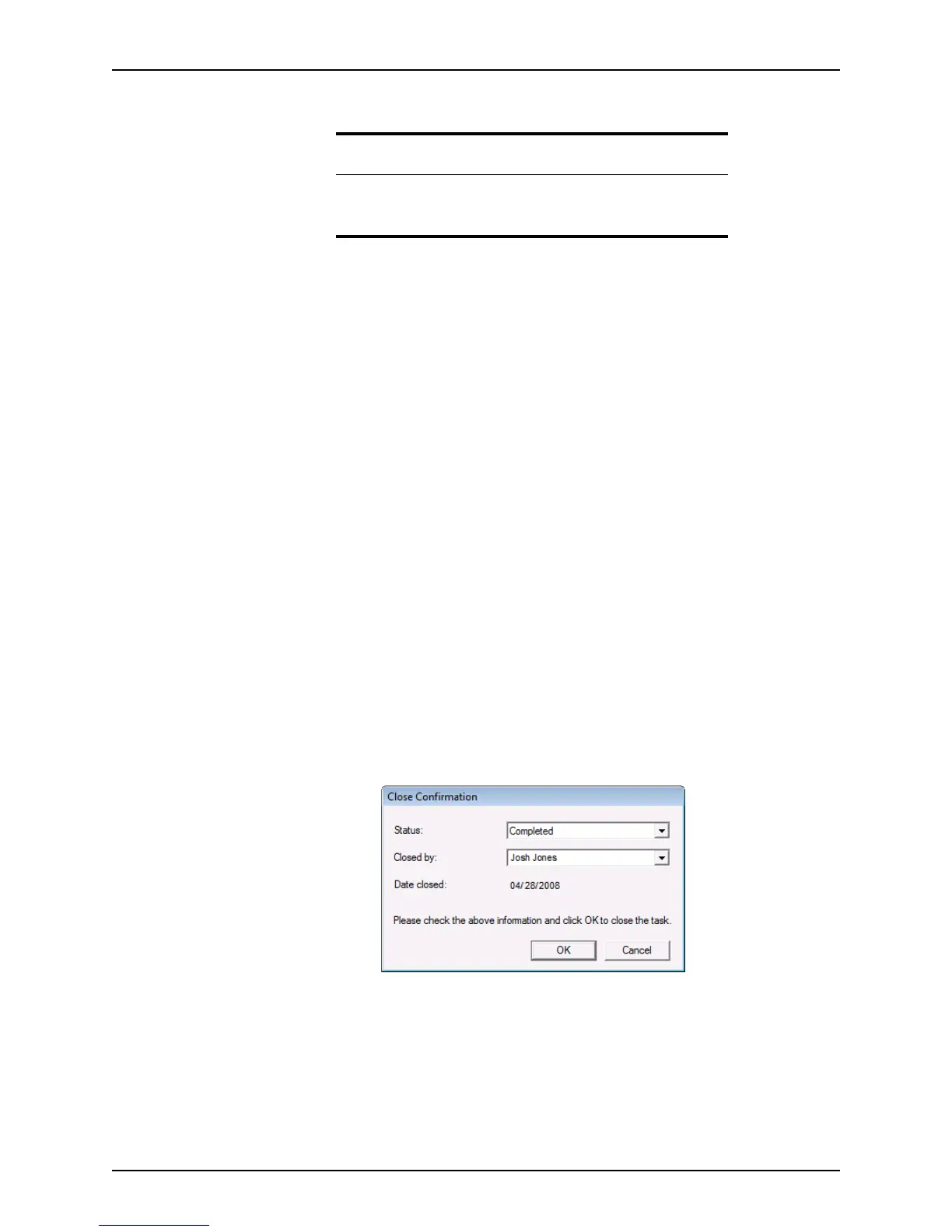
2 Check the
Closed check box in the second column of the Task List.
The
Status field is automatically populated with Completed.
3 The
Closedby field is automatically populated with the current user. To change the
closer, select an option from the dropdown list and click OK.
Tip
You can also access the Task Details dialog box from an open loan file
by clicking the New Task icon or selecting Utilities > Show Tasks and
clicking the Open Task button.



 To Next Page