Point User Guide 441
Data export
Exporting files to Fannie Mae format
To export data to Fannie Mae format:
1 Open a prospect or borrower file.
2 Select File > Export to > Fannie Mae 3.2 (or 3.0).
3 In the
Export 1003 Data to Fannie Mae DO/DU dialog box, navigate to the
directory where you want to save the file, enter a file name, and click Save.
The file is saved in
.fnm
format.
4 Click OK in the confirmation dialog box.
Exporting data to Freddie Mac
To export data to Freddie Mac:
1 Open the file that contains the data you want to export.
2 Select File > Export to > Freddie Mac LP 2.1.
3 In the
Export Data to Freddie Mac LP 2.1 dialog box, name the file and click Save
(the file is saved in
.frd
format).
The
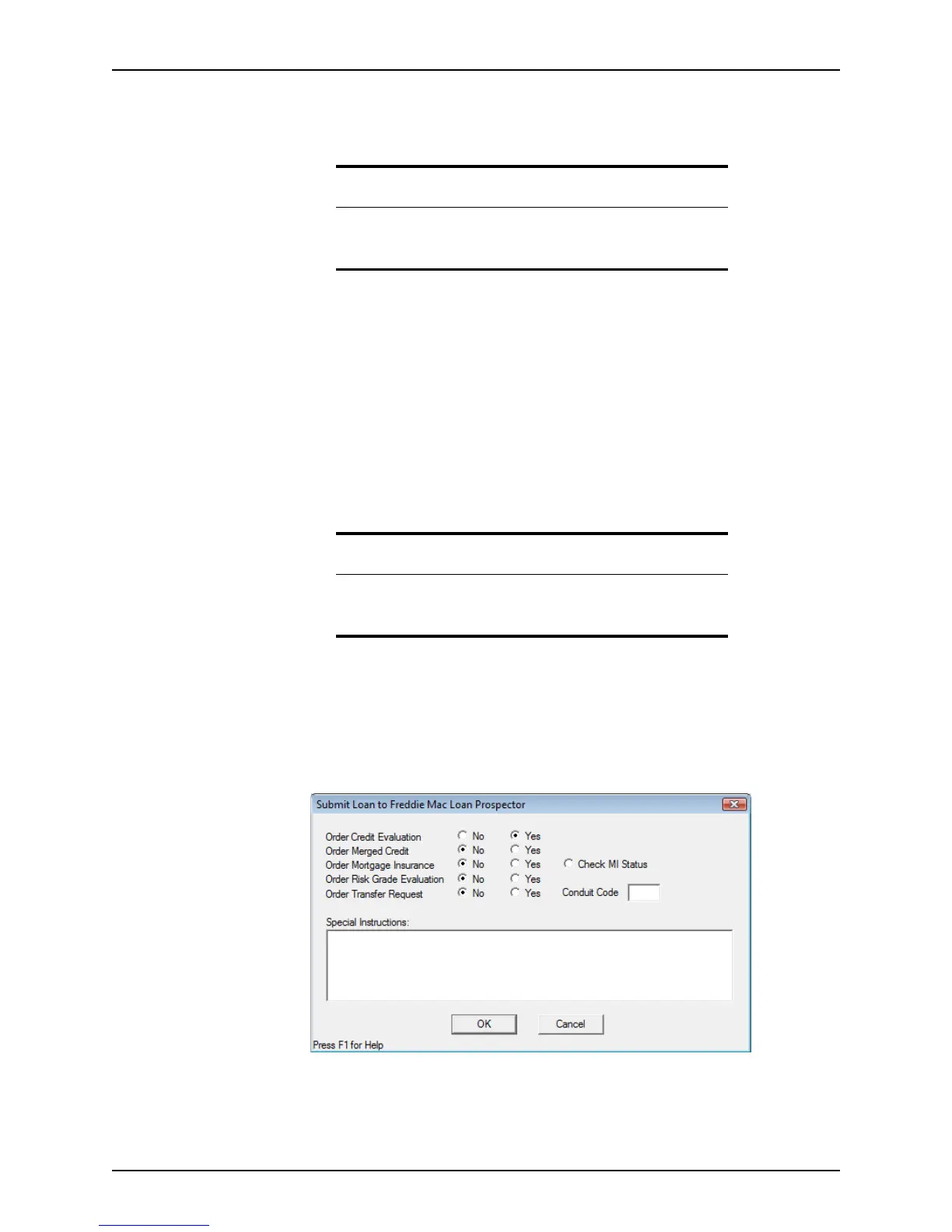
Submit Loan to Freddie Mac Loan Prospector dialog box is displayed.
4 Select the information you want to order with your export and click OK.
Tip
You do not need to use a template if your destination application accepts
files in Fannie Mae format because the field mappings are already built
into Point.
Tip
You do not need to use a template if your destination application accepts
files in Freddie Mac format because the field mappings are already built
into Point.



 To Next Page