Point User Guide 449
Printing Cardex records
Using the Advanced Search dialog box
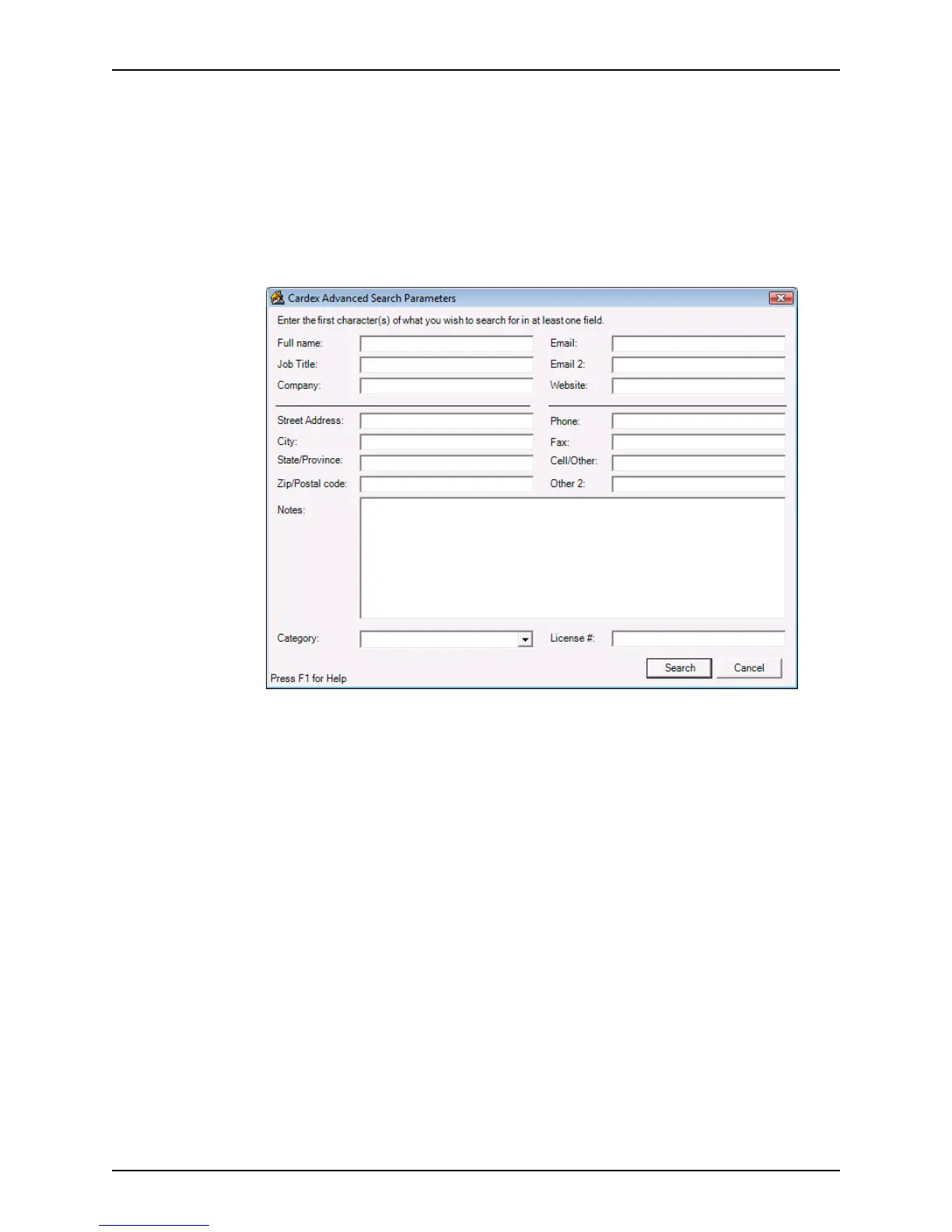
Use the Advanced Search dialog box to specify more specific search criteria.
To perform an advanced search:
1 Select Utilities > Cardex Database to open the
Cardex Database (Browsing for
all records
) dialog box.
2 Select Actions > Search.
The
Cardex Advanced Search Parameters dialog box is displayed.
This dialog resembles the
Cardex Record dialog box and contains all the data in a
record. Therefore, you can search on any criteria in a record.
3 Enter the search criteria in the corresponding field and click Search.
The records that match your search criteria are displayed in the workspace.
Printing Cardex records
You can print your entire Cardex database, a group of records that meet your search
criteria, or individual records. When printing multiple records you can print a detailed list of
information or a summary of the record.
Printing multiple records
To print multiple records in the Cardex database:
1 Select Utilities > Cardex Database to open the
Cardex Database (Browsing for
all records
) dialog box.
2 Perform a search to retrieve the records you want to print.
3 Click Print.



 To Next Page