Point User Guide 61
Specifying the default DOS directory location
• Select the Show Scrollbar check box to include a scroll bar in the list.
• Click Load Default to restore the original default settings.
4 Click OK.
Specifying the default DOS directory location
Use the Point/DOS Directory option to change the default directory where DOS files are
stored when importing and exporting files.
To change the default DOS directory:
1 Select Utilities > Point/DOS Directory.
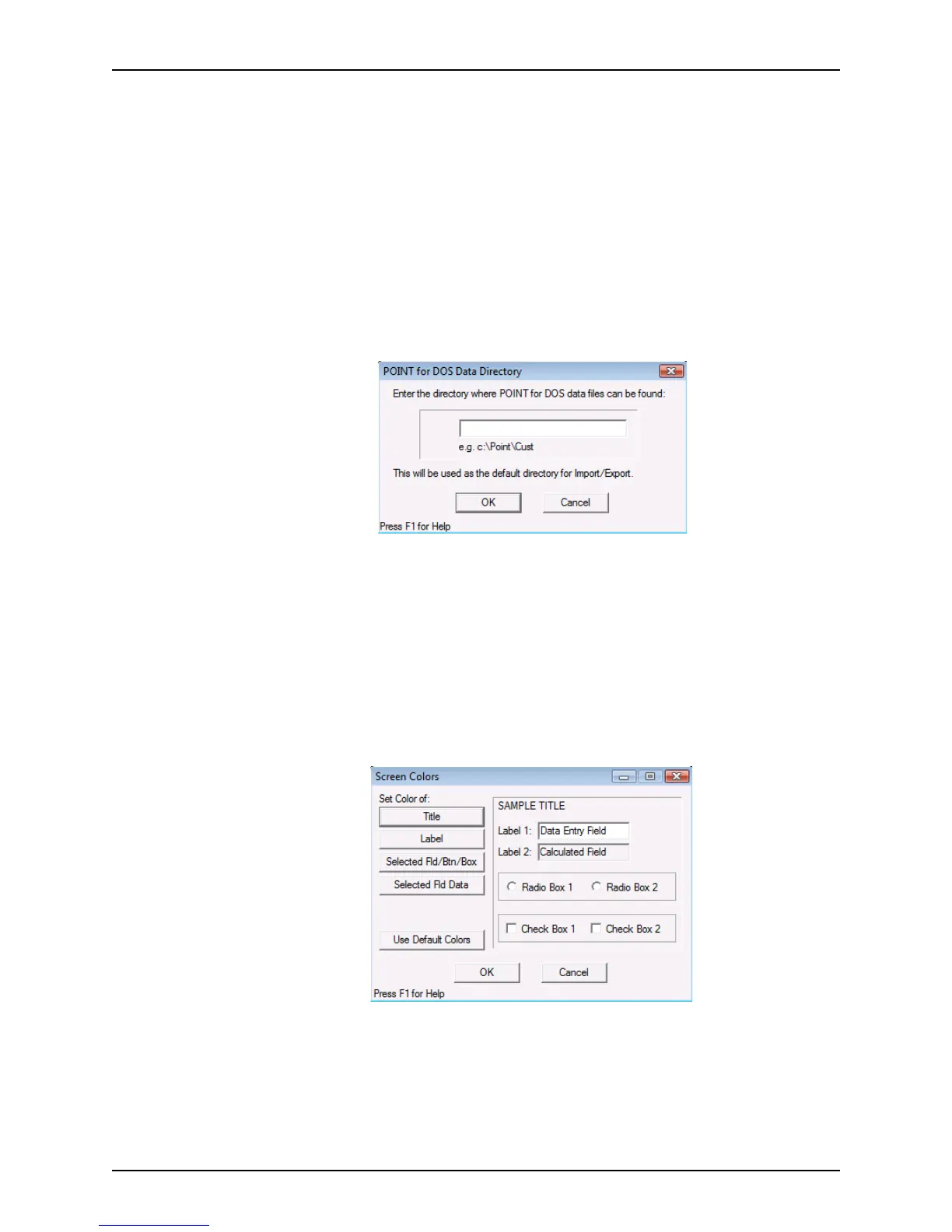
The
POINT for DOS Data Directory dialog box is displayed.
2 Enter the directory where DOS files are located for importing and exporting.
3 Click OK.
Customizing screen colors
Use the Screen Colors option to customize your Point interface with different colors.
To set the screen colors:
1 Select Utilities > Screen Colors.
The
Screen Colors dialog box is displayed.
2 In the
Set Color of section, click the button that corresponds to the item to change.



 To Next Page