Point User Guide 107
Entering assets and liabilities
If the information is not being submitted jointly, complete a separate application for the
co-borrower. The co-borrower’s assets and liabilities are automatically combined with
the borrower’s.
3 In the
Cash Deposit fields, enter the description of the source of funds and the amount
of the cash deposit, if any.
4 Complete the
Checking & Savings Accounts section.
To add an asset to the list:
a If the asset information is already recorded in the
Verification of Deposit
screen, click the From VOD button to populate the accounts fields.
If the information was not populated from the
Verification of Deposit screen,
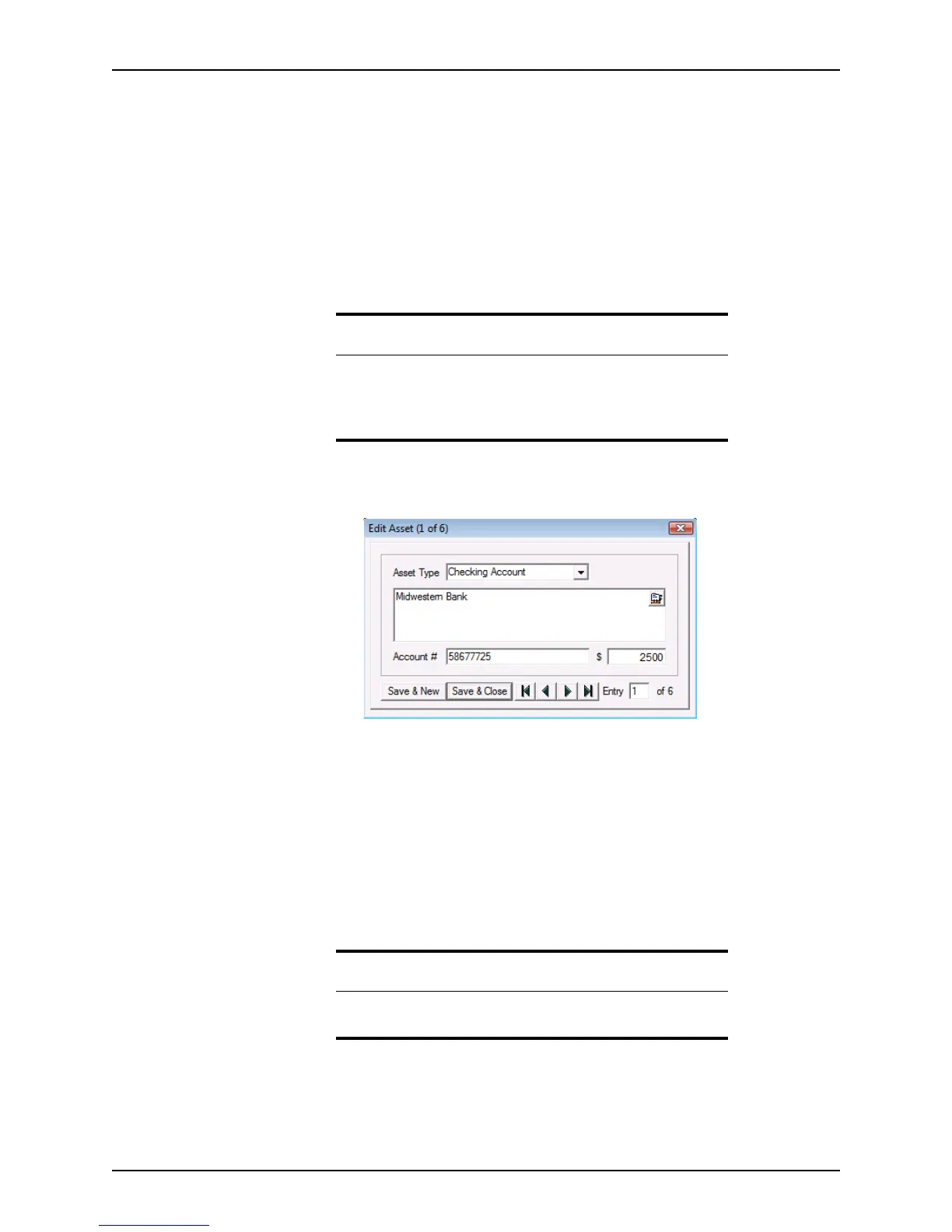
click New to open the
Edit Asset dialog box.
b Select the asset type from the dropdown list, enter the name and address of the
institution where the asset is held, the account number, and the value of the asset.
Click the Cardex icon to populate the name and address from the Cardex
database.
To enter multiple assets, click Save & New after each entry.
Use the arrow buttons to navigate between entries in the
Edit Asset dialog box.
c When you are finished entering assets, click Save & Close.
Use the Insert, Edit, and Delete buttons to add, change, or remove entries. Use
the Move Up and Move Dn buttons to move entries up or down in the list.
Caution
Entering assets by importing them from the verification screen replaces
all existing information in the assets section.
To prevent loss of data, click the From VOD button before you enter any
assets manually.
Note
The Checking & Savings Accounts list can contain a maximum of 20
accounts.



 To Next Page