112 Calyx Software
Loan Application
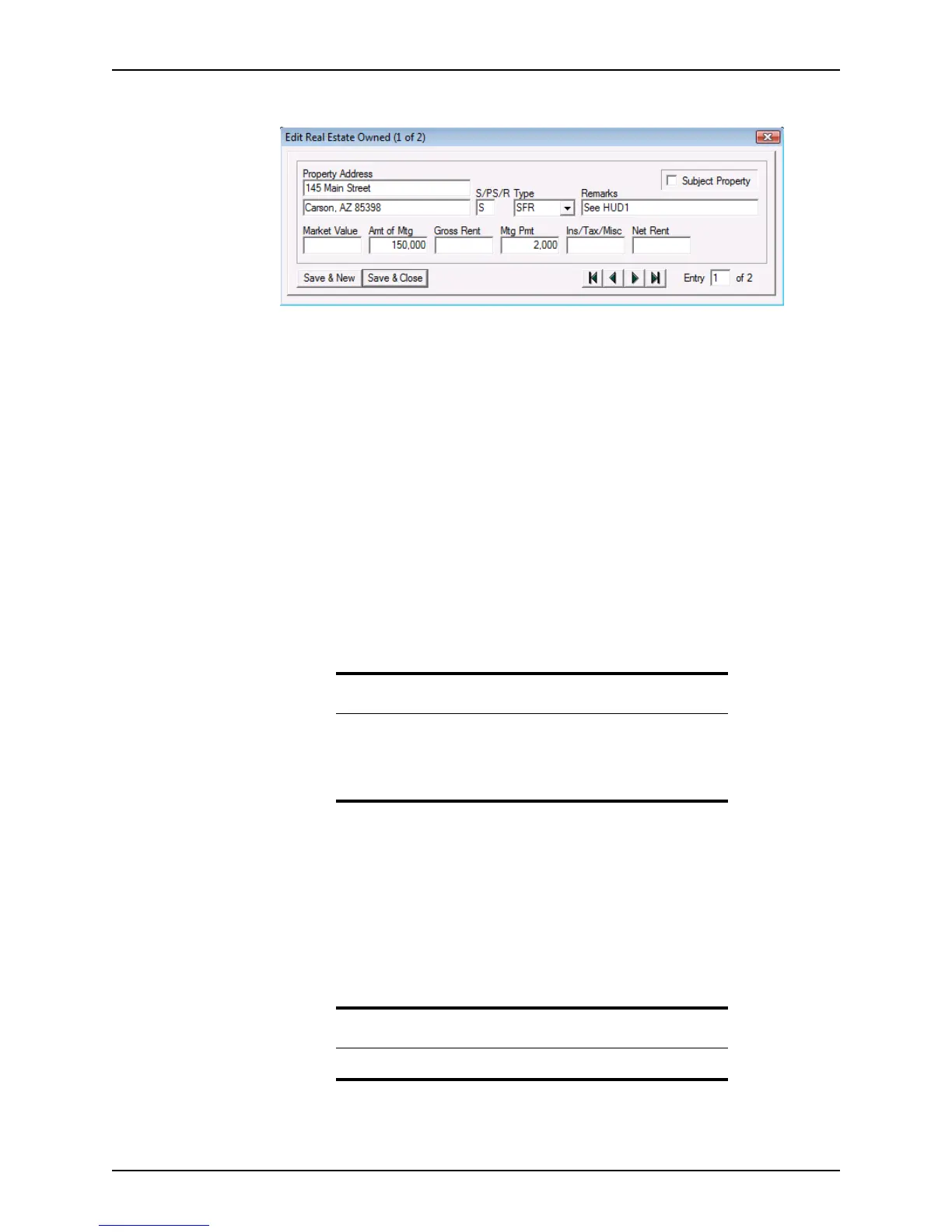
2 Click New to open the Edit Real Estate Owned dialog box.
3 Enter the property street address, city, state, and zip code in the
PropertyAddress
fields.
If the loan is a refinance, the property address is automatically populated from the
Loan Application. Select the Subject Property check box to specify the subject
property.
4 Indicate if the property was sold (S), if a sale is pending (PS), or if the property will be
held for rental income (R) in the
S/PS/Rfield:
If none of the values apply (for example, if the property is a second home), leave the
field blank.
5 Select the property type from the Type dropdown list.
6 Enter any comments about the property in the
Remarks field.
7 Enter the market value of the property in the
MarketValue field.
8 Enter the remaining mortgage balance in the
AmtofMtg field.
9 If the property is a rental, enter the gross rent amount in the
Gross Rent field.
10 If this is a second mortgage or property, add the first and second mortgage balance
and payments together. Enter the amount in the
MtgPayment field.
11 Enter the total insurance and tax payments, and any miscellaneous payments, such
as home owner’s association dues in the
Ins/Tax/Misc field.
If the
OccupancyRate field contains a value and the property disposition is R (the S/
PS/R
field) Point calculates the net rent.
12 To enter multiple properties, click Save & New after each entry.
Use the arrow buttons to navigate between entries in the
Edit Real Estate Owned
dialog box.
Note
If the property has a positive cash flow, the NetRentfield on page 2 of
the
Loan Application is automatically populated.
If the property has a negative cash flow, it is displayed on the
Transmittal Summary.
Note
The REO list can contain a maximum of 200 properties.



 To Next Page