218 Calyx Software
Loan tracking
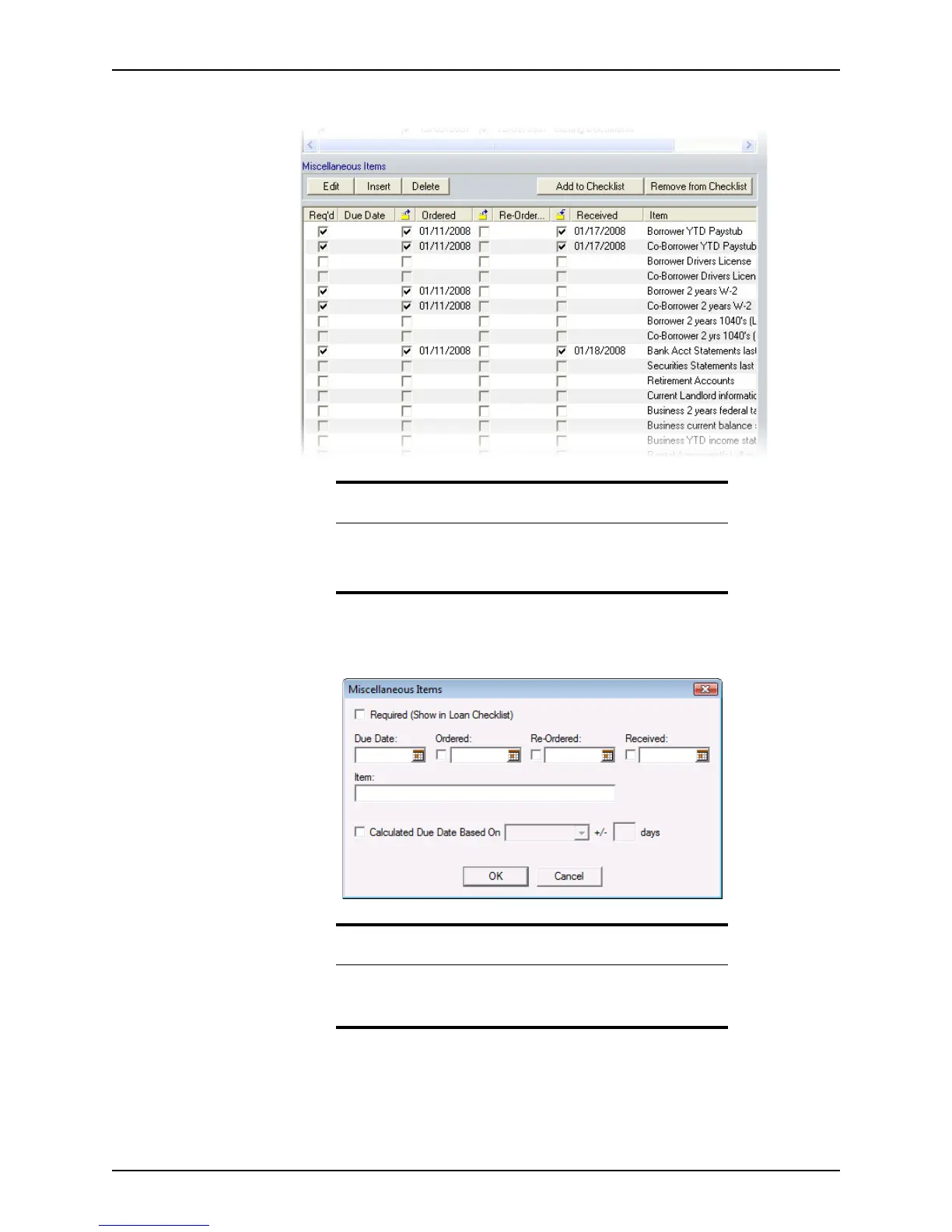
3 Scroll to the Miscellaneous Items section.
4 Edit or add an item:
a Double-click an item or click Edit to open the
Miscellaneous Items dialog box.
b If the item is required for the loan, select the
Required check box. The item is
added to the loan checklist.
Uncheck a check box to remove a document from the loan checklist.You can also
select and deselect this check box in the
Miscellaneous Items list.
Tip
Use the Insert button to add a blank item to the list on the screen.
To delete an item that you do not need or do not want to include, click
the Delete button.
Tip
In addition to these two methods, you can also access the
Miscellaneous Items dialog box from the loan checklist by selecting
an item and clicking the Open Detail button.



 To Next Page