Point User Guide 9
Advanced installation
7 Select Custom to customize your setup, and click Next.
The
Change Application Directory dialog box is displayed. In new installations the
default directory is C:\WINPOINT. In an upgrade, the default directory is the directory
that was used in the previous installation.
8 Select the application directory location and click Next.
The
Change Template Directory dialog is displayed. In new installations the
default directory is C:\PNTTEMPL. In an upgrade, the default directory is the directory
that was used in the previous installation.
9 Select the template directory location and click Next.
The
Change Data Directory dialog is displayed. In new installations the default
directory is C:\PNTDATA. In an upgrade, the default directory is the directory that was
used in the previous installation.
10 Select the data directory location and click Next.
The
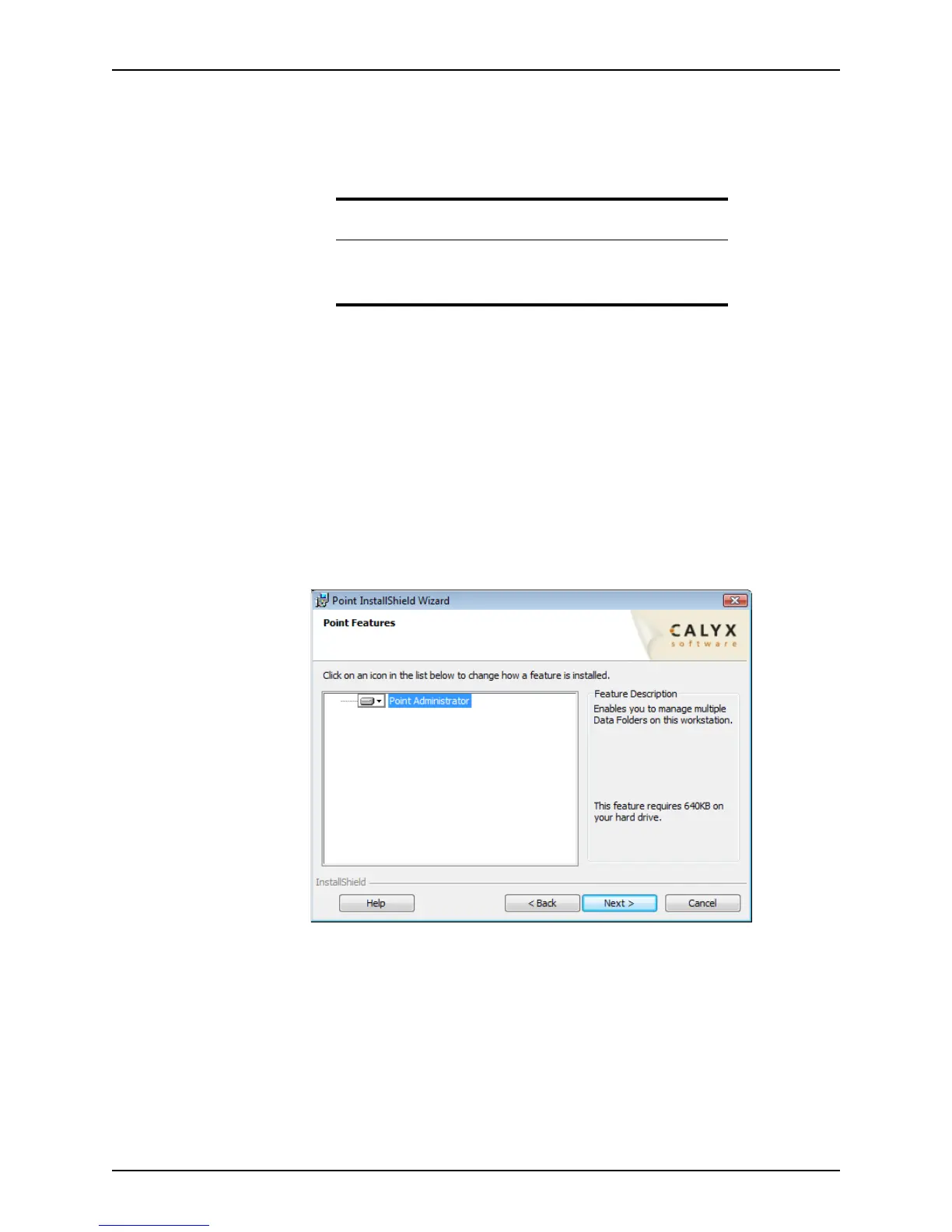
Point Features dialog box is displayed. This dialog box is used to determine if
the Point Administrator will be installed.
11 Use the dropdown list to select the type of installation and click Next.
If this is an upgrade, and Point Administrator was not installed previously, the option to
install it is unavailable.
When the installation process has completed successfully, the
InstallShield Wizard
Completed
dialog box is displayed.
Tip
To specify a network drive that is mapped to your computer, go to
My
Network Locations
and copy the UNC path and paste into the Folder
Location field.



 To Next Page