312 Calyx Software
Integrated products and services
If you do not enter data in a required field, a dialog box is displayed after you submit
the entry that contains the list of empty fields or fields with invalid data.
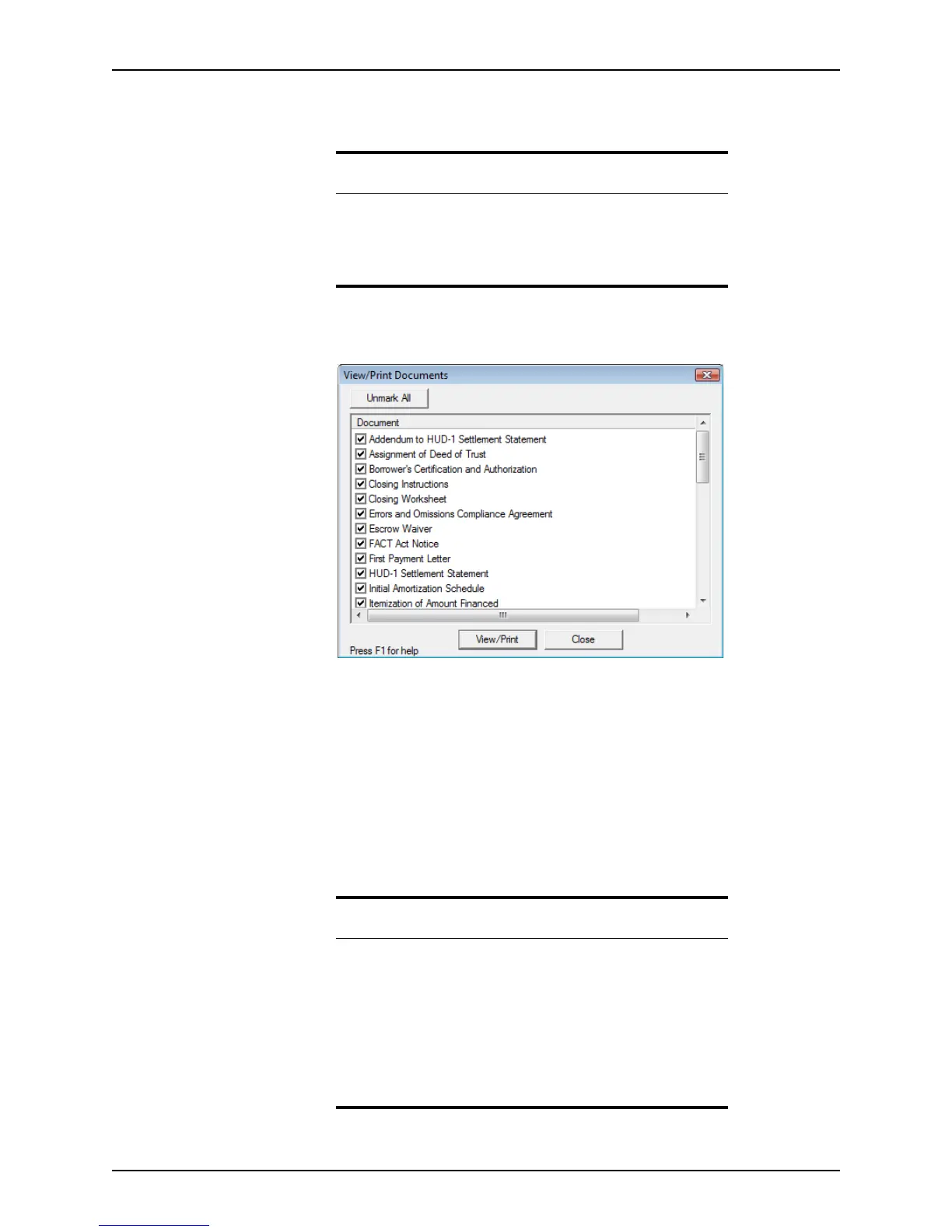
5 When the requested documents are returned by the provider, the
View/Print
Documents
dialog box is displayed.
By default, all documents are preselected.
6 Remove the documents from the list that you do not want to view or print, or click
Unmark All to remove all documents from the list and select them individually.
When clicked, the Unmark All button changes to Mark All.
7 Click View/Print.
A PDF file is produced that contains all of the selected documents.
When the request for initial disclosures or closing documents is successful, the TIL Discl/
GFE ordered and received dates are automatically updated in the loan checklist and basic
documents if those date fields are empty.
Tip
To view disclosure and closing documents, select Services > Initial
Disclosures > View Disclosures or Services > Closing Documents
> View Documents at any time after the documents are received. If the
documents were not received yet, the View Disclosures option is
unavailable.
Related information
• For more information about the Closing screen, refer to Recording
loans, on page264.
• For information about how to update the product and providers lists,
refer to Specifying investors and products, on page308.
• Refer to Correcting submission errors when requesting disclosures
and closing documents, on page313, for information about how to
correct fields with missing or invalid data.
• For more information about the
Loan Product screen, refer to
Electronic document storage, on page202.



 To Next Page