362 Calyx Software
Templates
If the application you want to export to is not available, select <custom ASCII format>
and proceed to Step 5. The default format is Microsoft Word.
If you selected a Microsoft application, the default file path of the
.exe
file is
automatically populated in the Executable to Launch field.
4 If you did not select a Microsoft application or the application path is not correct,
browse to the location of the
.exe
file for the selected application and select the file.
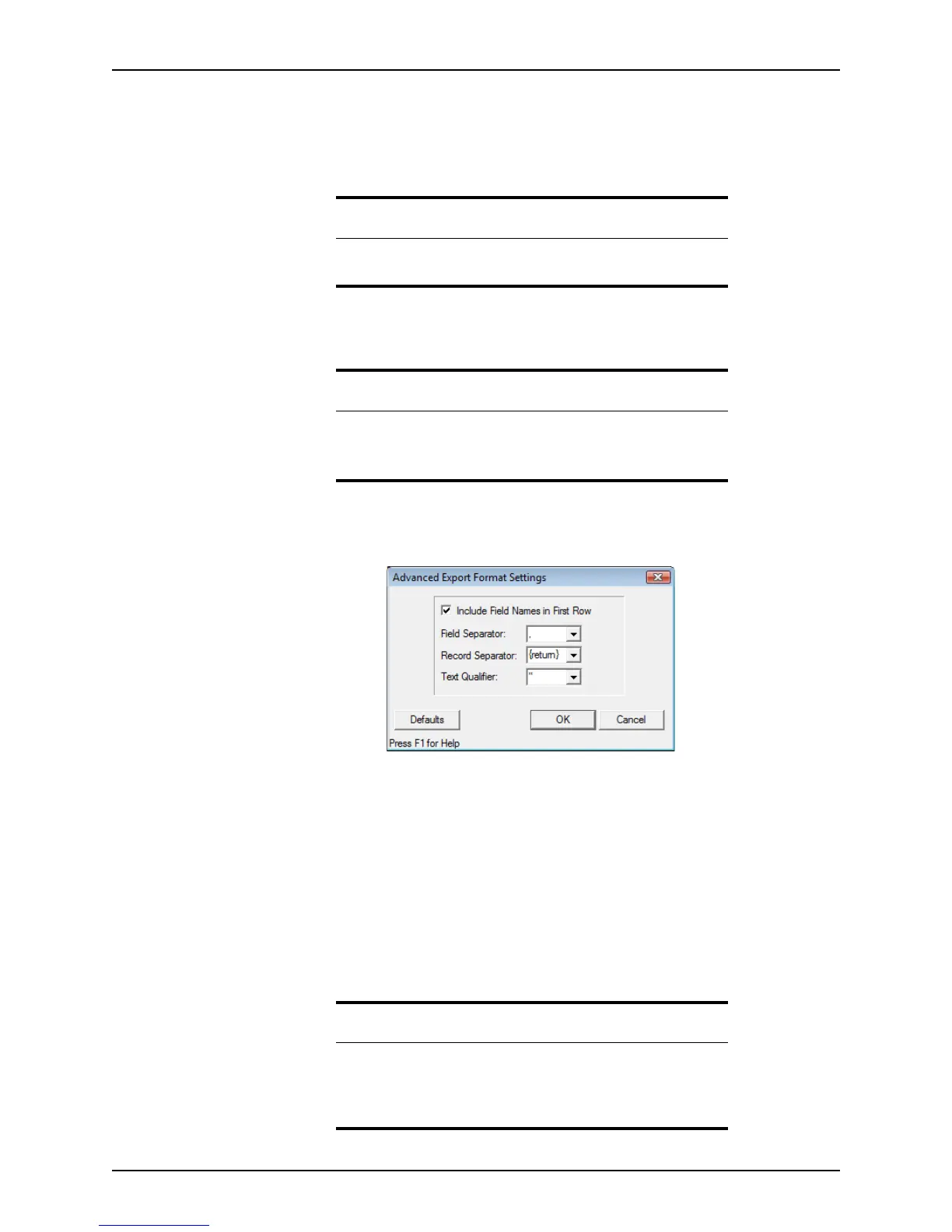
5 If you selected <custom ASCII format>, click Advanced.
The
Advanced Export Format Settings dialog box is displayed.
This dialog box is used to specify the delimiters for the output data file.
6 Click OK to accept the defaults and return to the data export sample template.
7 To link to a merge file, click Browse in the
DocumenttoLinkto field and navigate to
the file.
8 In the
OutputDataFile field, click Browse and navigate to the file that contains the
data to export.
9 Edit the table by removing fields or entering additional field information as applicable.
10 After you are finished building the template, select File > Save As.
11 Enter a file name and click Save.
Important
Be sure to verify that the path in the ExecutabletoLaunch field is
correct.
Note
The output data file is saved in the WINPOINT\WORK folder.
The default name and path for the output data file is
C:\WINPOINT\WORK\pointexp.dat.
Important
Point saves data export templates with an
.exp
extension. Do not change
the extension. The file name cannot contain any of the following
characters:
\ / : * ? “ < > .



 To Next Page