Point User Guide 393
Manipulating report output
Point automatically assigns the file an extension of
.xml
.
Exporting reports to custom ASCII
To export the results of a report in Point Report Viewer format to custom ASCII format:
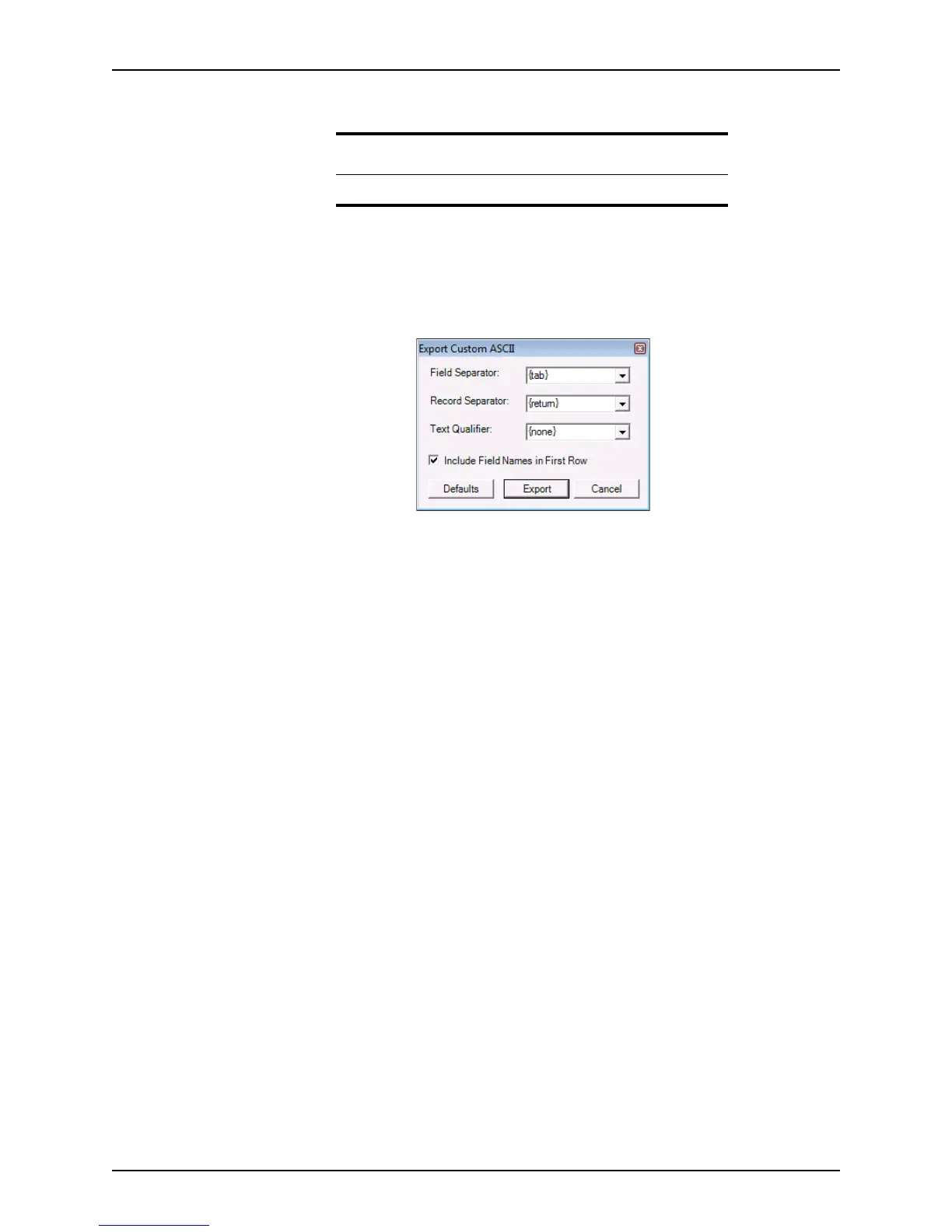
1 Select File > Export > Custom ASCII to open the
Export Custom ASCII dialog
box.
2 Select the Field Separator, Record Separator, and Text Qualifier.
Field Separator
The Field Separator separates each field in the report with the specified delimiter.
The default option is {tab}.
{tab}
Uses a tab as the field delimiter.
, (comma)
Uses a comma as the field delimiter.
{return}
Uses a return as the field delimiter (each field is on a separate line in the
report).
Record Separator
The Record Separator separates each record with the specified delimiter. The
default option is {return}.
{return}
Uses a return as a record delimiter (each record is on a separate line in the
report).
Text Qualifier
Text qualifiers specify that the text that is contained within the qualifier characters
is imported as one value. The default option is {none}.
{none}
No text qualifier is used.
“ (double quotation mark)
Uses double quotation marks as the text qualifier. Text that is contained within
double quotation marks is considered one value.
Note
Data filters do not transfer when you export to XML.



 To Next Page