410 Calyx Software
Marketing tools
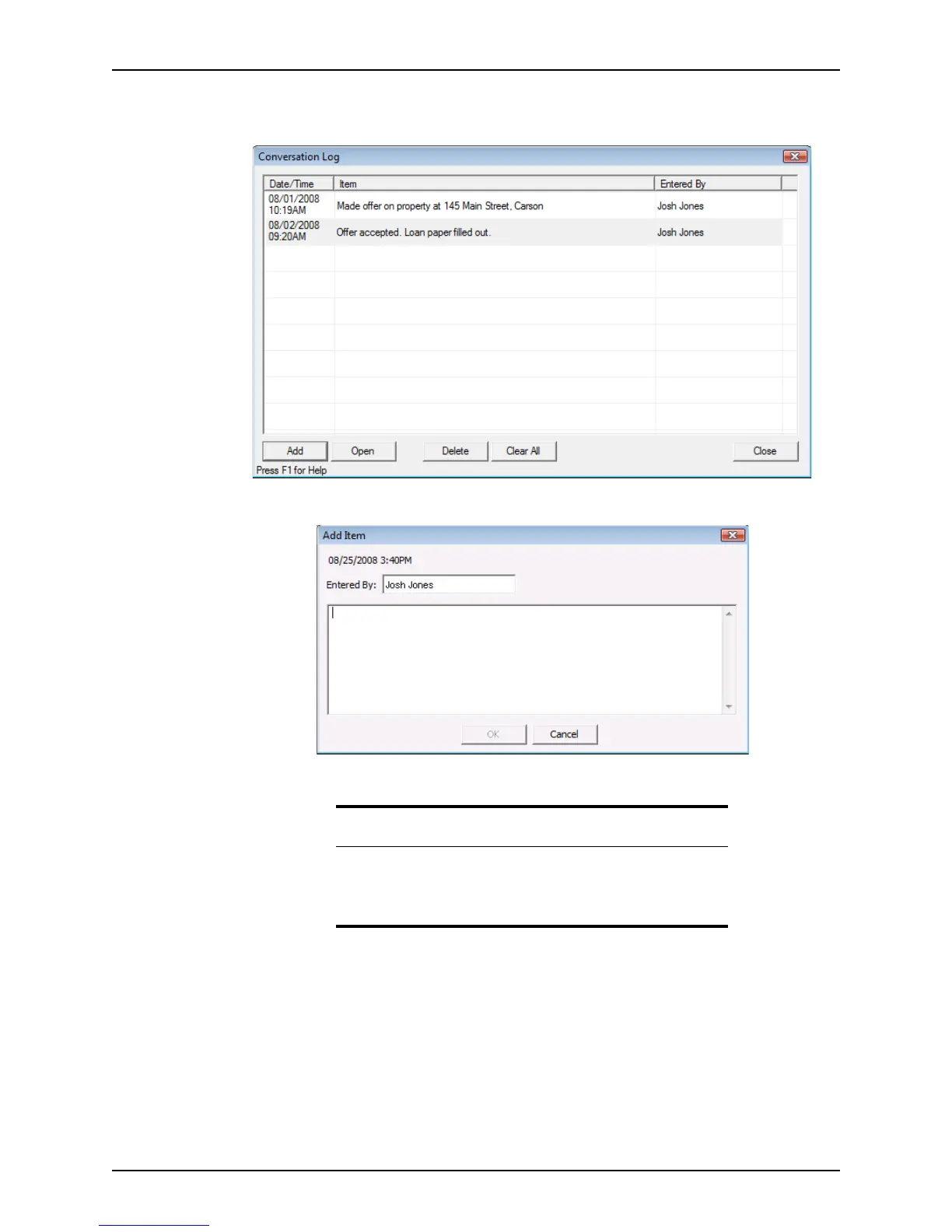
2 Select Utilities > Conversation Log or click the Conversation Log icon on the toolbar
to open the
Conversation Log.
3 Click Add to begin a new entry in the log.
4 In the
Add Item dialog box, enter the information you want to document, and click
OK.
Each successive entry is automatically date-stamped when it is entered in the
conversation log. Items are listed in reverse date order. The first 100 characters of each
entry are visible in the main
Conversation Log dialog box. Entries with more than 100
characters are appended with an ellipsis (...). Hover the mouse over the entry to display a
Note
The name of the user who is logged in is automatically populated in the
Enteredby field. When Point is not running in a secure mode, you can
change the name that displays by selecting Change Name from the File
menu.



 To Next Page