Point User Guide 417
Comparing loans
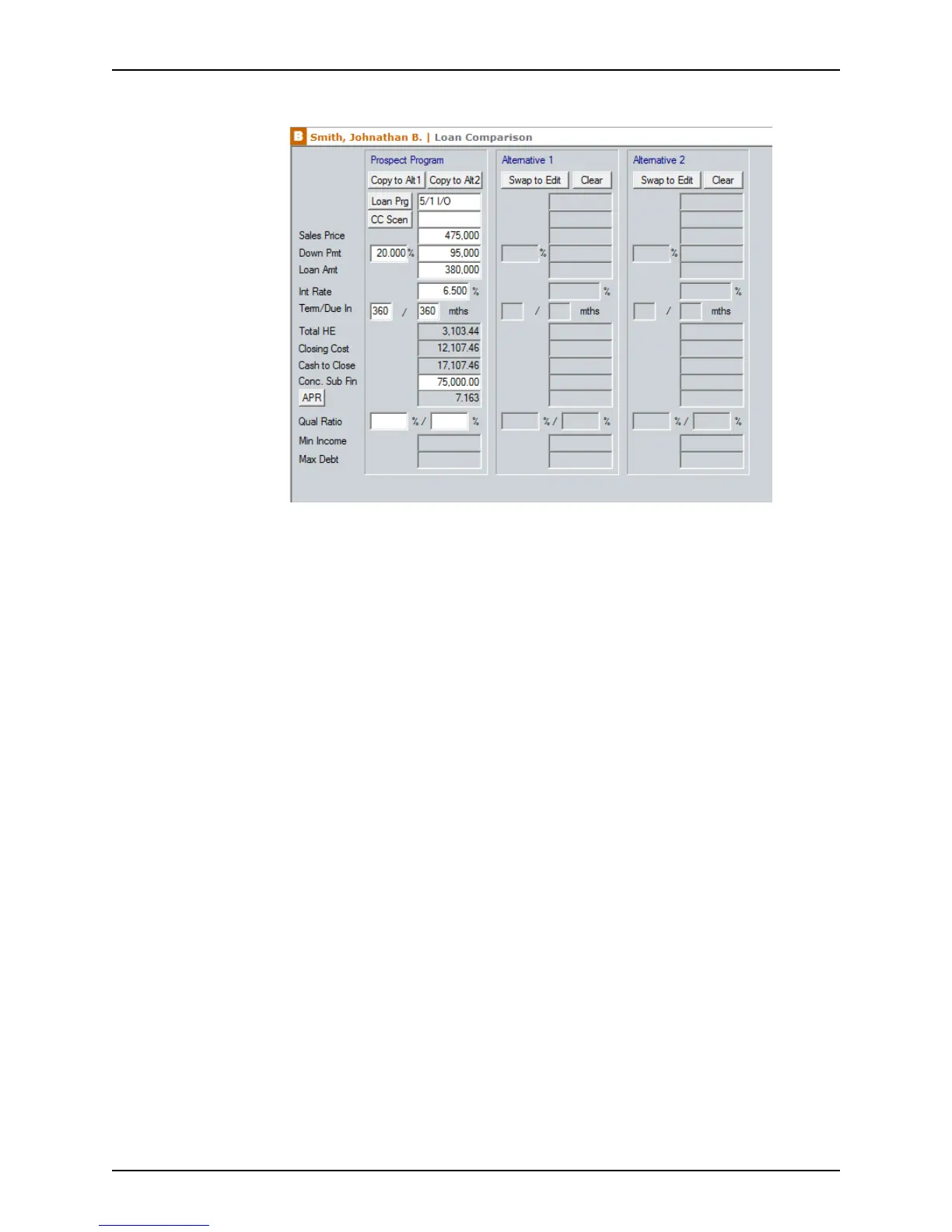
The Loan Comparison screen is displayed.
Any existing loan data in the loan file is automatically populated in the corresponding
fields in the
ProspectProgram column.
Enter up to three loan scenarios in this screen and use them for comparison
purposes. Use the
ProspectProgram column for entering and editing data. The
Alternative1 and Alternative2 columns contain read-only fields.
Move the scenarios from column to column with the Copy to Alt and Swap to Edit
buttons.
3 To retain the loan information in the
ProspectProgram column, click Copy to Alt 1 to
copy the data to the
Alternative1 column.
4 Click Loan Prg to select a loan program template, or enter one manually.
5 Click CCScen (closing cost scenario) to select a closing cost scenario.
6 Enter the sales price and down payment in the
SalesPrice and DownPmt fields. For
refinance alternatives, enter only a loan amount.
7 Enter or edit the data in the remaining fields as needed for the comparison.
8 Click the Mth Pmt button to open the
Monthly Payment dialog box and enter or edit
the hazard insurance, property taxes, mortgage insurance, and homeowner’s
association (HOA) dues in the applicable fields. Click OK.
9 Click ARM to enter or edit the adjustable rate information.
10 To enter another loan scenario, click the Copy to Alt 2 button to copy it from the
ProspectProgram column to the Alternative2column.
11 Enter the next loan scenario, if needed.
12 Click Notes to open a dialog box to enter any notes about the loan comparison.
13 To include the contact information of the party for whom the comparison was created,
click the Prepared For button and complete the
Prepared For dialog box.



 To Next Page