438 Calyx Software
Data import and export
3 Select <custom ASCII format> from the Import Format dropdown list.
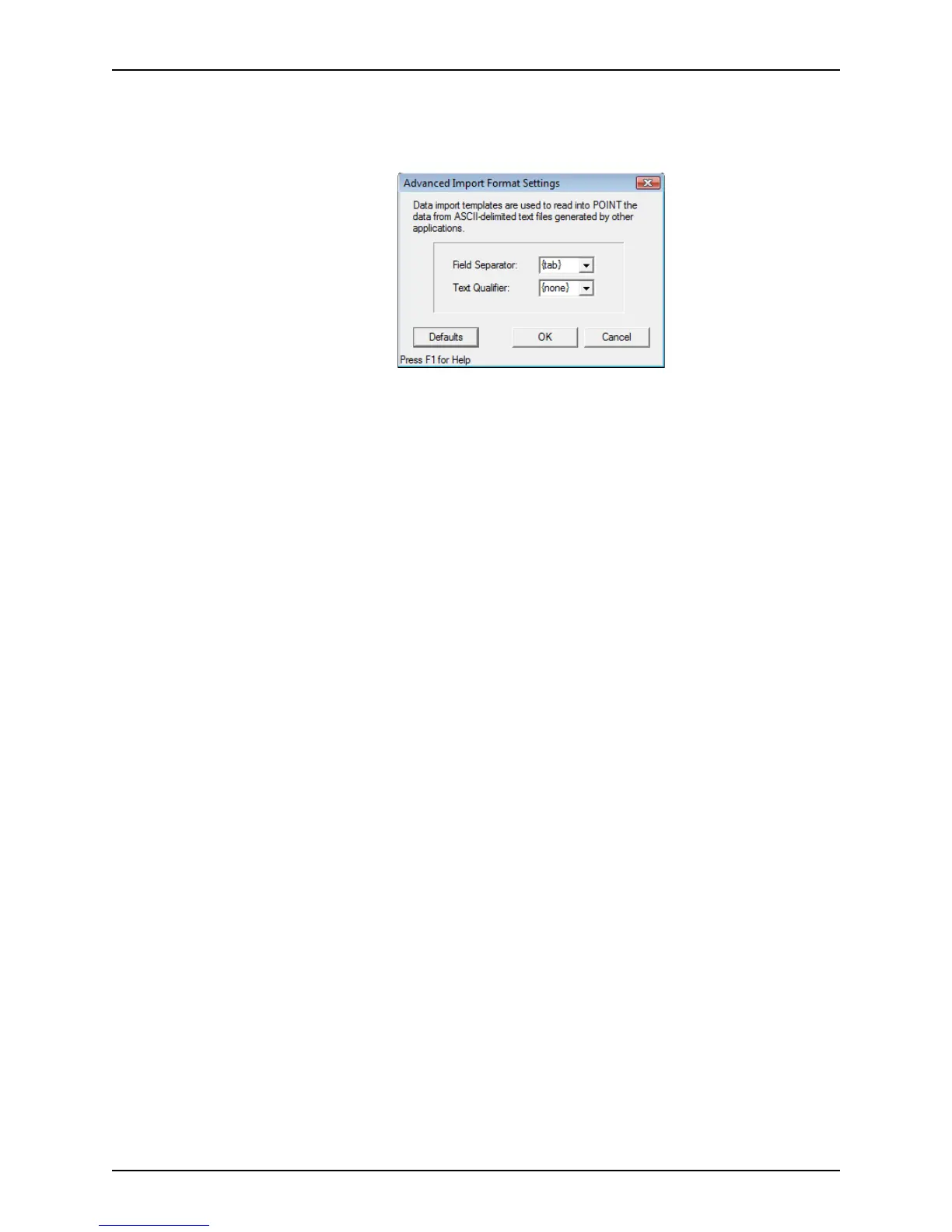
4 Click the Advanced button to open the
Advanced Import Format Settings dialog
box.
Use this dialog box to specify the file delimiters in the import file.
Field Separator
The Field Separator separates each field in the report with the specified delimiter.
The default option is {tab}.
{tab}
Uses a tab as the field delimiter.
, (comma)
Uses a comma as the field delimiter.
Text Qualifier
Text qualifiers specify that the text that is contained within the qualifier characters
is imported as one value. The default option is {none}.
{none}
No text qualifier is used.
" (double quotation mark)
Uses double quotation marks as the text qualifier. Text that is contained within
double quotation marks is considered one value.
' (single quotation mark)
Uses single quotation marks as the text qualifier. Text that is contained within
single quotation marks is considered one value.
5 Check the
Field Name Header in First Row check box if the file to be imported has
column headers in the first row.
6 Select the
Update Existing Files to overwrite any existing files with the same name.
7 Click Batch Import.
If the
Update Existing Files check box is not selected, the Batch Data Import dialog
box is displayed. Select
Prospect or Borrower and click OK.
The
Specify an Input Data File dialog box is displayed.
8 In the
Specify an Input Data File dialog box, navigate to the directory that contains
the
.txt
file to import or enter the file name and path in FileName field.
9 Click Open to initiate the import process.
The records in the text file are imported into individual loan files in Point.



 To Next Page