4 Calyx Software
Installation
2 Click Install Point on this Computer.
The InstallShield Wizard configures the Point installer and checks for any missing
prerequisites.
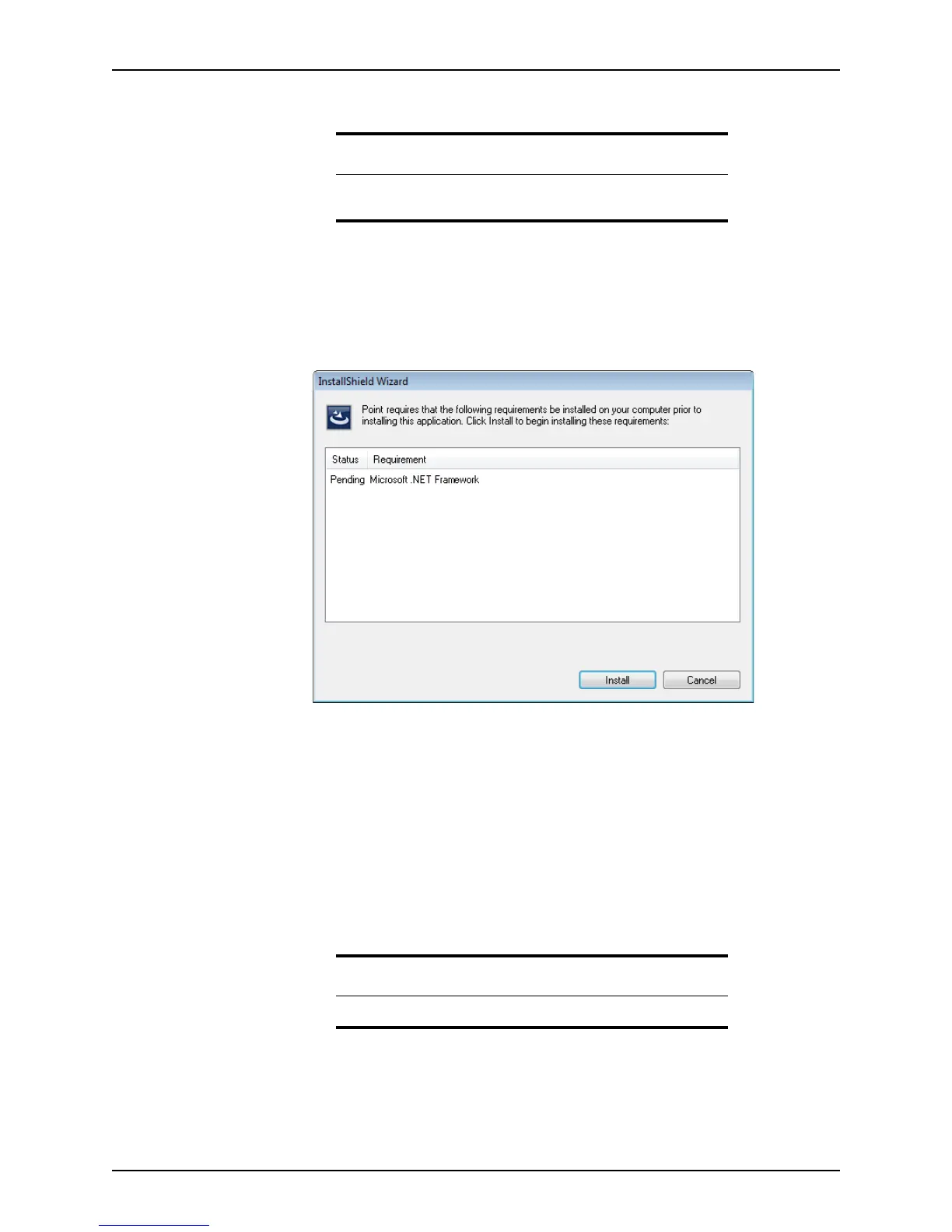
If any of the required prerequisites are missing, the
Setup Prerequisites dialog box
is displayed.
The
Setup Prerequisites dialog box contains a list of missing prerequisites.
3 Click Install to install or remove the items on the list.
4 When the
Welcome screen is displayed, click Next to continue the installation.
5 Read the Software License Agreement. If you accept the terms, select the
I accept the
terms in the license agreement
button and click Next to proceed.
If you do not accept the terms of the agreement, the Next button is not enabled and
you are unable to proceed with the installation process.
The
Customer Information dialog box is displayed.
6 Enter your name, company name, and account ID, and click Next.
Attention
If you are running a previous version of Point, you do not need to delete
it. Point will upgrade the existing version.
Important
Your account information is e-mailed to the primary account holder.



 To Next Page