Point User Guide 239
Registering and locking loans for sale
2 Select Banker > Secondary Marketing.
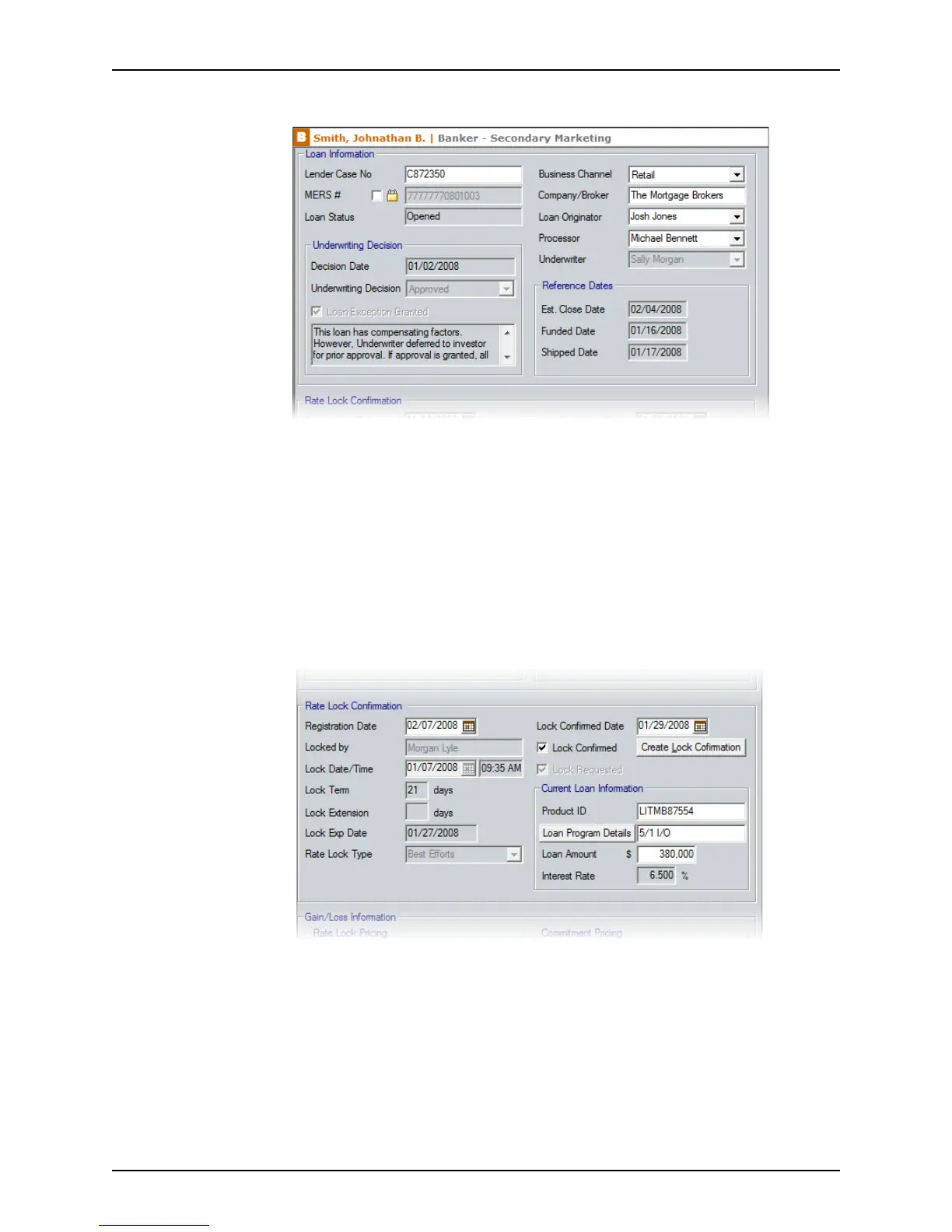
3 Complete the
Loan Information section.
Most of the fields in this section are prepopulated with information that was entered in
other screens.
If Auto MIN Generation is enabled, the MERS # is automatically generated and
populated in the
MERS# field. To override the automatically generated value, select
the check box to unlock the field and enter the MERS # manually.
Disabled fields are populated when the user for that role completes them. For
example, the fields in the
Underwriting Decision section are completed by the
underwriter in the
Underwriting screen.
4 Complete the
Rate Lock Confirmation section.
The fields in this section correspond to the
Registration and Lock Request section in
the
Registration & Rate Lock tracking screen. If data is entered or updated in these
fields in either screen, the corresponding fields are automatically populated.
If the rate was already locked, the fields that pertain to the rate lock are disabled and
cannot be modified.
a When the lock is confirmed, select the
Lock Confirmed check box.
The Create Lock Confirmation button becomes enabled and the
Rate Lock
Pricing
fields become disabled to prevent additional changes.



 To Next Page