Point User Guide 257
Closing loans
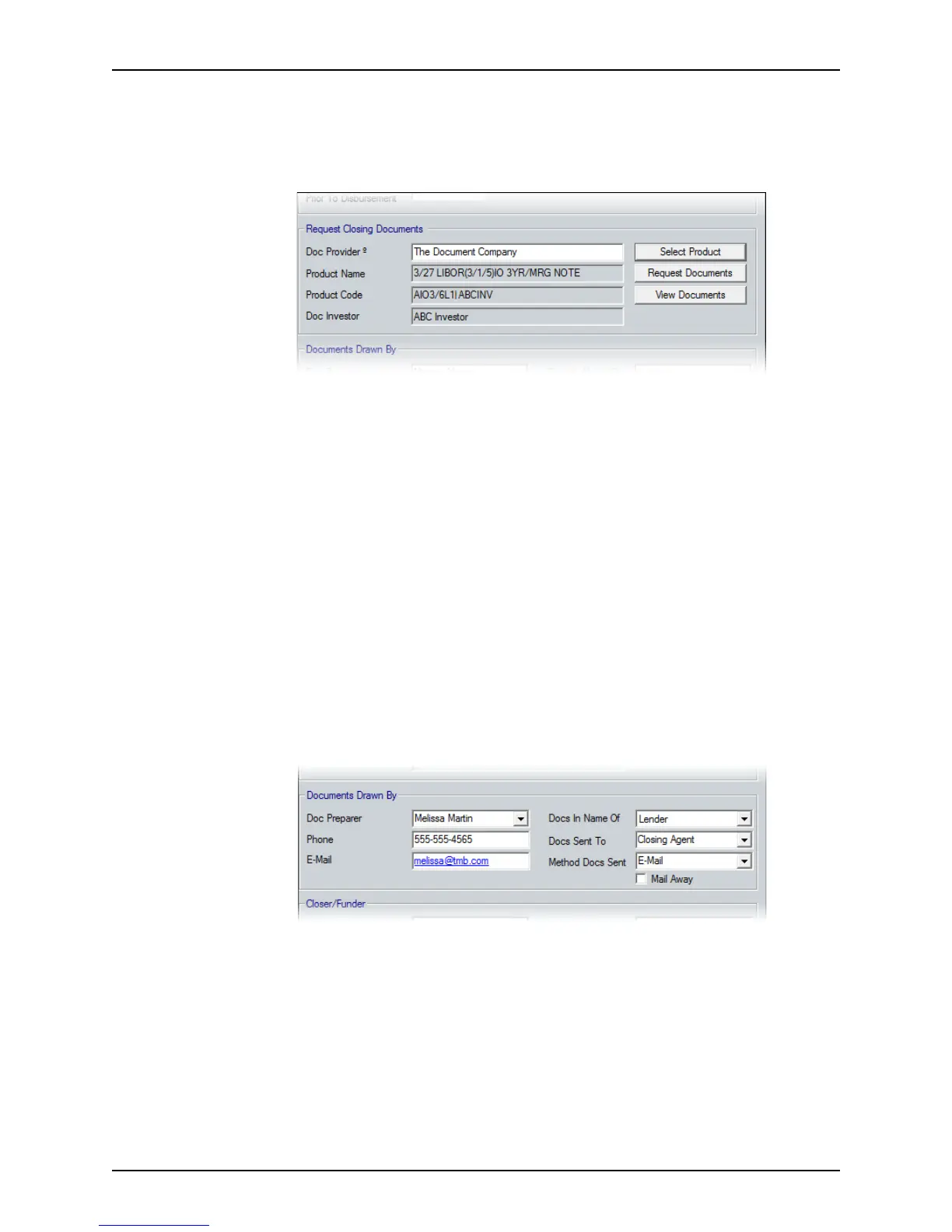
12 To order documents by using the services of a document provider through the Calyx
Services interface:
If the
ProductName and ProductCode fields are already populated with the products
that you need for this loan, proceed to Step d.
a Click the Select Product button to specify the document provider.
The
Select Product window is displayed.
b If the investor list is not populated, click Update Products to select a documents
provider.
c Select the investor and product to use for this loan from the
Select Product
window and click Select Product.
The
ProductName, ProductCode, and DocInvestor fields are populated based on
your selections.
d Click Request Documents to process the request for the documents from the
selected investor.
e After the documents are requested, click View Documents at any time to view
and print the documents.
If you are not using the service of a document provider through the Calyx Services
interface, enter the document provider name in the
DocProvider field. Enter the
information manually or use the Cardex database to complete this field.
13 Complete the
Documents Drawn By section.
a Select the Doc Preparer from the dropdown list or enter their name and contact
information manually.
b Select the entity for whom the documents are being requested (Broker, Investor, or
Lender) from the Docs In Name Of dropdown list.
c Specify where the documents are being sent and the method by which they are
delivered in the Docs Sent To and Method Docs Sent dropdown lists.
d Select the
Mail Away check box if the closing documents were mailed for
signatures rather than signed in person.



 To Next Page