322 Calyx Software
Integrated products and services
ii Click Open.
The document is displayed in the
Document Information Preview.
iii Select the category and type and click Add.
iv Click OK in the
Select File dialog box.
The
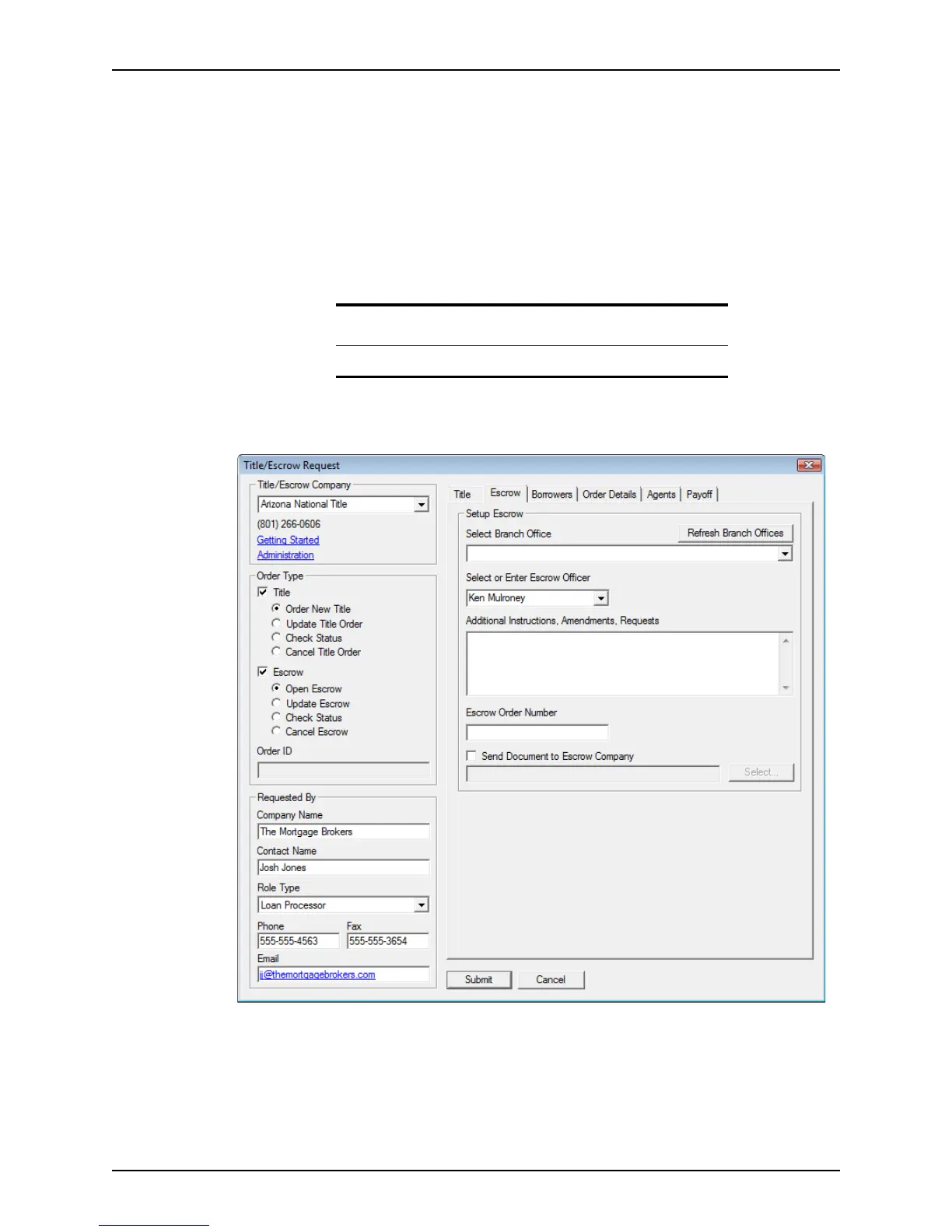
Title/Escrow Request dialog is displayed. The document is sent when
the request is submitted.
3 If you are ordering escrow, select the
Escrow check box and complete the information
in the Escrow tab.
The Escrow tab contains information that is needed to set up escrow. These fields are
enabled only when the Escrow check box is selected.
a Select the Escrow check box.
b Click the Escrow tab.
c Select the type of request you are making from the list of escrow options.
d Enter the order ID number, if applicable.
Important
You can place an escrow order separate from a title order.



 To Next Page