Point User Guide 323
Services
The OrderID field is enabled when the Update Escrow, Check Status, or Cancel
Escrow
option is requested.
e To place the order with a specific branch of the title company, click the Refresh
Branch Office/Products button to refresh the dropdown list.
A login dialog box is displayed.
f Enter your login information for the selected escrow company and click OK.
g Select the branch office from the dropdown list.
h Enter the name of escrow officer or select the name of the officer you want to work
with from the dropdown list.
This field is automatically populated if the information was entered in the loan file.
i Enter additional information, amendments, or endorsements in the provided field.
j Enter the escrow number in the
EscrowOrderNumber field.
k To include an additional document with the request, select
Send Document to
Title Company
and click Select....
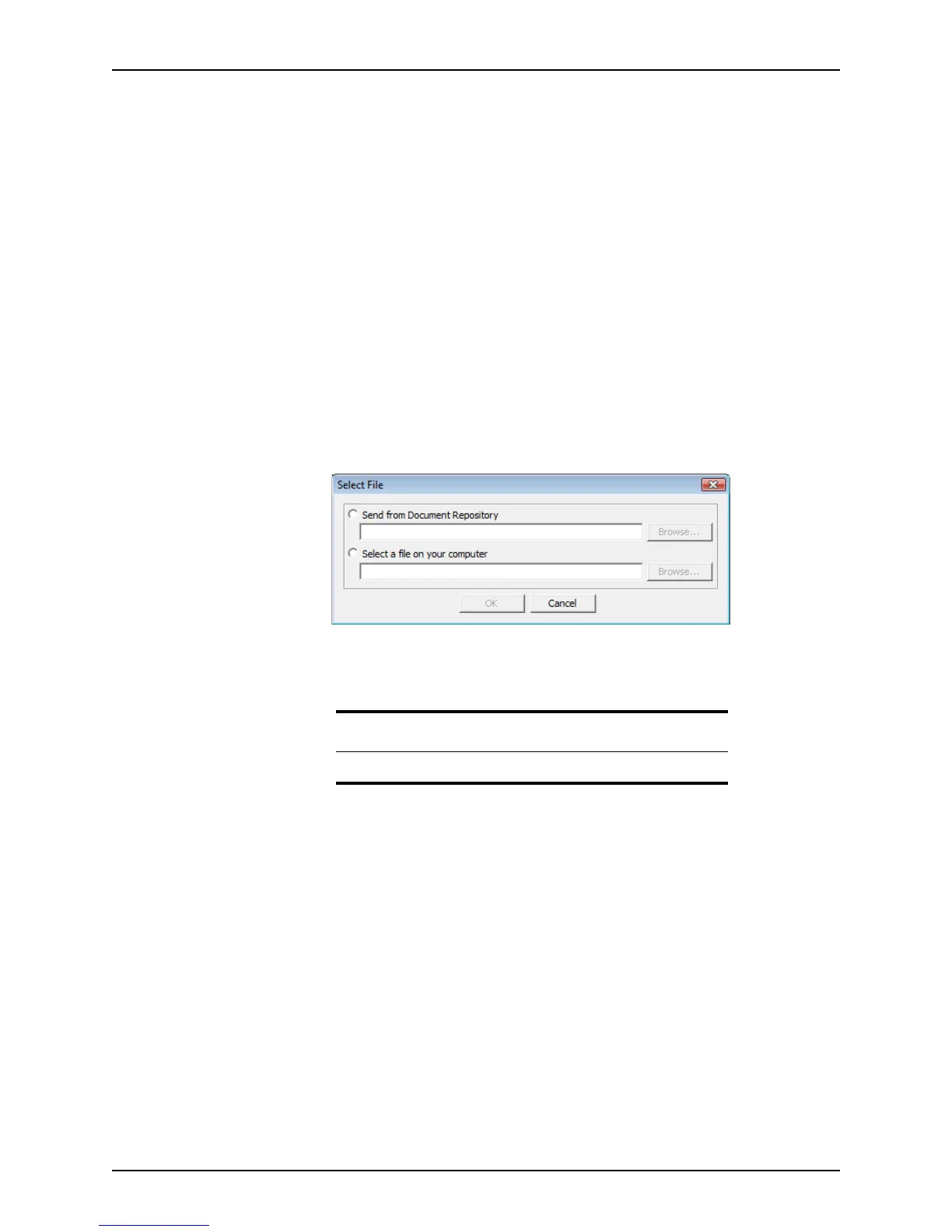
The
Select File dialog box is displayed.
l Select whether you want to send the document from the document repository or
send a file from your computer and click the Browse button that corresponds to
your selection.
If you selected
Send from Document Repository, the Document Storage dialog
box is displayed.
i Select the document to include and click the Select button.
ii Click OK in the
Select File dialog box.
The document path is entered in the
SendDocumenttoEscrowCompany field
and will be sent when the request is submitted.
If you selected
Select a file on your computer, the Microsoft Windows Choose
file
dialog box is displayed.
Restriction
You can only attach one document to the title/escrow request.



 To Next Page