Point User Guide 47
Creating escrow and title tables
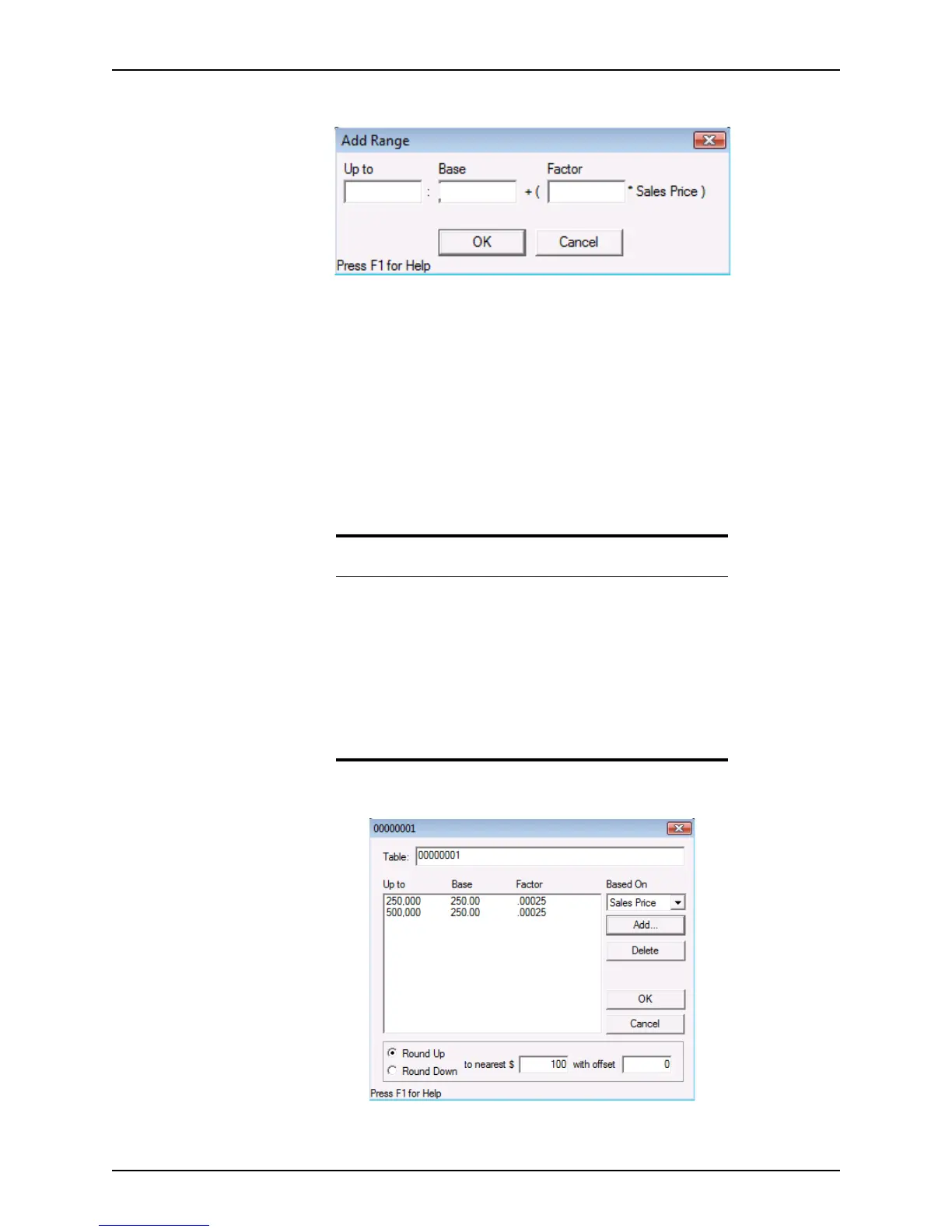
7 Click Add to open the Add Range dialog box.
This dialog box is used to enter the formulas for multiple-tiered fees.
8 Enter the fee tier levels in the
Add Range dialog box:
a Enter the maximum tier amount for the option that you selected in Step 4 (sales
price, loan amount, or appraised value) in the
Upto field.
b Enter the base fee for that tier in the
Base field.
c Enter the fee percentage (in decimal format) for that tier in the
Factor field.
d Click OK.
The values that you entered are displayed in the table dialog box.
e Complete the
Add Range dialog box for each tier in the company’s fee structure.
Based on the example, your fee table will look similar to the following figure:
Important
The fees are calculated cumulatively (that is, the base fee from each
previous tier is added to the total fees). Therefore, when you enter
multiple-tiered fees, subtract the previous tier base fee from the base fee
of the tier you are currently adding to determine the amount to enter in
the
Base field.
For example, if the base fee for the first tier of a fee structure is $250 for
a sales price of up to $250,000, enter $250 in the
Base field. If the
second tier base fee is $500 for a sales price between $250,001 and
$500,000, subtract the first tier base fee ($250) from the second tier
base fee ($500) and enter the result ($250) in the
Base field.



 To Next Page