System User Interface
GARD 8000 SYS RFL Electronics
August 1, 2012 5-6 973.334.3100
5.2 ETHERNET ACCESS
GARD 8000 is delivered with pre-set IP addresses. The front port IP address is fixed, and factory set to
192.168.1.1 with a subnet mask of 255.255.255.0. The rear port IP address is configurable.
The IP Address assigned to the front port is 192.168.1.1 for every GARD 8000 chassis. DO NOT plug
this port into a LAN. You cannot have more than one device with the same address on a network. The
front port is strictly for direct connection to a Laptop PC. The Laptop should have an IP Address on the
same subnet (192.168.1.x) as described below. The front port has no default gateway configured, so it
is not routable. This is done for security purposes.
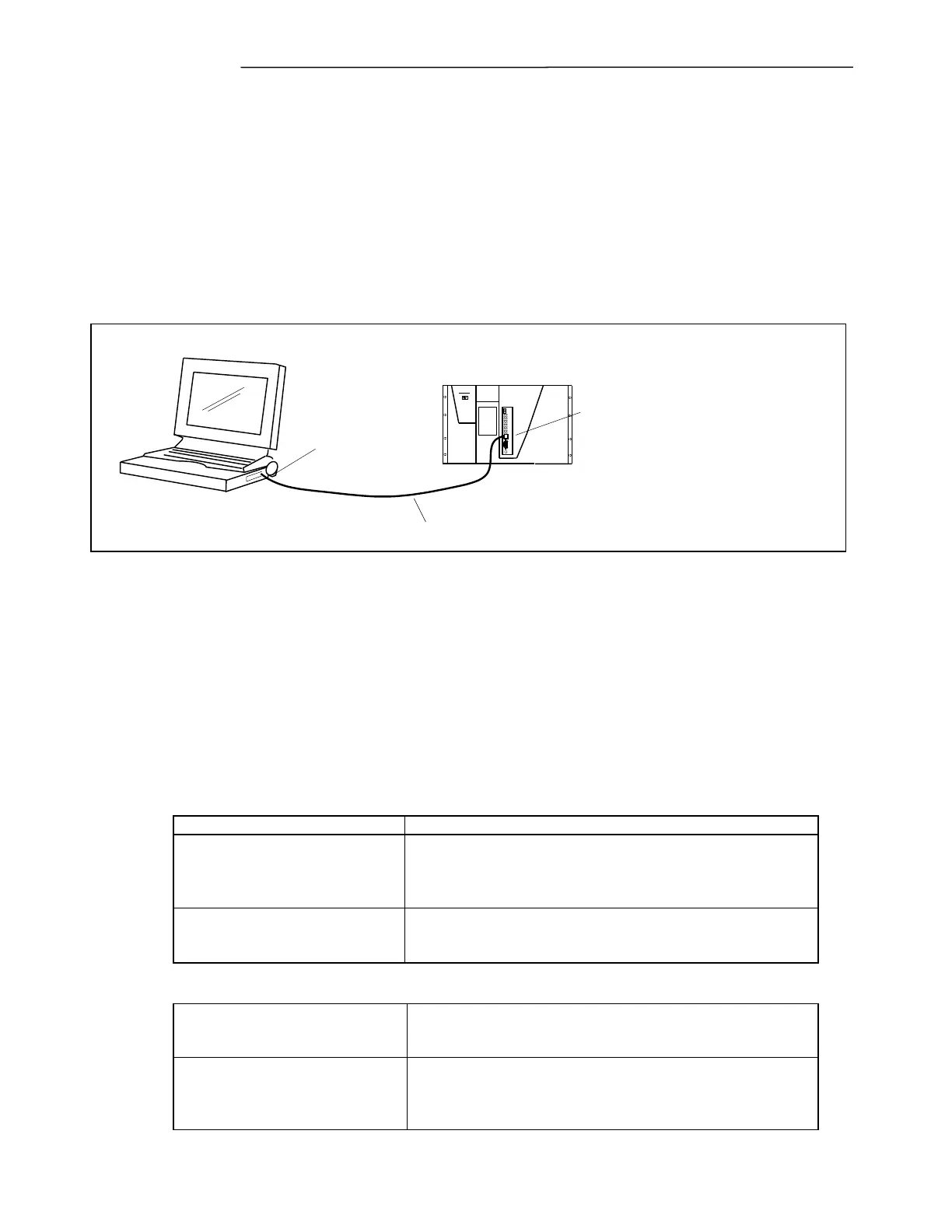
GARD8000
Laptop/Notebook PC
Standard Cat 5 Patch Cable
IP Address: 192.168.1.10
Subnet Mask: 255.255.255.0
IP Address: 192.168.1.1
Subnet Mask: 255.255.255.0
RJ-45 Ethernet Port
RJ-45 Ethernet Port
Figure 5-7. Connecting the GARD to a PC
Note: All GARD 8000 front ethernet ports are preconfigured to an IP address of 192.168.1.1 at
the factory, and cannot be changed.
Connect a standard Cat 5 Patch Cable from the RJ-45 Ethernet port on your PC to the front RJ-45
Ethernet port on the GARD 8000 as shown in Figure 5-7.
See
Front Ethernet Port LED’s
Table 5-1. Front Ethernet port LEDs
Top LED (6U)
Left LED (3U)
Display Link and Receive Status.
o Solid color indicates Link.
o Blinking color indicates Link and Ethernet
Frames being received.
Bottom LED (6U)
Right LED (3U)
Display Transmit Status.
o Blinking color indicates Link and Ethernet
Frames being transmitted.
Table 5-2. Ethernet cables
Normal straight-through Ethernet Cable when plugged into a
hub. The Hub provides the cross-connection so that each
transmitter communicates with the receiver of the remote side.
Front Ethernet Connection
Normal straight-through Ethernet Cable
when plugged directly into a Laptop. The Display Board
provides the cross-connection so that each transmitter
communicates with the receiver of the remote side.


 To Next Page